> ## Documentation Index
> Fetch the complete documentation index at: https://docs.onspace.ai/llms.txt
> Use this file to discover all available pages before exploring further.
# RevenueCat Integration
> A comprehensive guide to setting up RevenueCat for your application.
### **Getting Started with RevenueCat**
This guide will walk you through the essential steps to integrate RevenueCat with your application, focusing on App Store Connect configuration.
### **What's RevenueCat Integration?**
RevenueCat helps you manage subscriptions and in-app purchases for your mobile app. This integration allows you to monetize your OnSpace-built app with ease.
## **1. Prerequisites**
* An OnSpace app published to the App Store
* Apple Developer Account access
* App Store Connect access
* Setup all required steps under [https://appstoreconnect.apple.com/business](https://appstoreconnect.apple.com/business)
#### **Step 1: Create RevenueCat Account**
**Sign up for RevenueCat**
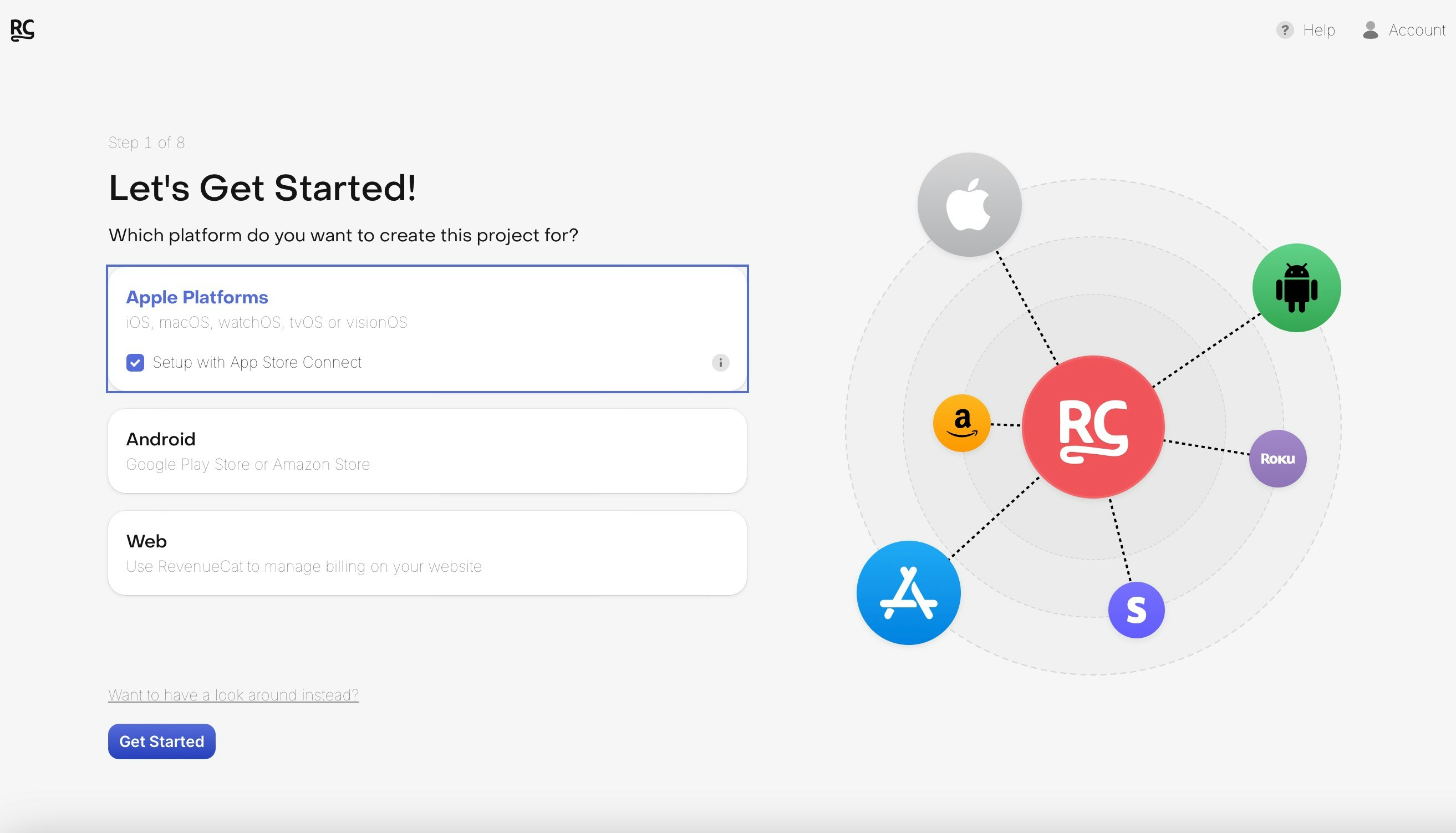
* Go to [RevenueCat](https://www.revenuecat.com/) and create an account
* Select **Apple** as your platform during setup
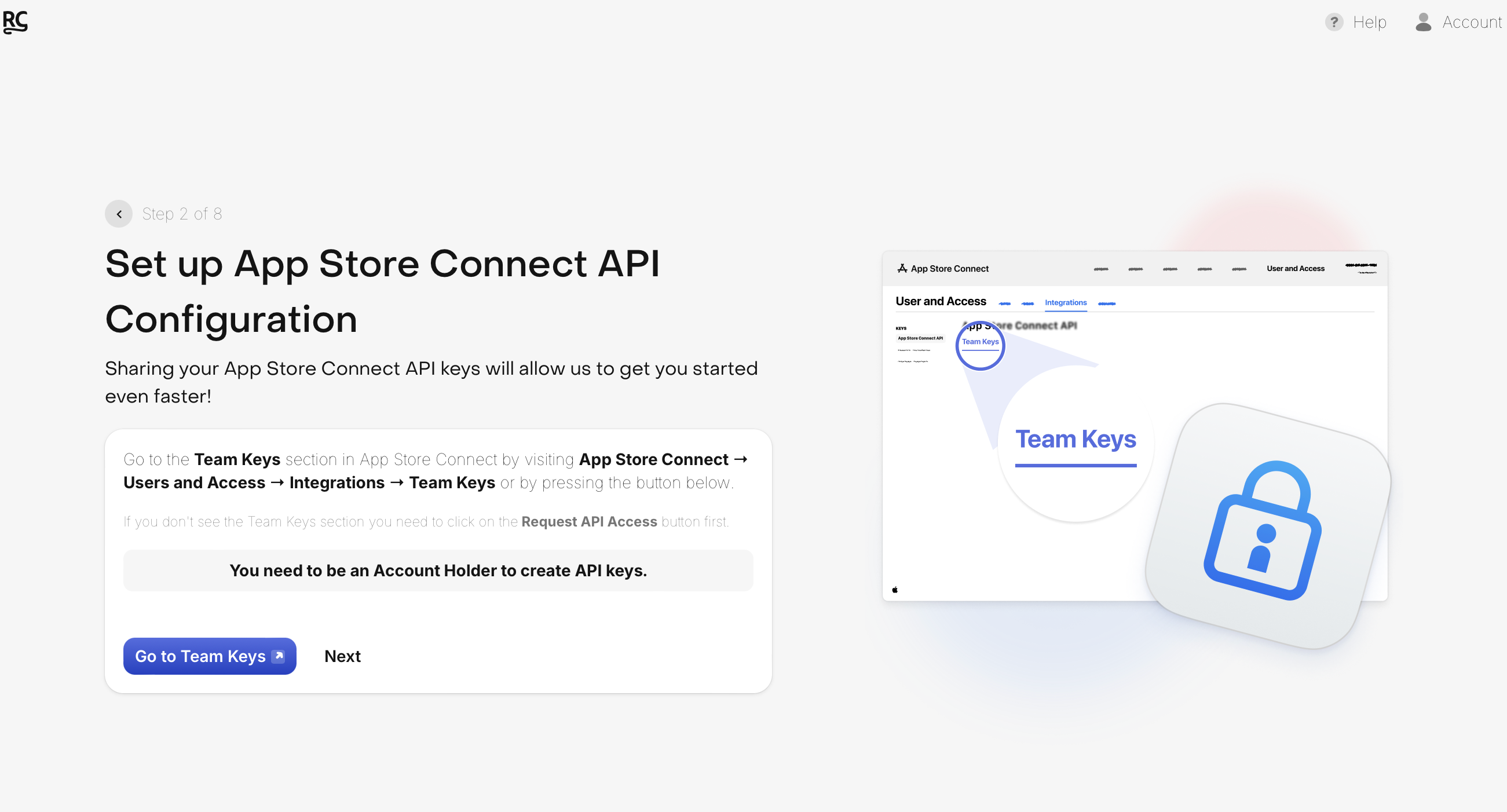
 #### **Step 2: Generate App Store Connect API Key**
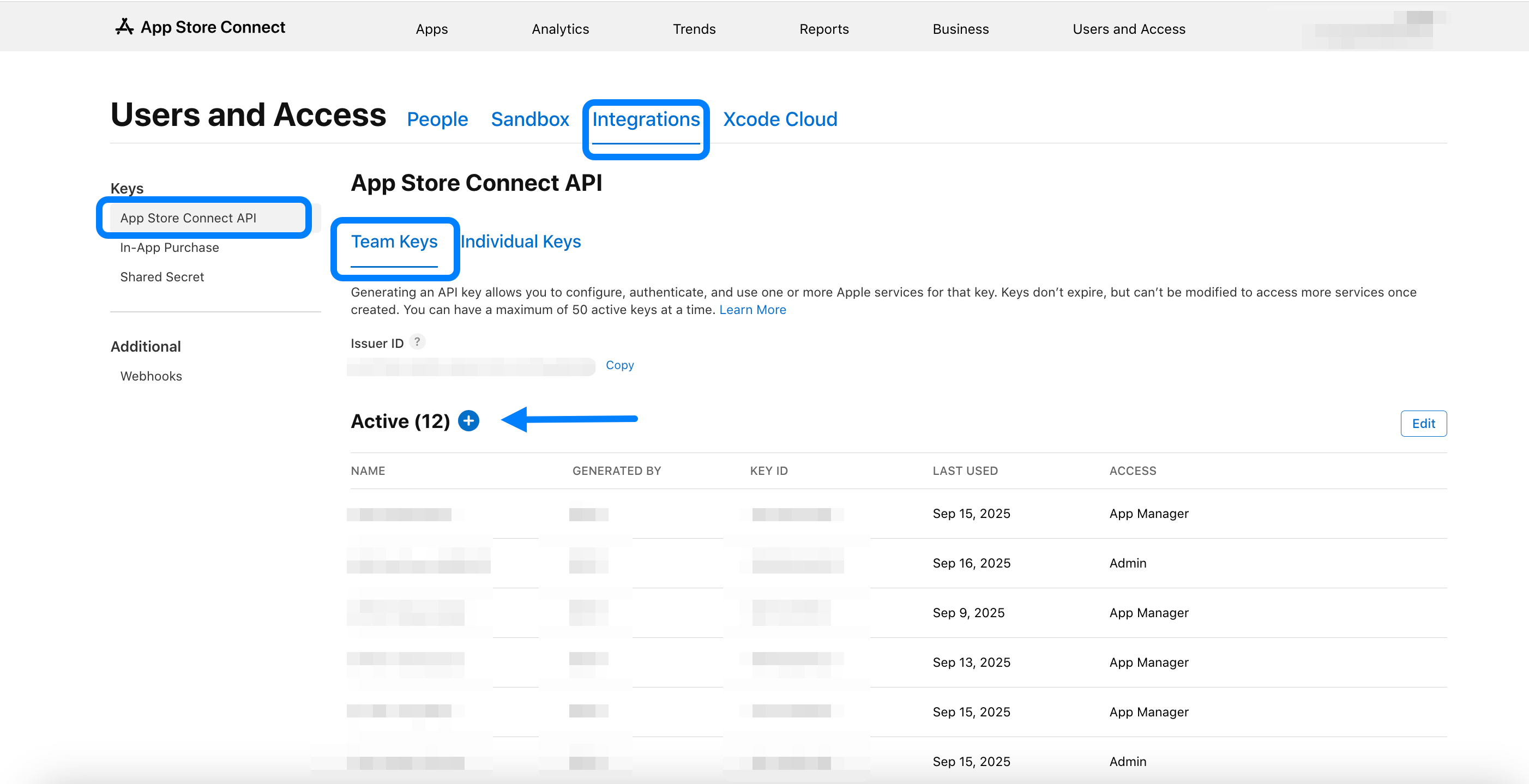
Navigate to **App Store Connect** → **Users and Access** → **Integrations** → **Team Keys**
#### **Step 2: Generate App Store Connect API Key**
Navigate to **App Store Connect** → **Users and Access** → **Integrations** → **Team Keys**
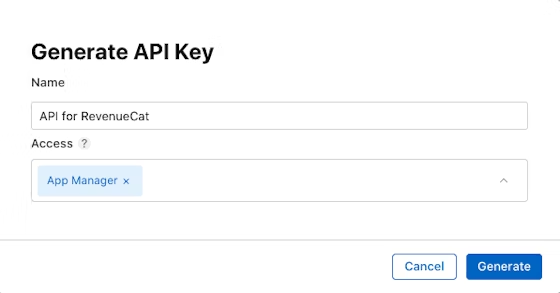
 ### **Create New API Key**
1. **Click** "Create New API Key" button
2. **Set Access Level** to "App Manager" (minimum required)
### **Create New API Key**
1. **Click** "Create New API Key" button
2. **Set Access Level** to "App Manager" (minimum required)
 3. **Download** the API key (.p8 file) and save it securely
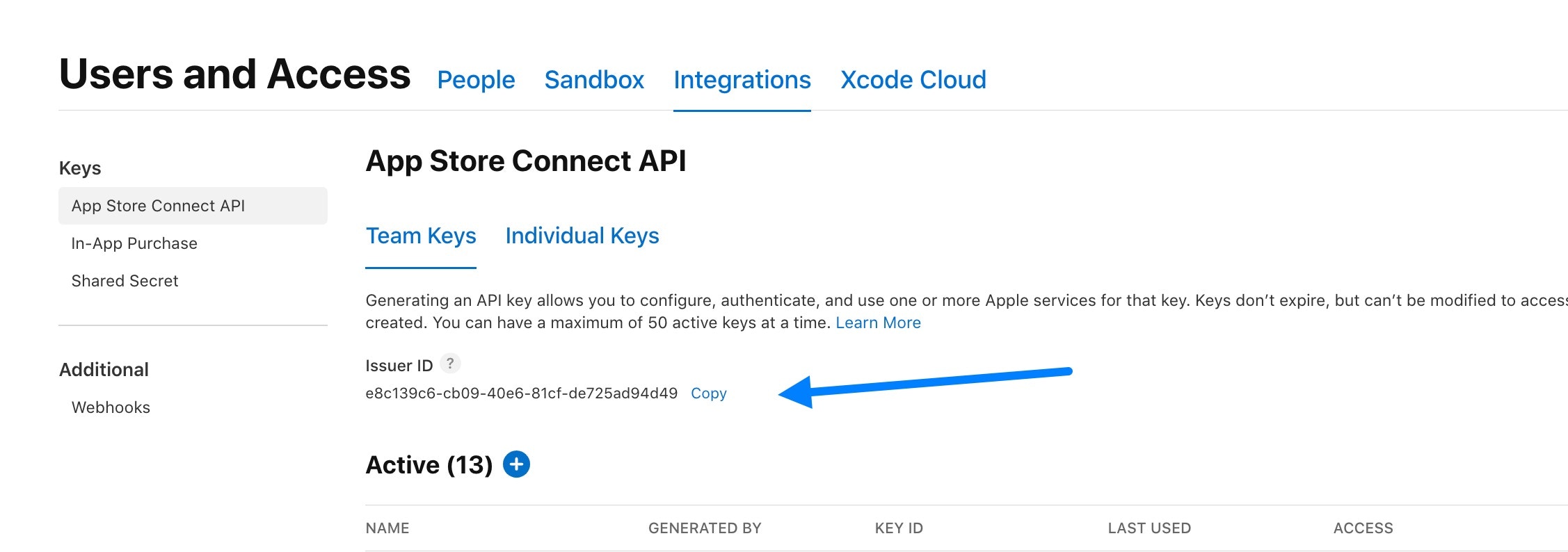
4. **Copy** the Issuer ID from the API page
3. **Download** the API key (.p8 file) and save it securely
4. **Copy** the Issuer ID from the API page
 #### **Step 3: Upload API Key to RevenueCat**
Return to RevenueCat dashboard
#### **Step 3: Upload API Key to RevenueCat**
Return to RevenueCat dashboard
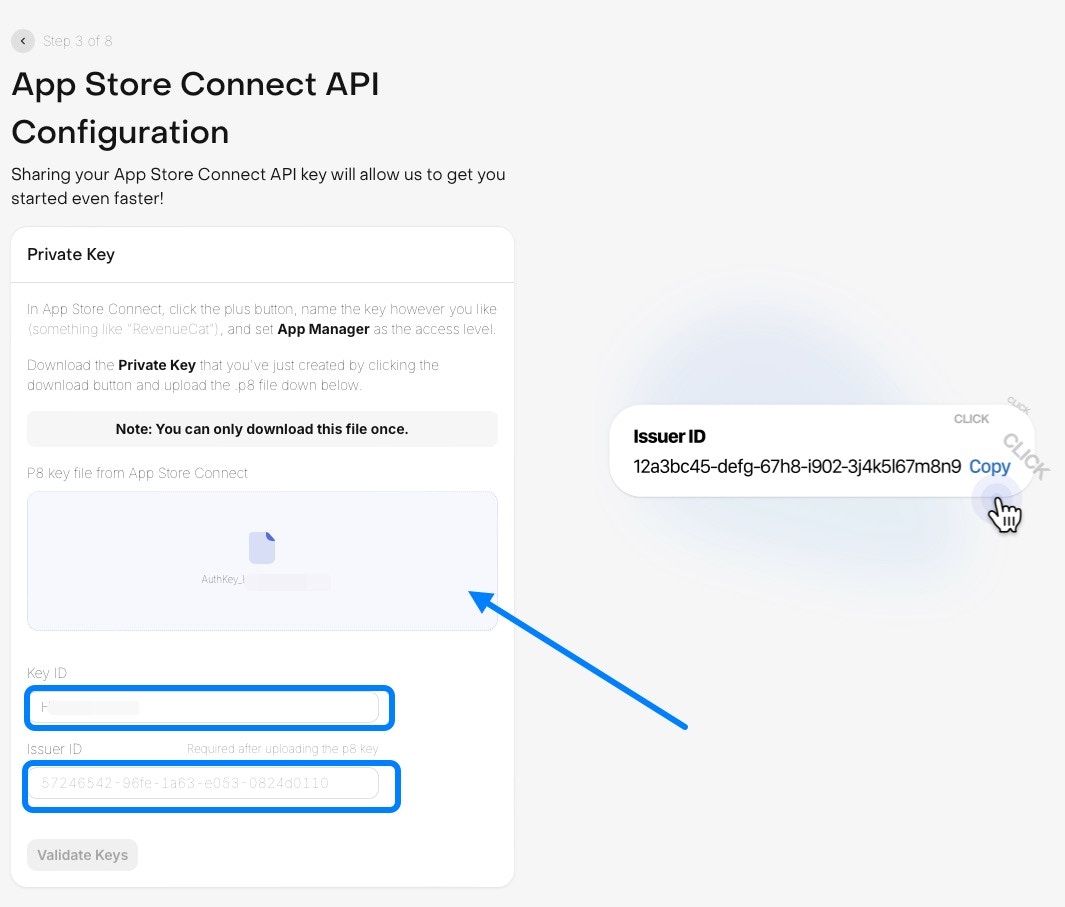 Upload the .p8 file you downloaded
Paste the Issuer ID you copied from App Store Connect
Upload the .p8 file you downloaded
Paste the Issuer ID you copied from App Store Connect
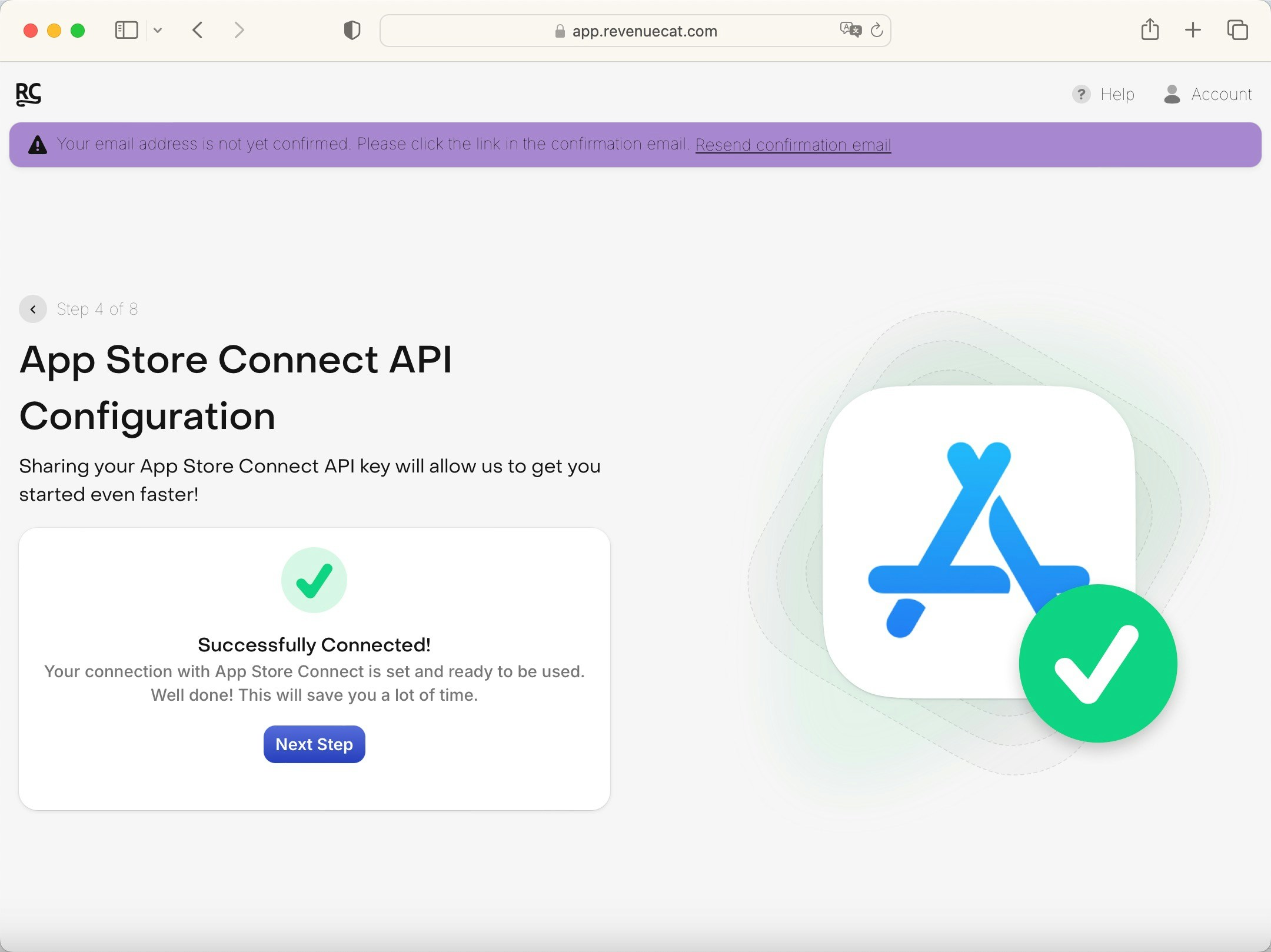
 Save the configuration
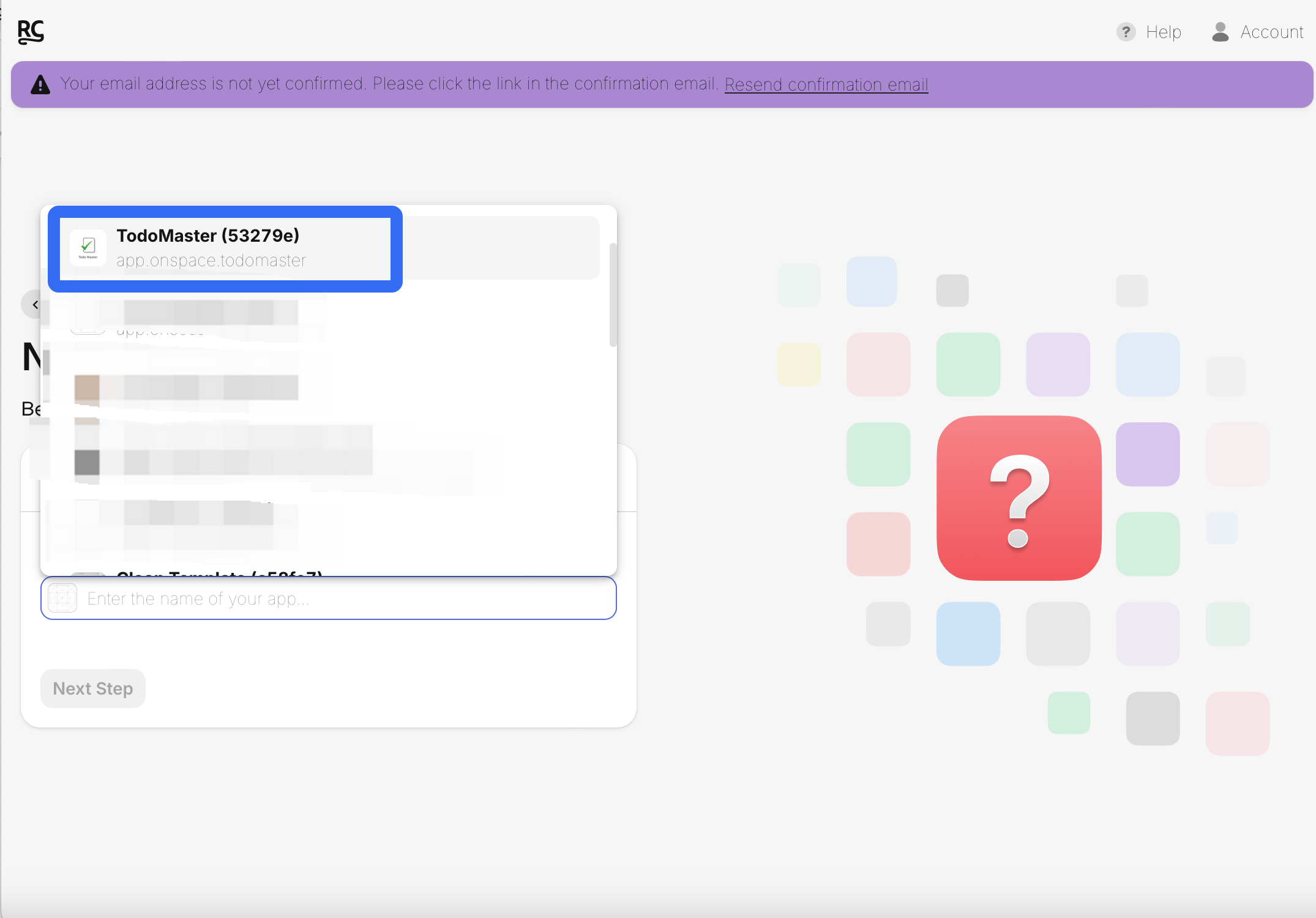
#### **Step 4&5: Select Your App**
RevenueCat will automatically read your apps from App Store Connect:
* **Select** the app you want to set up with RevenueCat
* **Don't have an app yet?** Build your first app with OnSpace and publish it to the App Store first
Save the configuration
#### **Step 4&5: Select Your App**
RevenueCat will automatically read your apps from App Store Connect:
* **Select** the app you want to set up with RevenueCat
* **Don't have an app yet?** Build your first app with OnSpace and publish it to the App Store first
 #### **Step 6: Set Up In-App Purchase Configuration**
Navigate to **App Store Connect** → **Users and Access** → **Integrations** → **In-App Purchase**
### **Generate In-App Purchase Key**
#### **Step 6: Set Up In-App Purchase Configuration**
Navigate to **App Store Connect** → **Users and Access** → **Integrations** → **In-App Purchase**
### **Generate In-App Purchase Key**
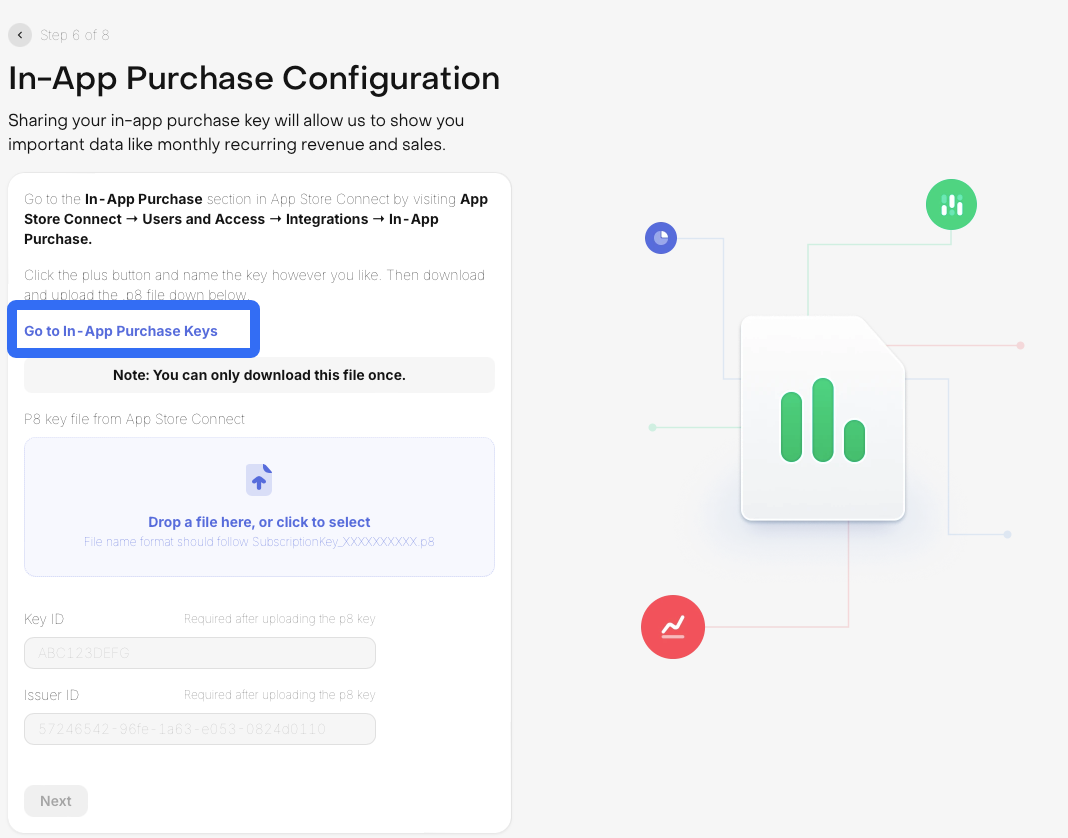 1. **Click** "Go to In-App Purchase Keys"
2. **Navigate** to Users and Access → Integrations
1. **Click** "Go to In-App Purchase Keys"
2. **Navigate** to Users and Access → Integrations
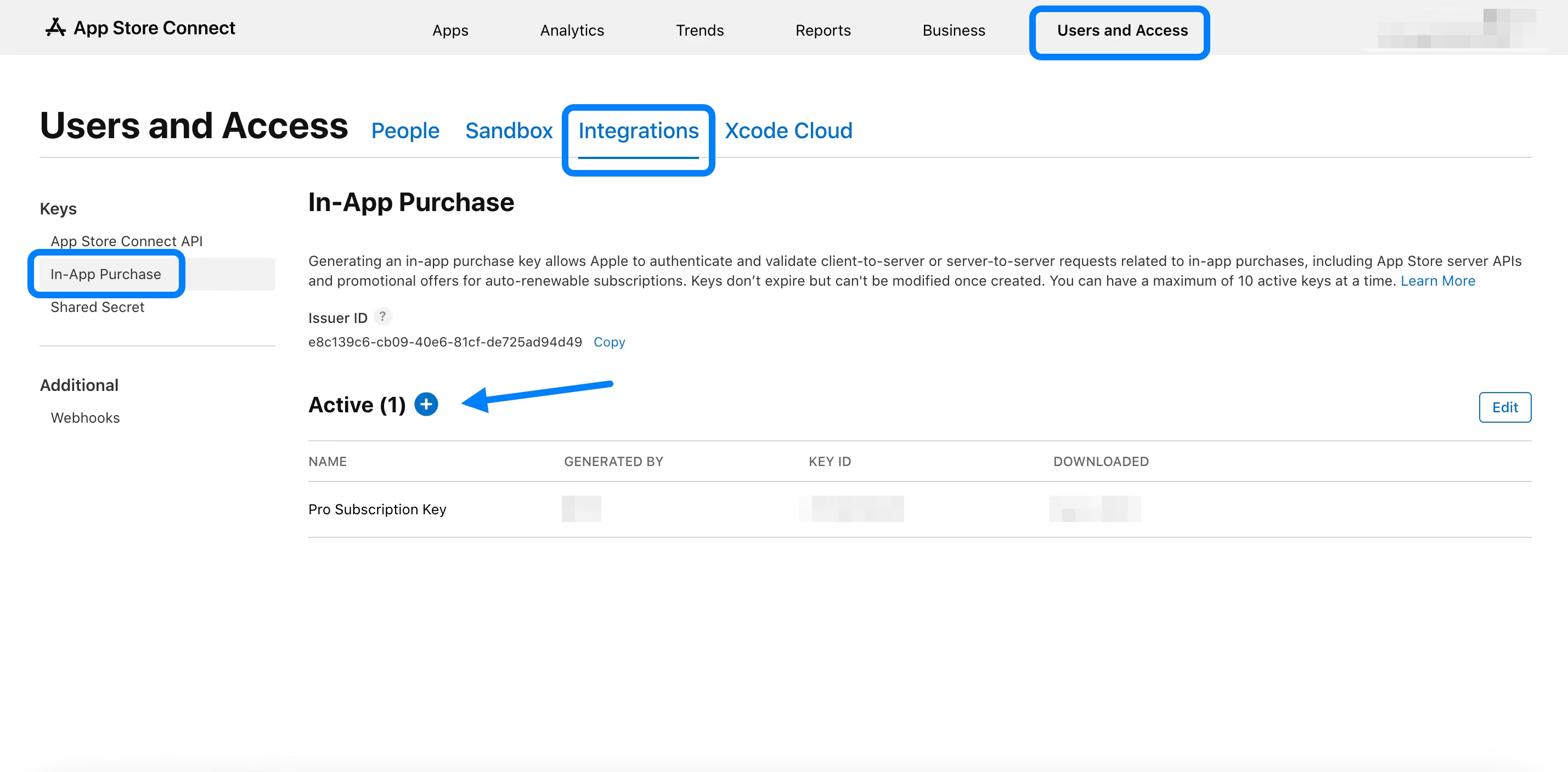 3. **Select** In-App Purchase
4. **Click** "Generate In-App Purchase Key" or the "+" symbol
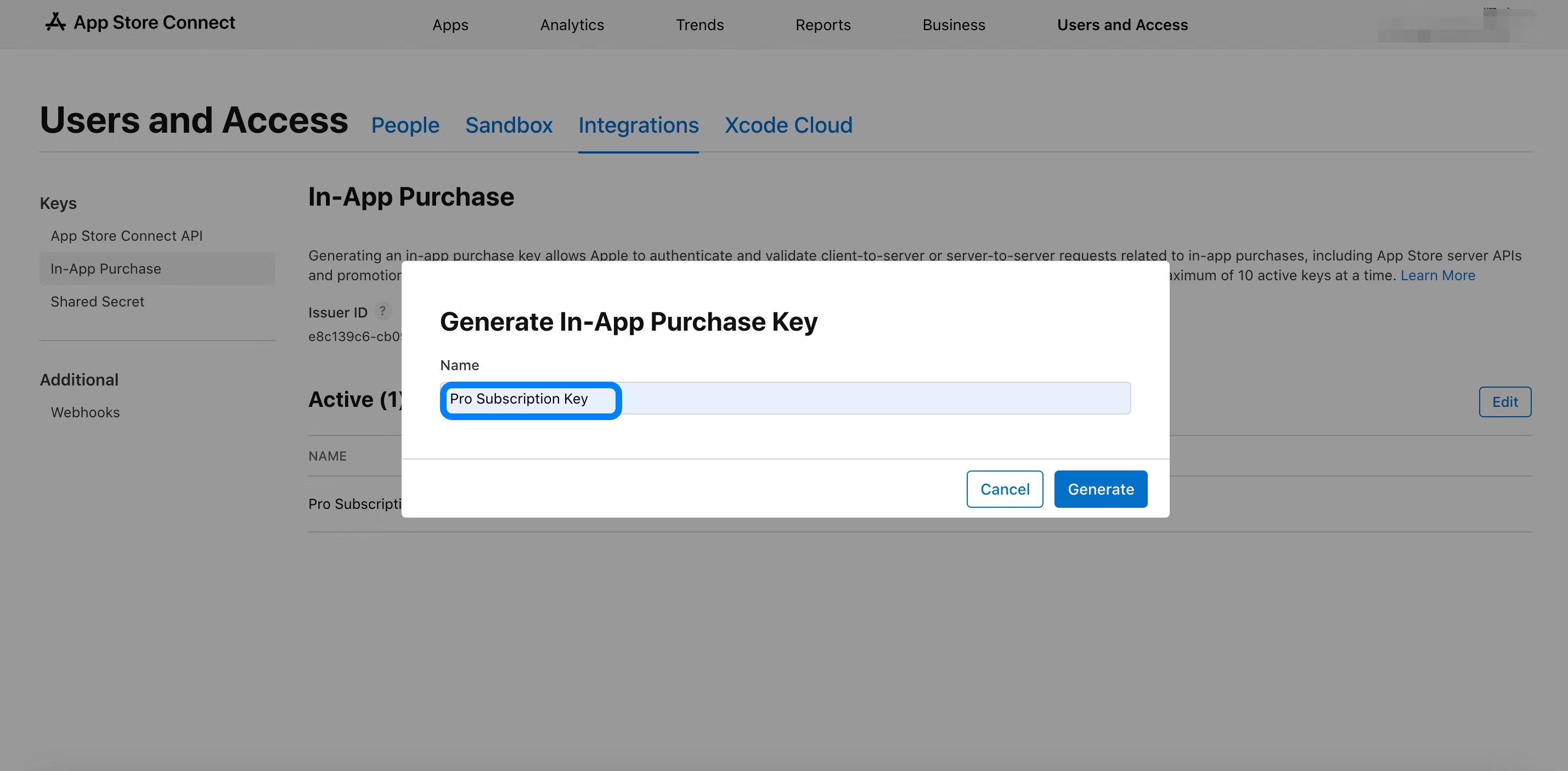
5. **Enter** a name for the key when prompted
3. **Select** In-App Purchase
4. **Click** "Generate In-App Purchase Key" or the "+" symbol
5. **Enter** a name for the key when prompted
 **Important Notes**
You have one opportunity to download the API key
The key will appear under "Active Keys"
Upload this key to RevenueCat dashboard
#### Step 7: Product Setup
**Skip manual product creation in RevenueCat.** Instead:
1. **Set up products** in App Store Connect first
2. **Import products** directly back to RevenueCat
3. This ensures consistency and reduces setup errors
#### **Step 8: Export Dashboard**
1. **Click** "Export Dashboard"
2. **You're all set!** Your RevenueCat integration is now complete
**Important Notes**
You have one opportunity to download the API key
The key will appear under "Active Keys"
Upload this key to RevenueCat dashboard
#### Step 7: Product Setup
**Skip manual product creation in RevenueCat.** Instead:
1. **Set up products** in App Store Connect first
2. **Import products** directly back to RevenueCat
3. This ensures consistency and reduces setup errors
#### **Step 8: Export Dashboard**
1. **Click** "Export Dashboard"
2. **You're all set!** Your RevenueCat integration is now complete
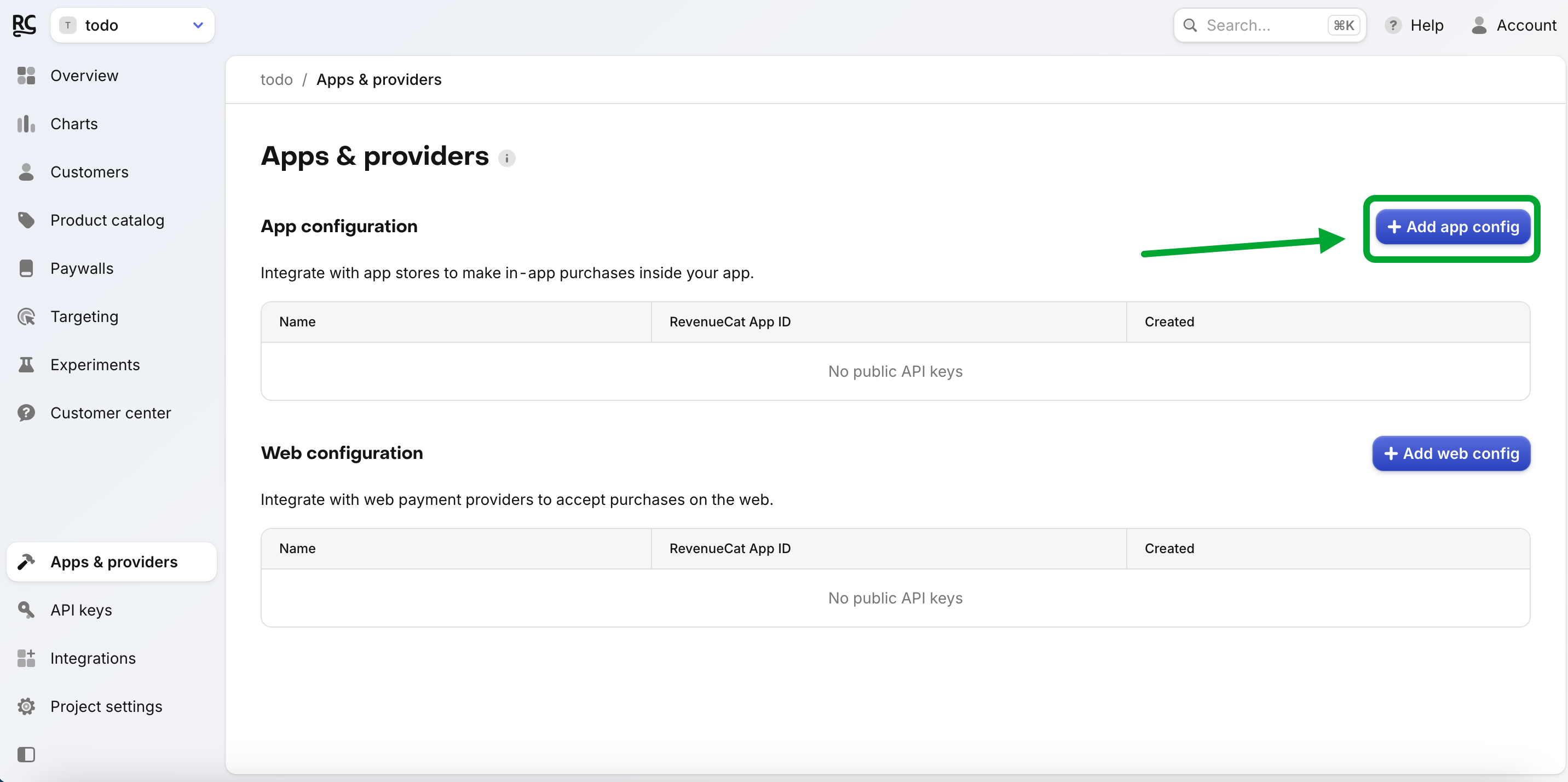
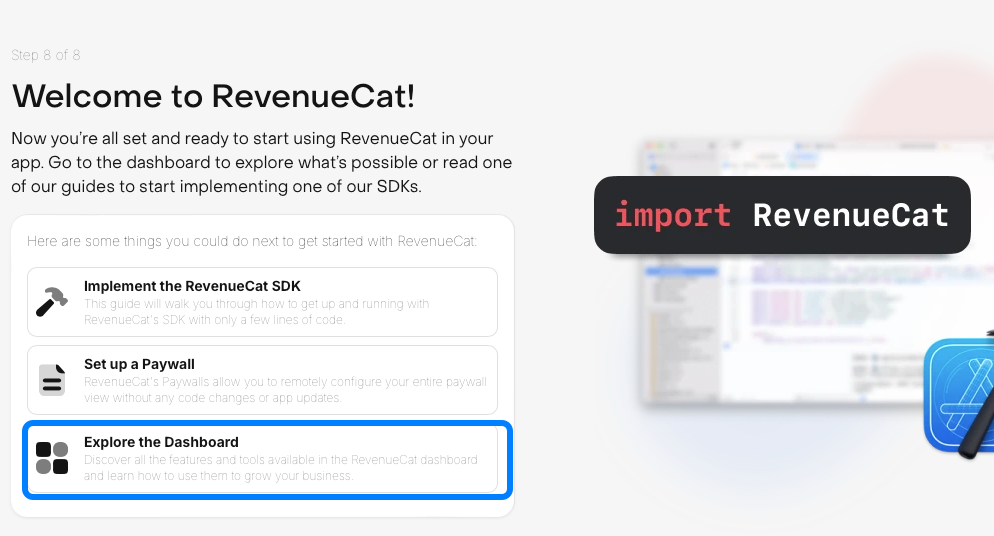 ### **2. Add App Configuration**
* Navigate to your project settings and begin configuring your app.
### **2. Add App Configuration**
* Navigate to your project settings and begin configuring your app.
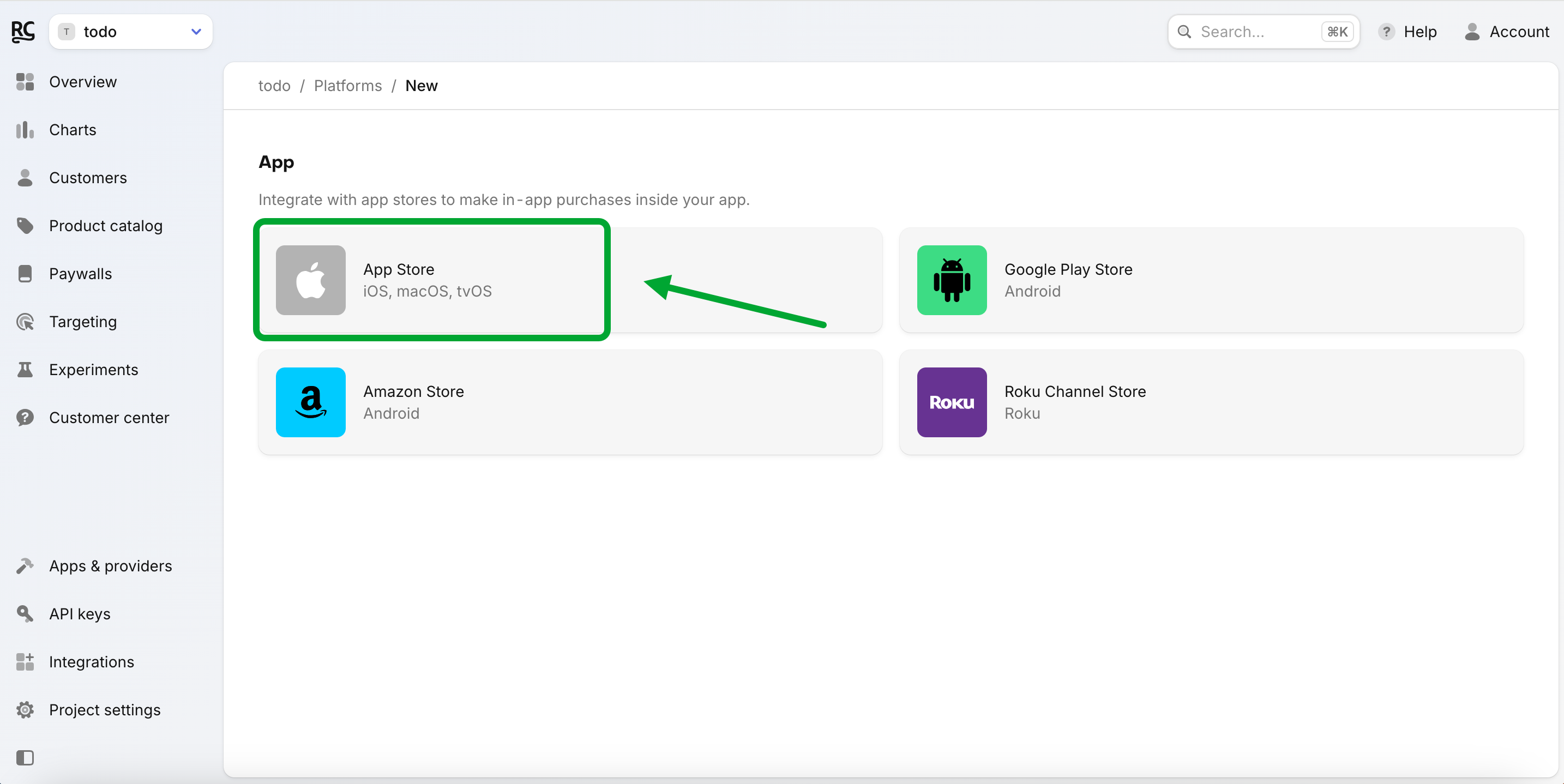
 ### **3. Select App Store**
* Choose **App Store** as your platform.
### **3. Select App Store**
* Choose **App Store** as your platform.
 ### **4. Add App Bundle ID**
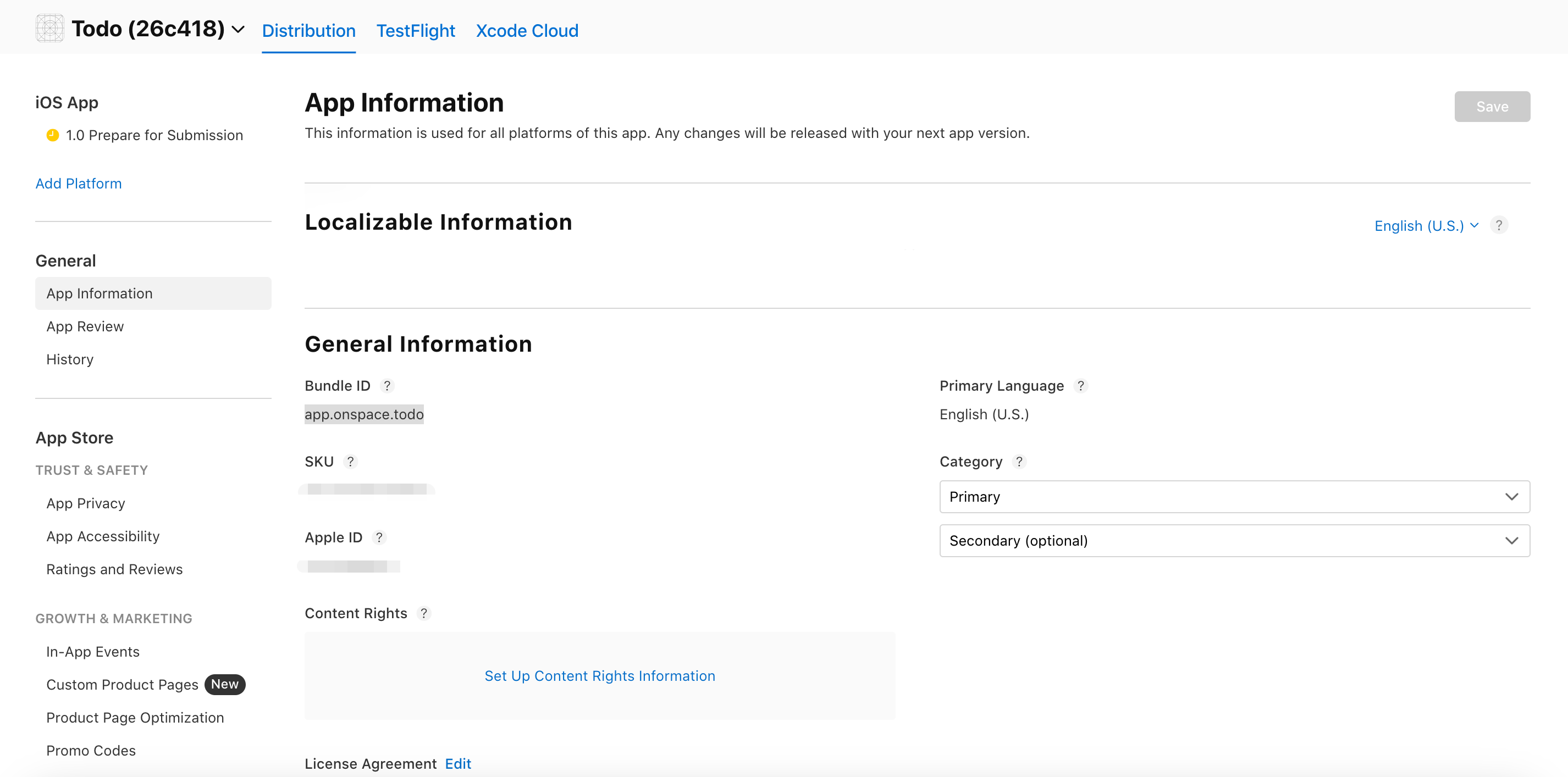
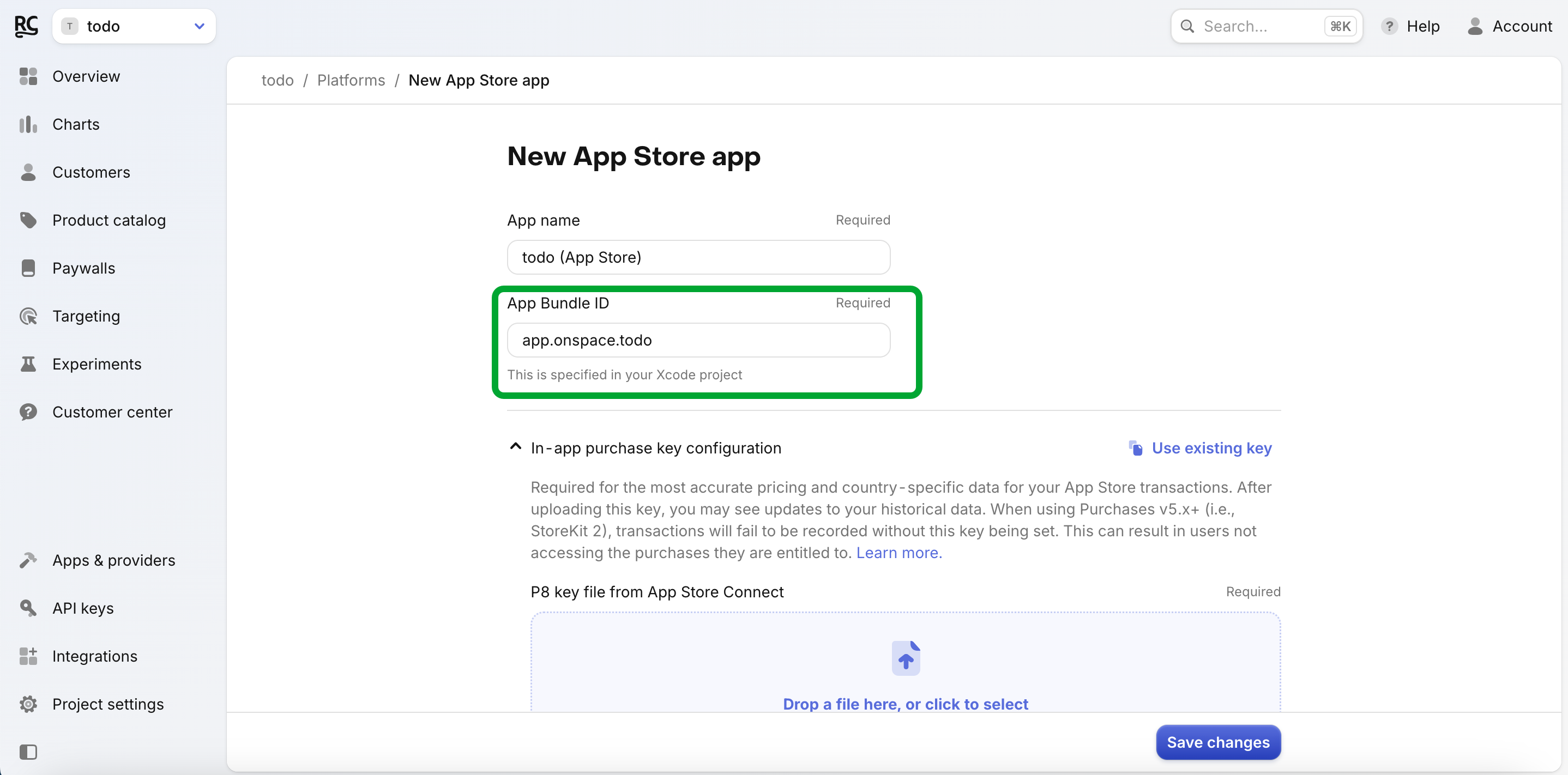 * **Where to find your "App Bundle ID":**
1. Go to **App Store Connect**.
2. Navigate to **General** ➡️ **App Information**.
3. Copy the **Bundle ID** found under the General Information section.
* Paste this Bundle ID into the corresponding field in RevenueCat.
* **Where to find your "App Bundle ID":**
1. Go to **App Store Connect**.
2. Navigate to **General** ➡️ **App Information**.
3. Copy the **Bundle ID** found under the General Information section.
* Paste this Bundle ID into the corresponding field in RevenueCat.
 ***
### **5. Add App-Specific Shared Secret**
***
### **5. Add App-Specific Shared Secret**
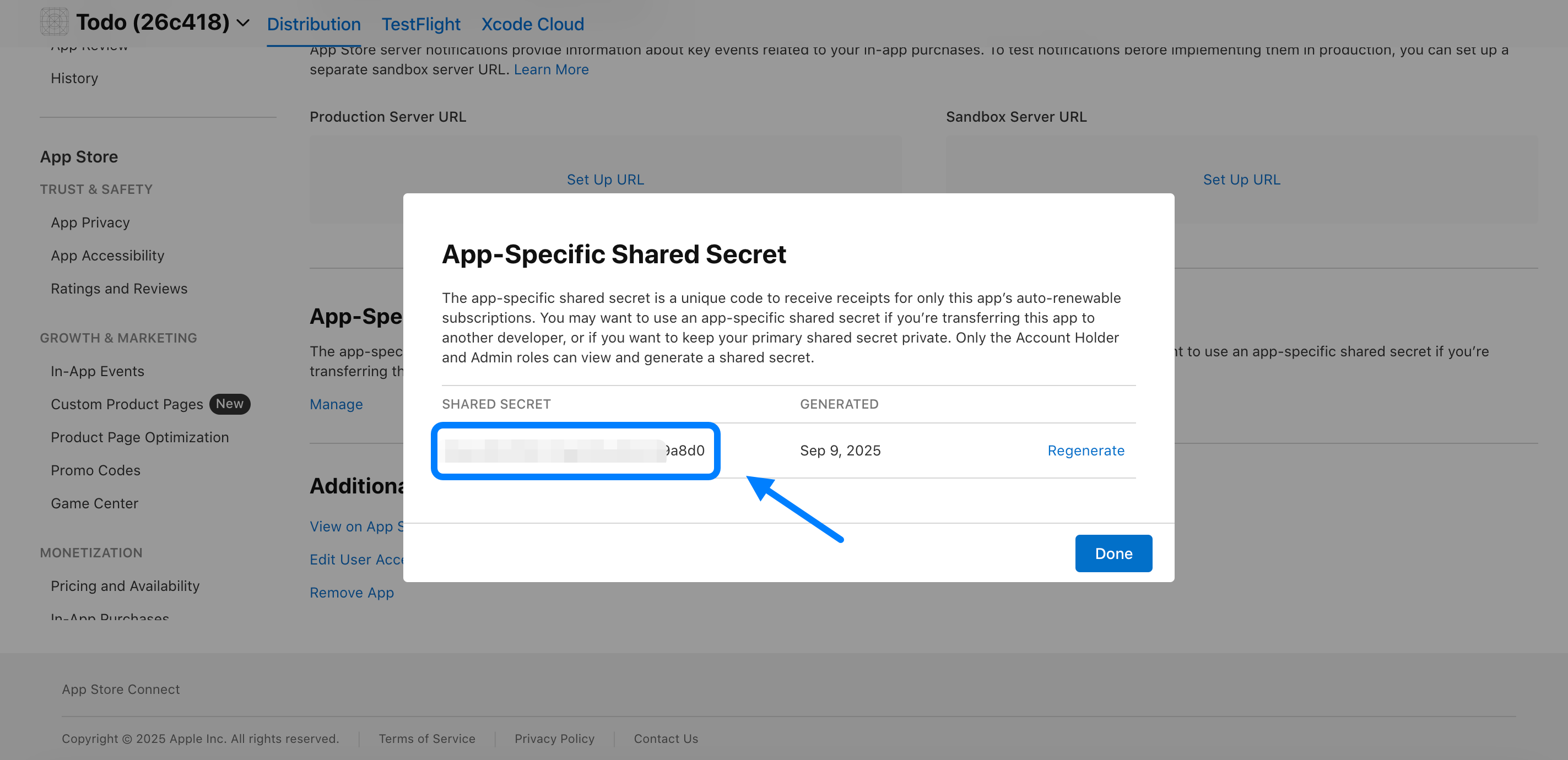
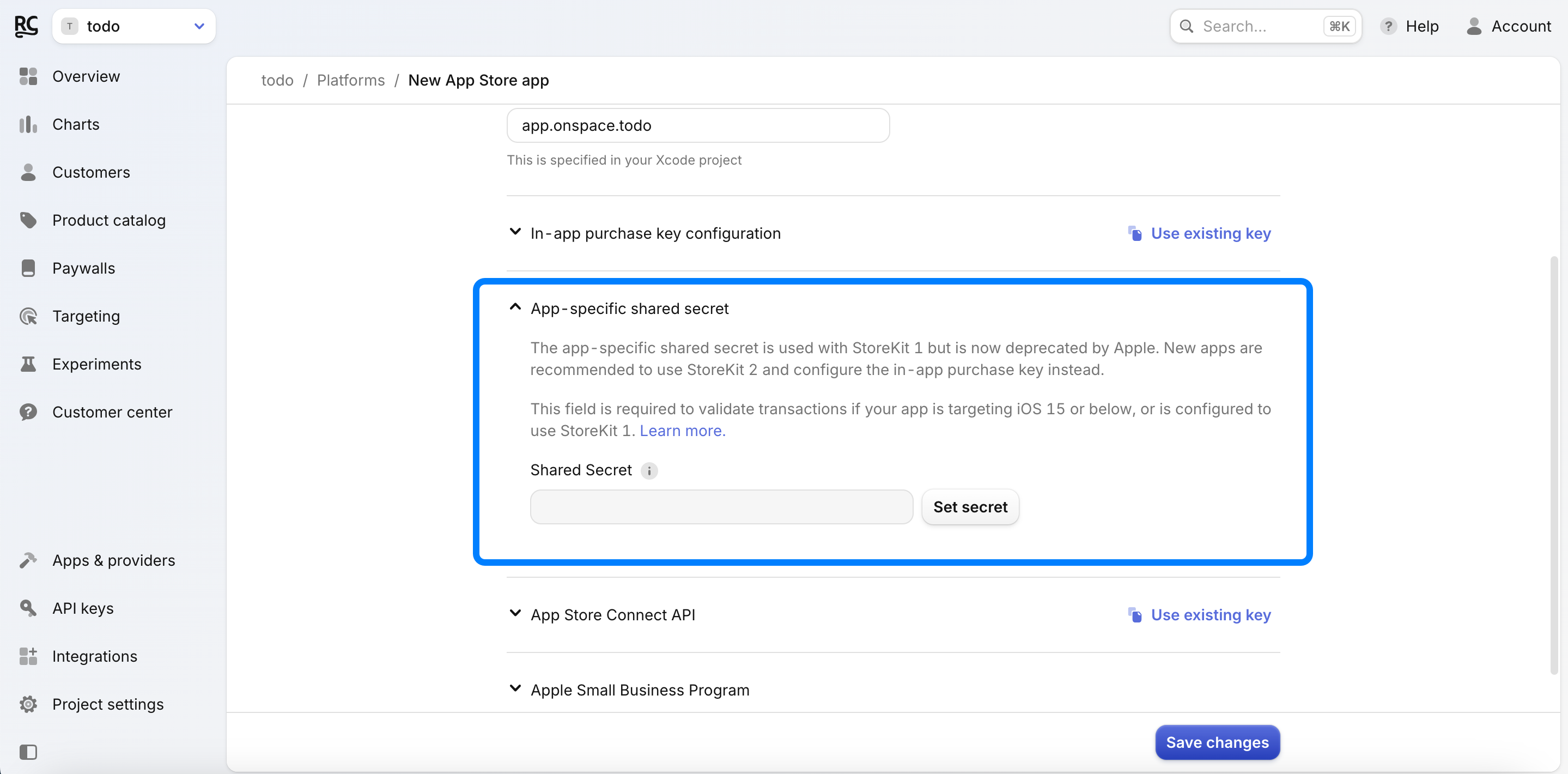 * **Where to find your "App-specific Shared Secret":**
1. Go to **App Store Connect**.
2. Navigate to **General** ➡️ **App Information**.
3. Locate the **App-Specific Shared Secret** section.
* **Where to find your "App-specific Shared Secret":**
1. Go to **App Store Connect**.
2. Navigate to **General** ➡️ **App Information**.
3. Locate the **App-Specific Shared Secret** section.
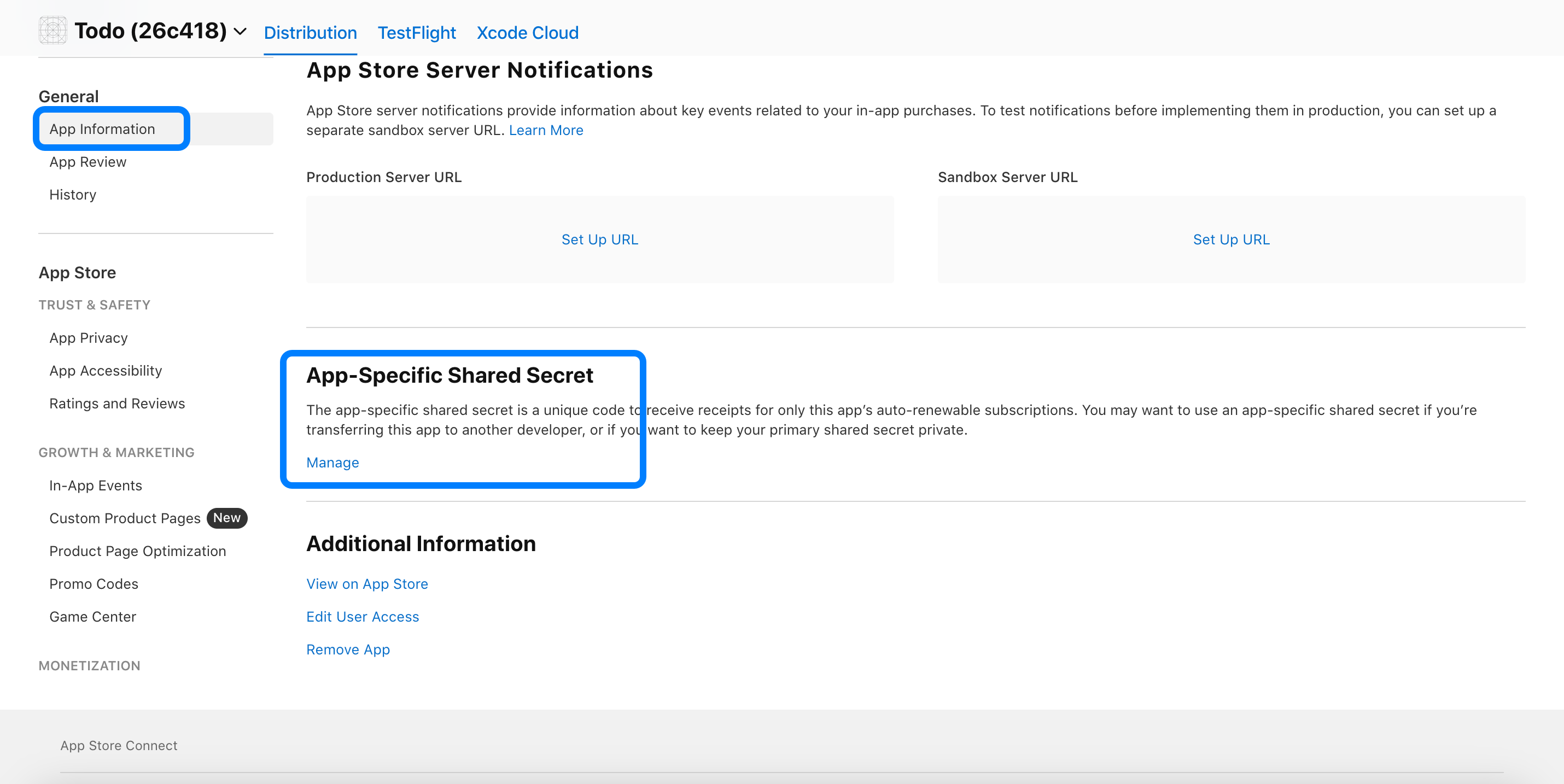 4. Click **Manage** ➡️ **Generate**.
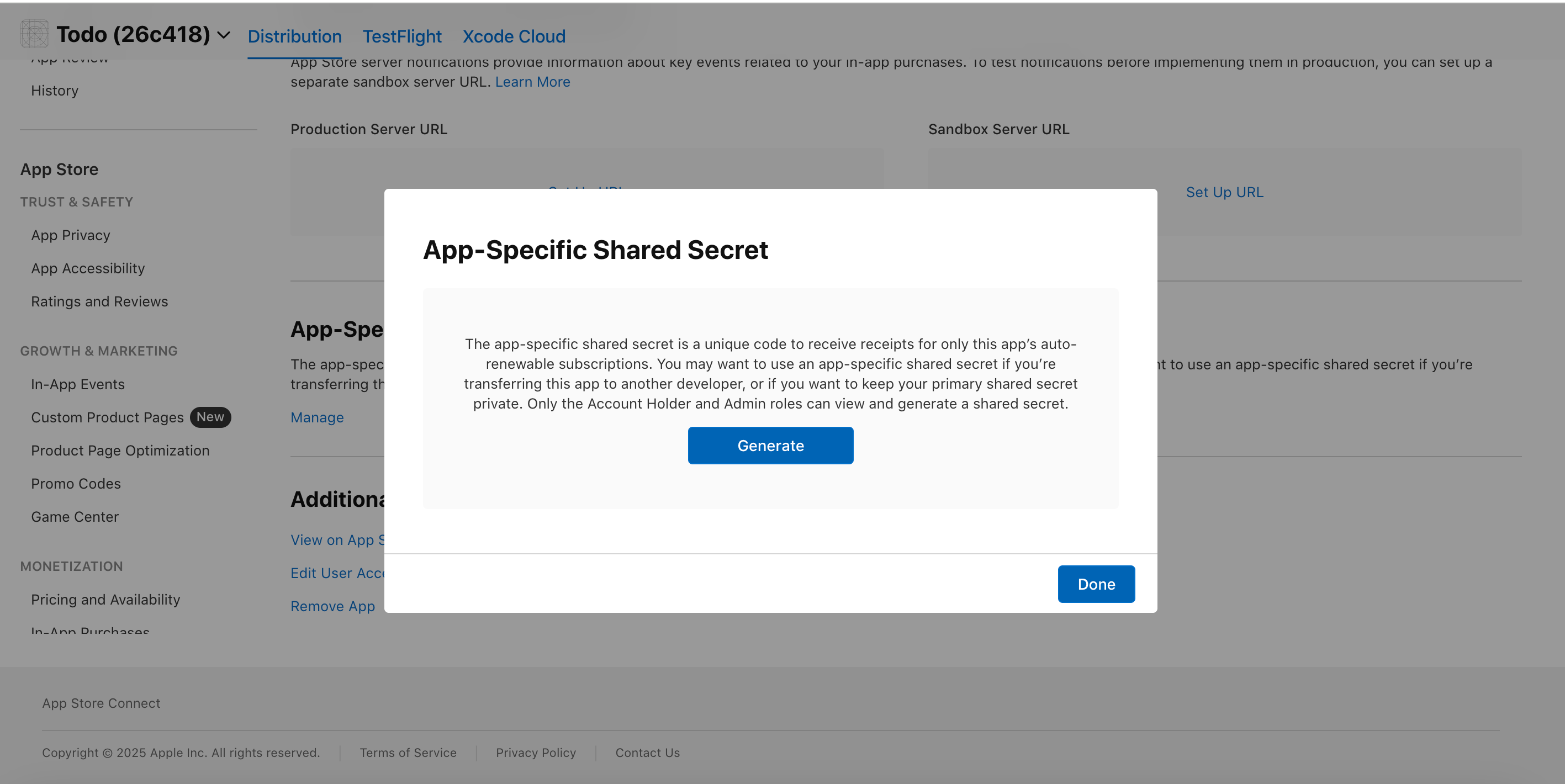 5. Copy the generated **Shared Secret**.
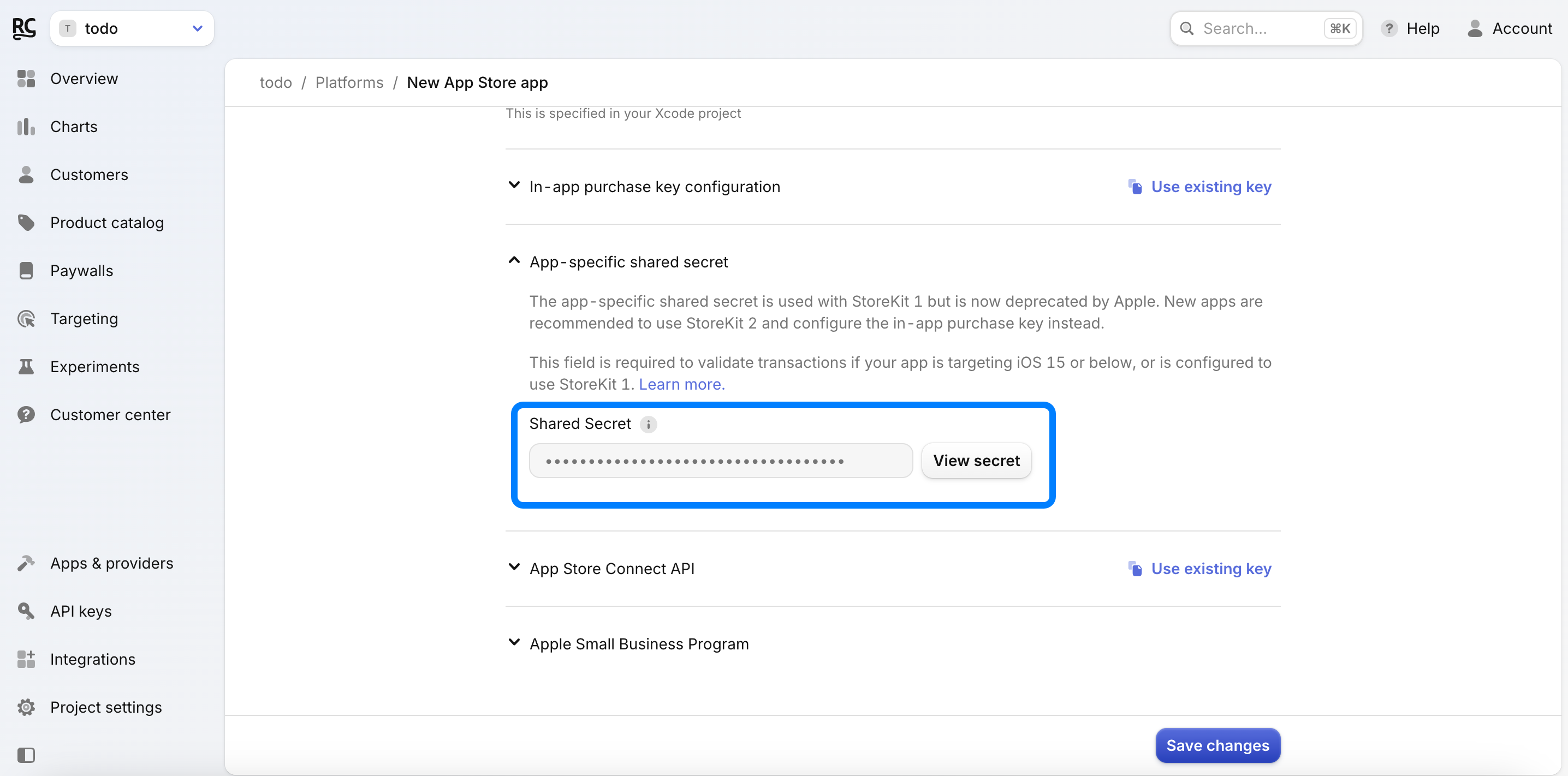
 * Paste this Shared Secret into the designated field in RevenueCat.
 ***
### **6. Add In-App Purchase Key Configuration**
***
### **6. Add In-App Purchase Key Configuration**
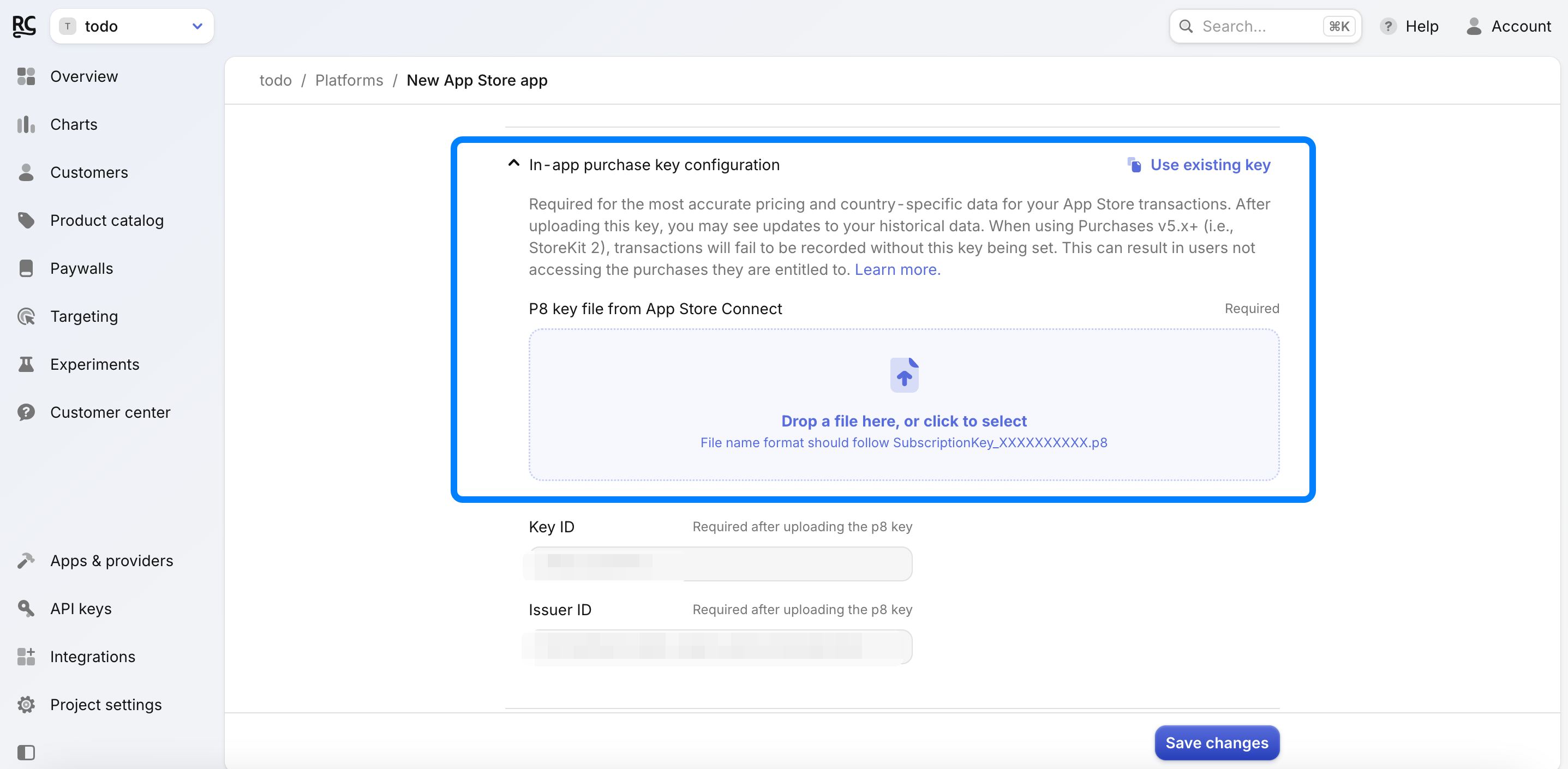 * **Where to find your "In-app purchase key configuration":**
1. Go to **App Store Connect**.
2. Navigate to **Users and Access** ➡️ **Integrations**.
3. Select **In-App Purchase**.
* **Where to find your "In-app purchase key configuration":**
1. Go to **App Store Connect**.
2. Navigate to **Users and Access** ➡️ **Integrations**.
3. Select **In-App Purchase**.
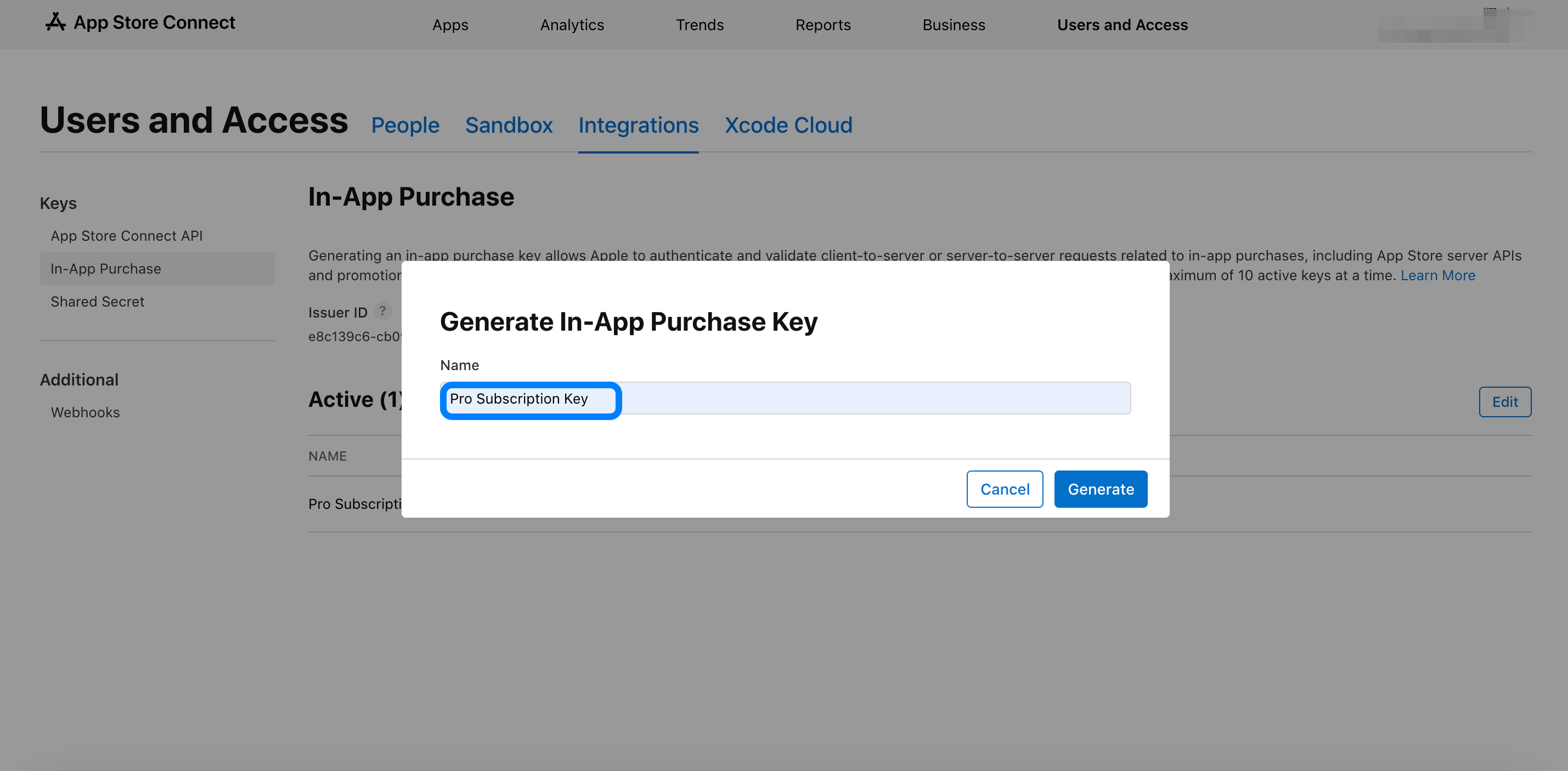
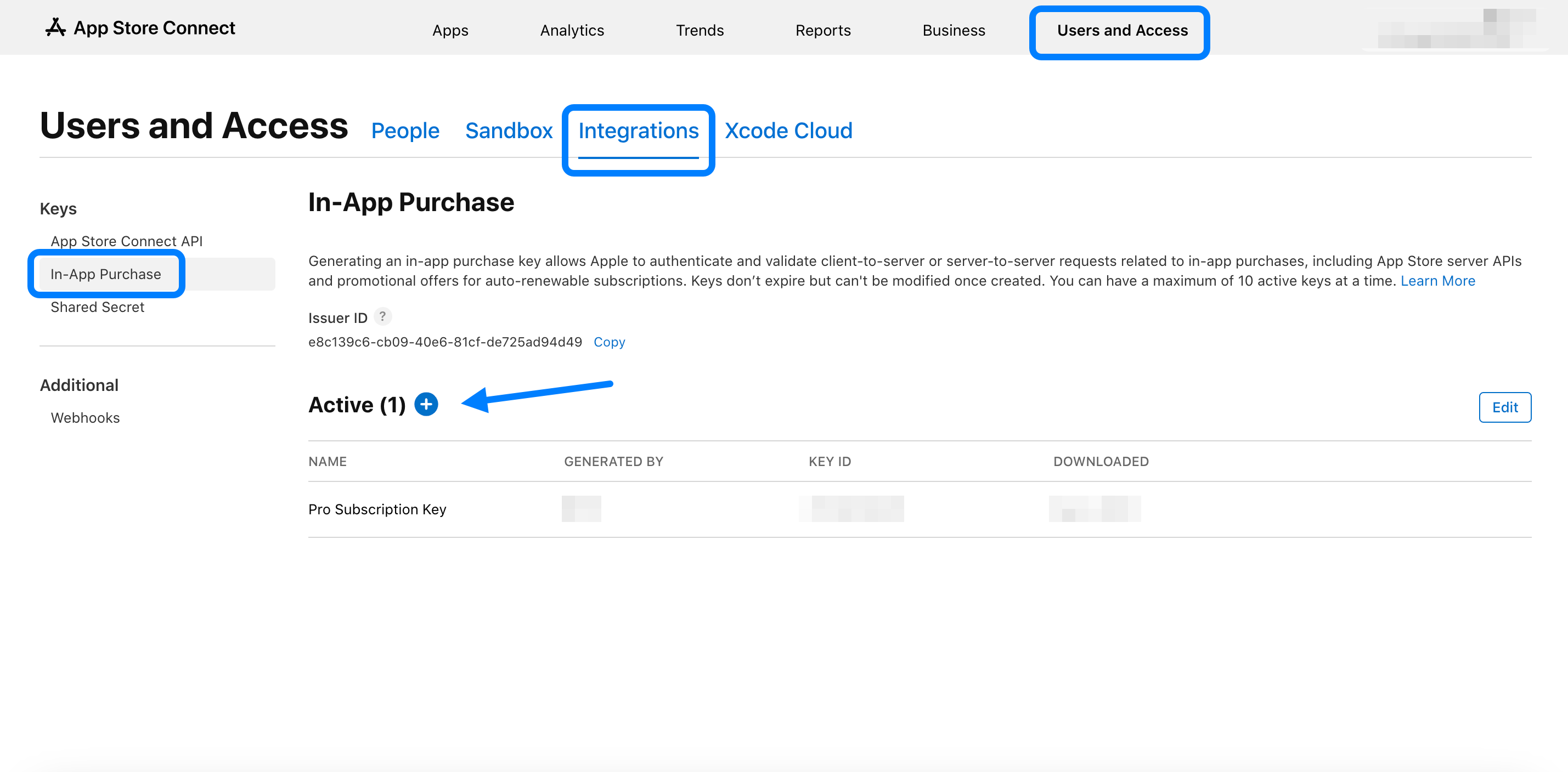 4. Click **Generate In-App Purchase Key**, or click the **"+" symbol** next to the "Active" header if you have generated one previously.
5. Enter a name for the key when prompted.
4. Click **Generate In-App Purchase Key**, or click the **"+" symbol** next to the "Active" header if you have generated one previously.
5. Enter a name for the key when prompted.
 6. Once generated, your key will appear under **Active Keys**. You will have one opportunity to **Download API Key**.
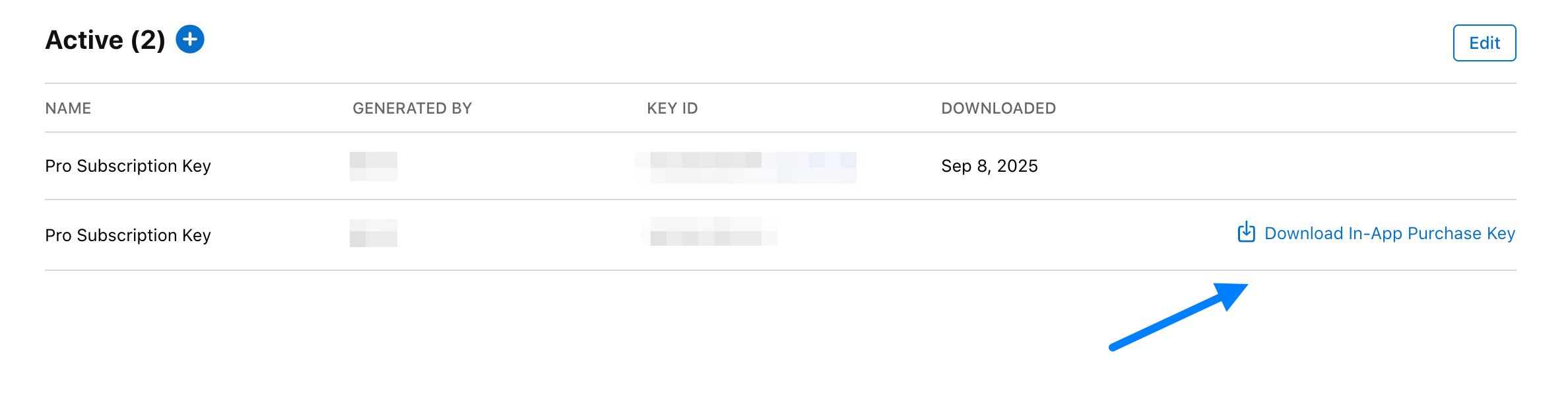 7. Store this downloaded `.p8` file securely, as you will need to upload it to RevenueCat.
* **Uploading the In-App Purchase Key to RevenueCat:**
1. In the RevenueCat dashboard, select your App Store app from the **Apps & providers** page within your project settings.
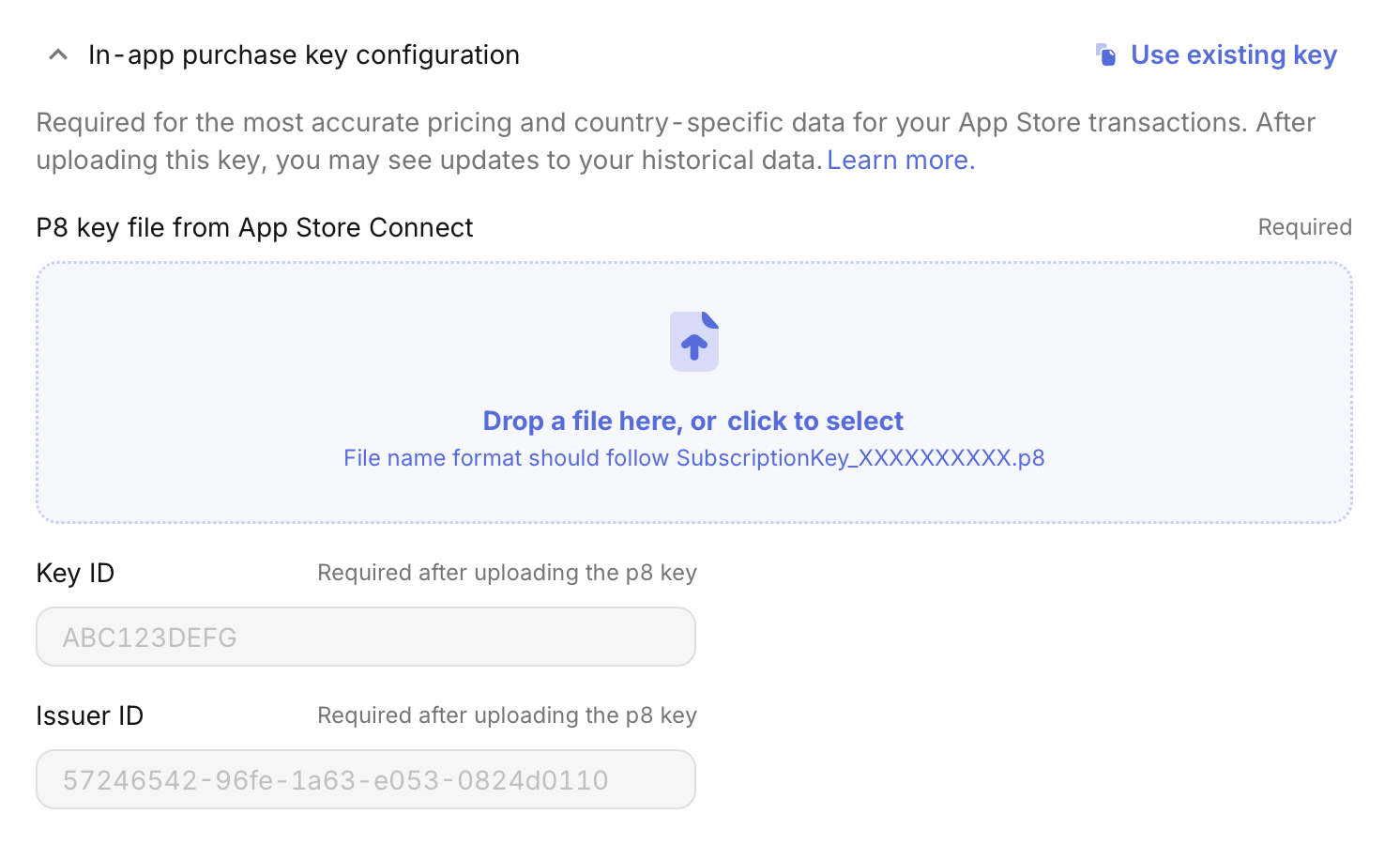
2. Within your app settings, go to the **In-app purchase key configuration** tab.
3. Upload the `.p8` file you downloaded from App Store Connect.
7. Store this downloaded `.p8` file securely, as you will need to upload it to RevenueCat.
* **Uploading the In-App Purchase Key to RevenueCat:**
1. In the RevenueCat dashboard, select your App Store app from the **Apps & providers** page within your project settings.
2. Within your app settings, go to the **In-app purchase key configuration** tab.
3. Upload the `.p8` file you downloaded from App Store Connect.
 ***
### **7. Add App Store Connect API**
***
### **7. Add App Store Connect API**
 * **Where to find your "App Store Connect API":**
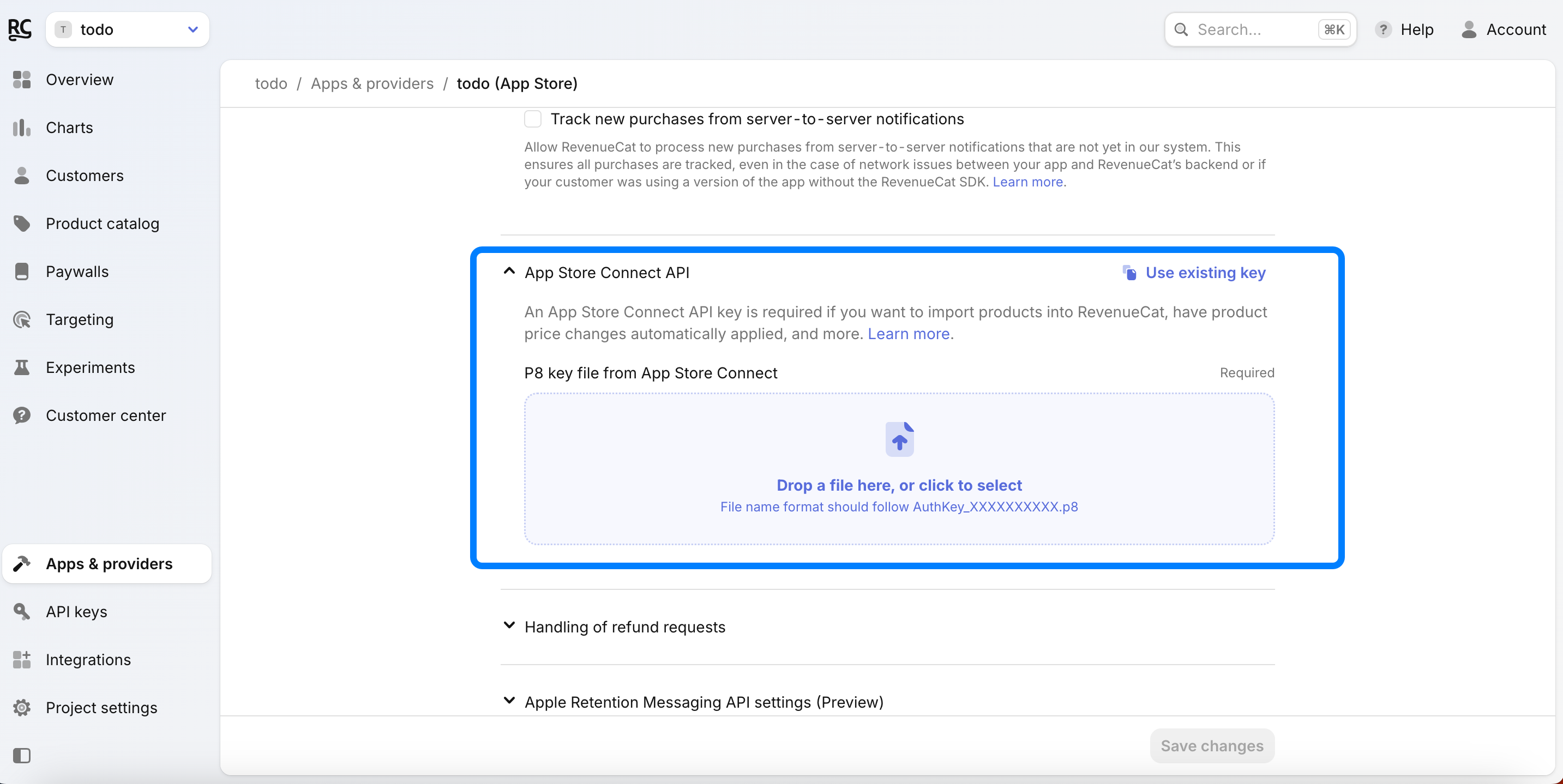
1. On **App Store Connect**, go to **Users and Access** → **Integrations** → **App Store Connect API**.
* **Where to find your "App Store Connect API":**
1. On **App Store Connect**, go to **Users and Access** → **Integrations** → **App Store Connect API**.
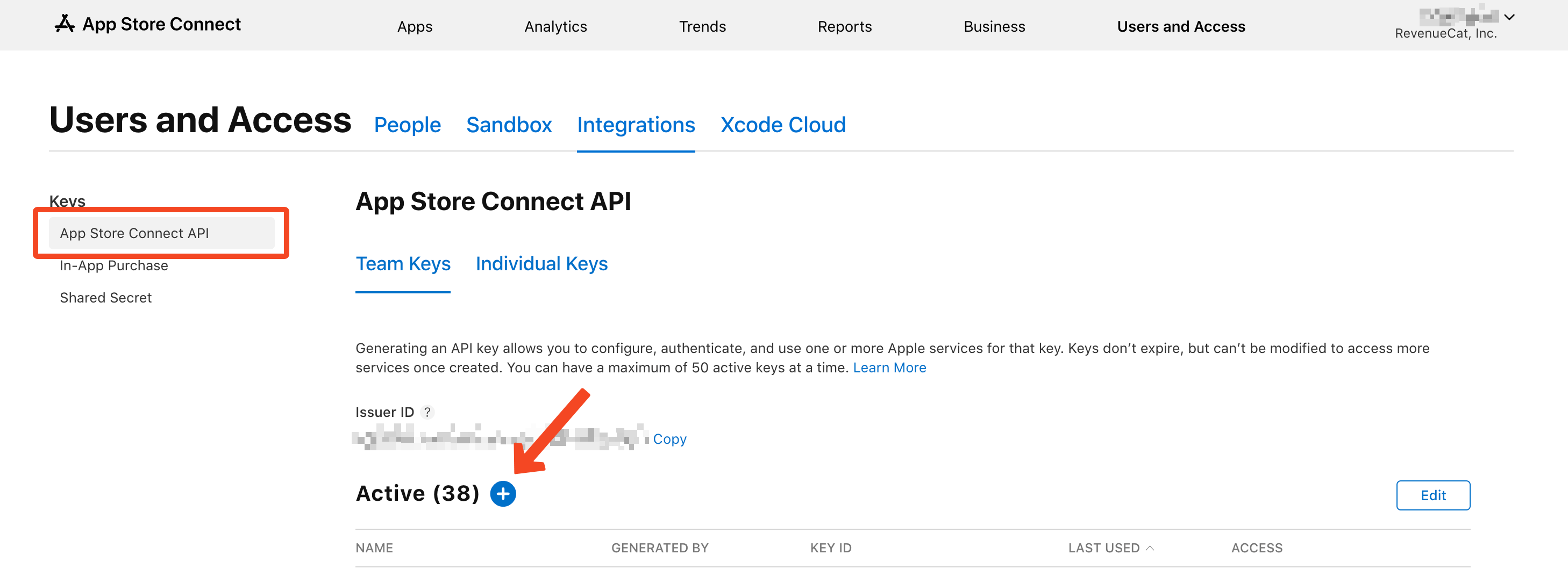 2. Click to create a new App Store Connect API key.
3. Ensure the newly created key has at least the **App Manager** access level.
2. Click to create a new App Store Connect API key.
3. Ensure the newly created key has at least the **App Manager** access level.
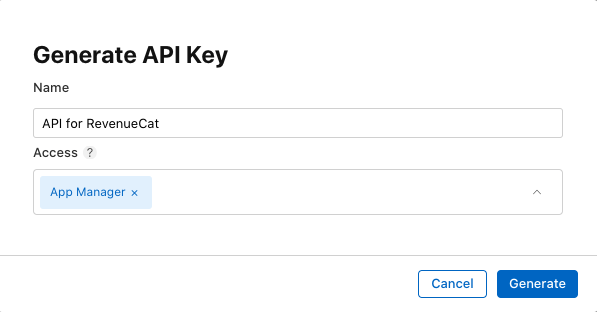 4. **Download the API key** (`.p8` file) and save it securely.
* **Uploading the App Store Connect API Key to RevenueCat:**
4. **Download the API key** (`.p8` file) and save it securely.
* **Uploading the App Store Connect API Key to RevenueCat:**
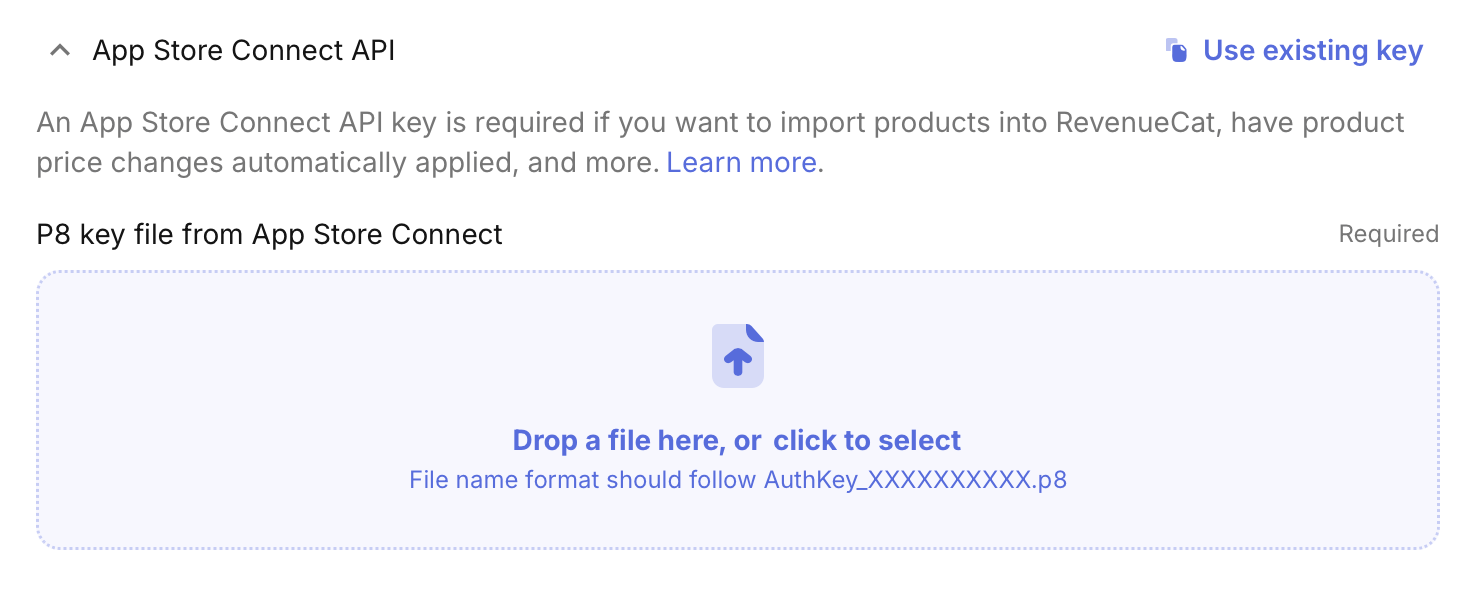 1. In the RevenueCat dashboard, select your iOS app from the **Apps & providers** page in the navigation.
2. Within your app settings, go to the **App Store Connect API** tab.
3. Upload the `.p8` file you downloaded from App Store Connect.
4. You will then be prompted to input your **Issuer ID**, which you should have saved from when you created the API key.
1. In the RevenueCat dashboard, select your iOS app from the **Apps & providers** page in the navigation.
2. Within your app settings, go to the **App Store Connect API** tab.
3. Upload the `.p8` file you downloaded from App Store Connect.
4. You will then be prompted to input your **Issuer ID**, which you should have saved from when you created the API key.
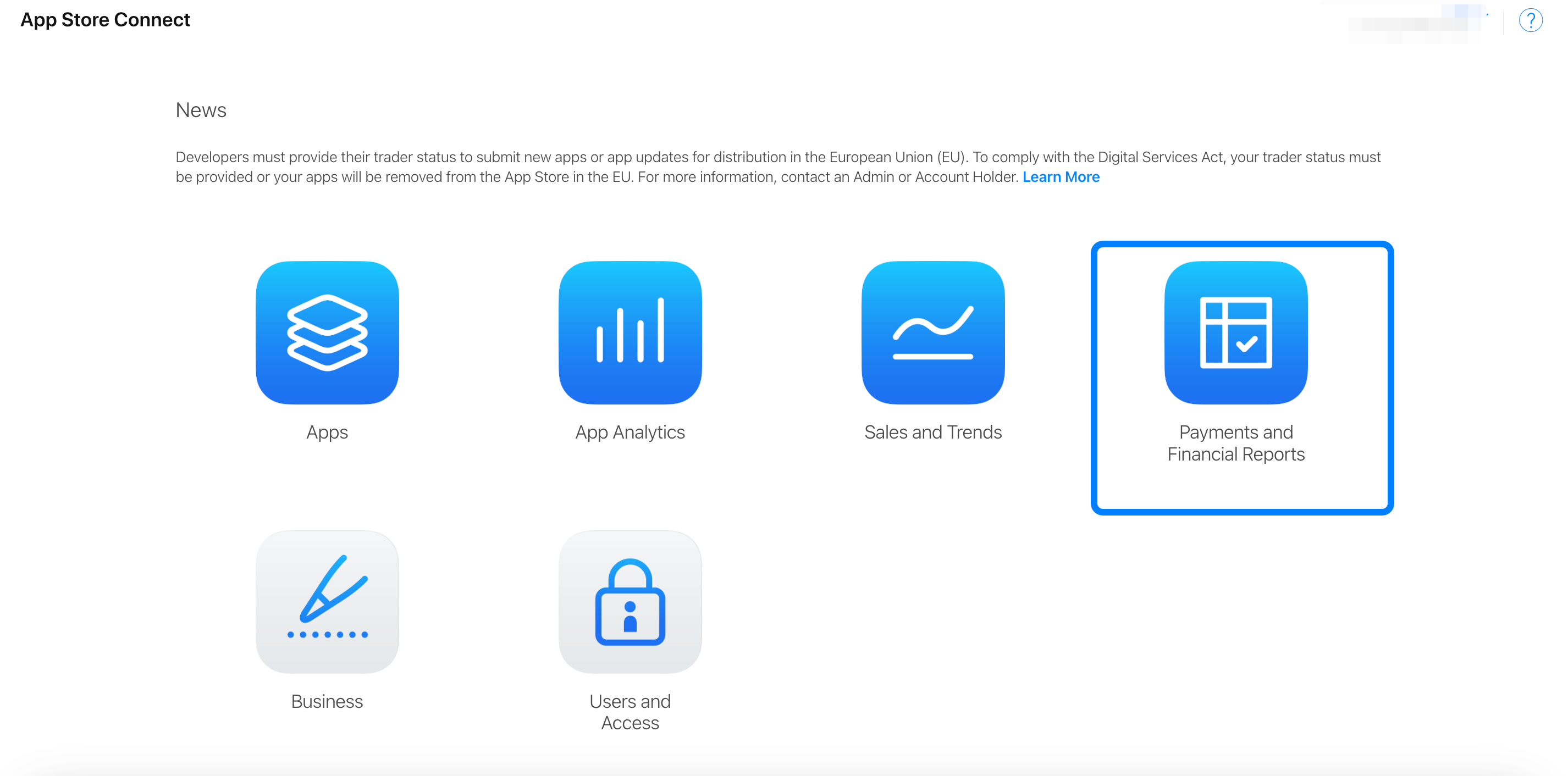
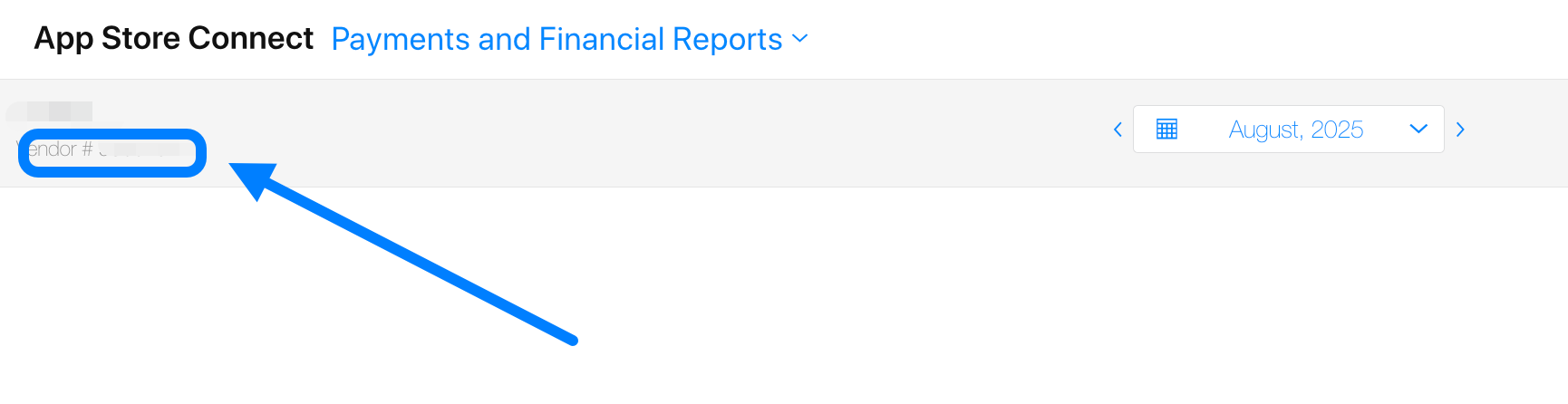
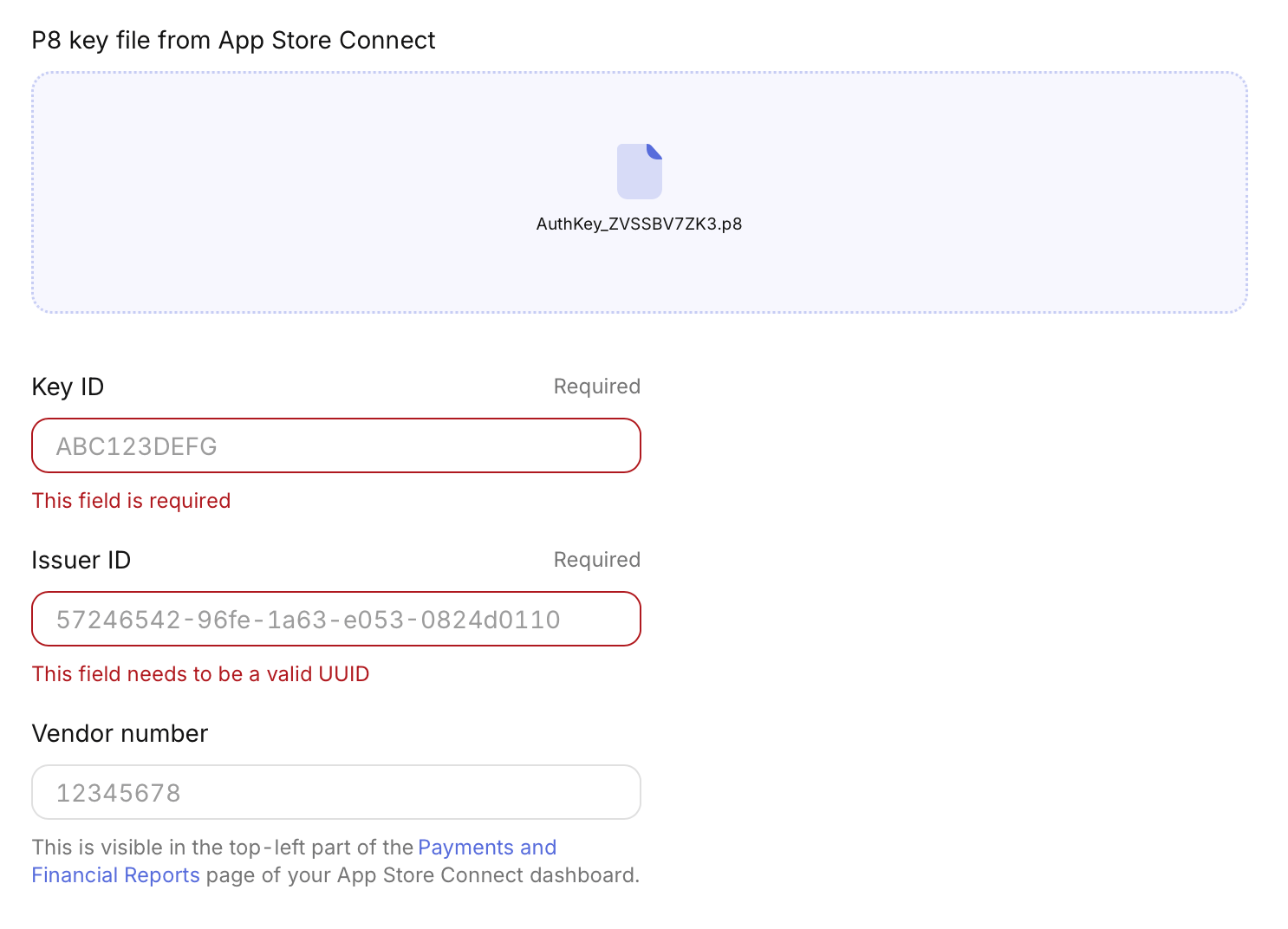 5. You will also need to input your **Vendor number**. This can be found in App Store Connect under **Payments and Financial Reports** (typically in the top left corner of the page).
 6. Click **Save Changes** in the RevenueCat dashboard.
***
### **8. Create Subscriptions**
* **Setting up Subscriptions in App Store Connect:**
1. Go to **App Store Connect** ➡️ **Monetization** ➡️ **Subscriptions** ➡️ **Create**.
6. Click **Save Changes** in the RevenueCat dashboard.
***
### **8. Create Subscriptions**
* **Setting up Subscriptions in App Store Connect:**
1. Go to **App Store Connect** ➡️ **Monetization** ➡️ **Subscriptions** ➡️ **Create**.
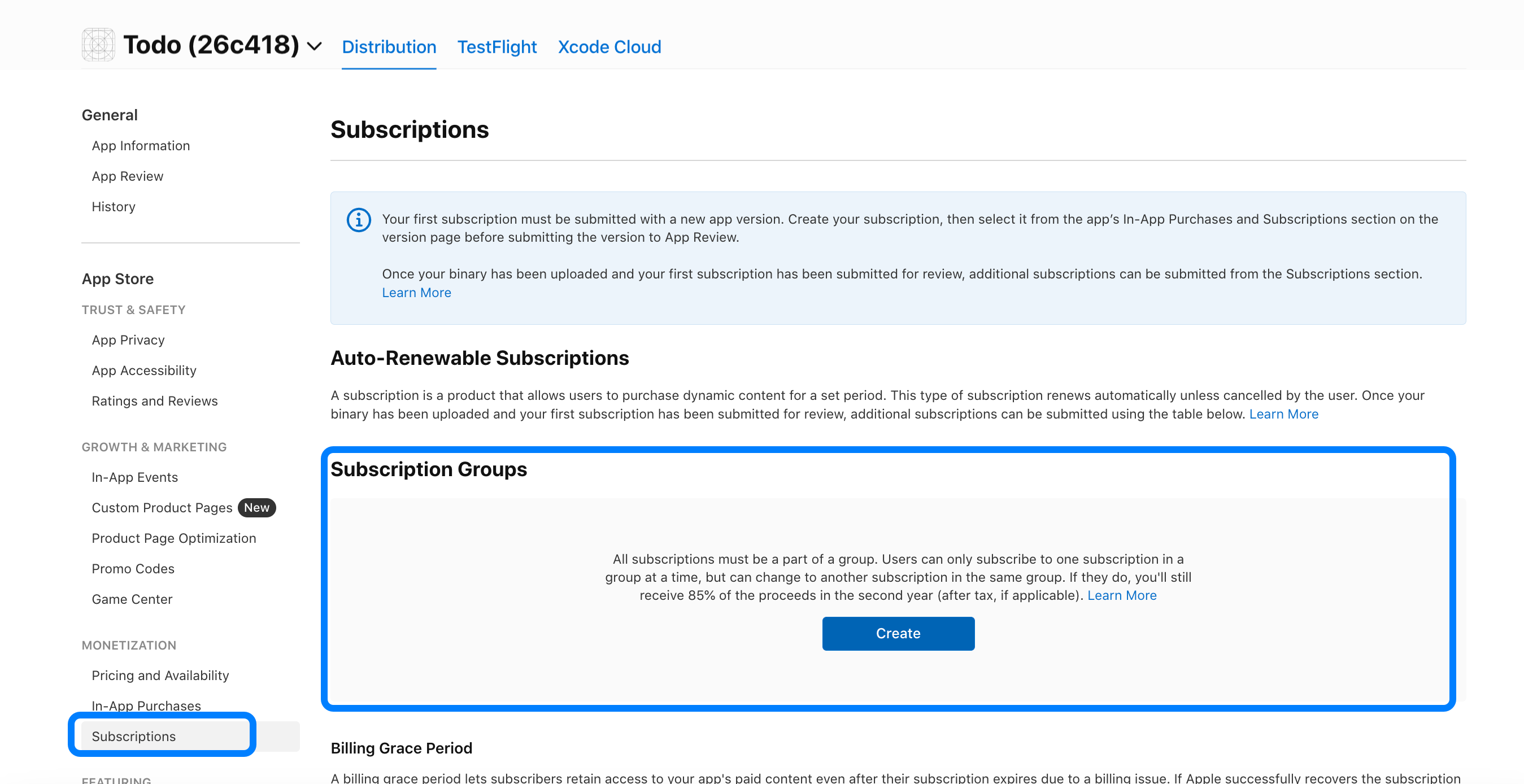 2. **Create Reference Name**: This is an internal name for your subscription.
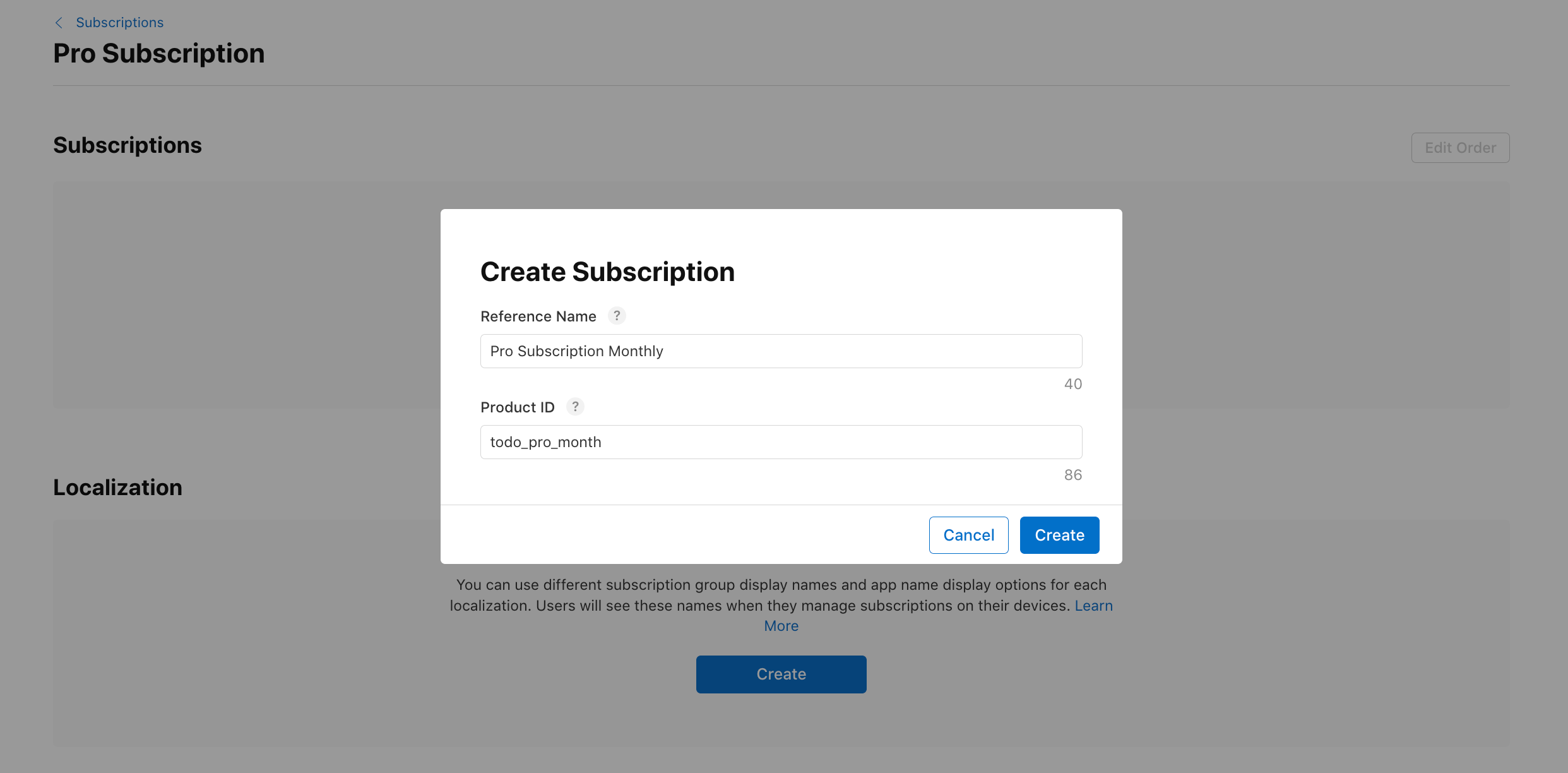
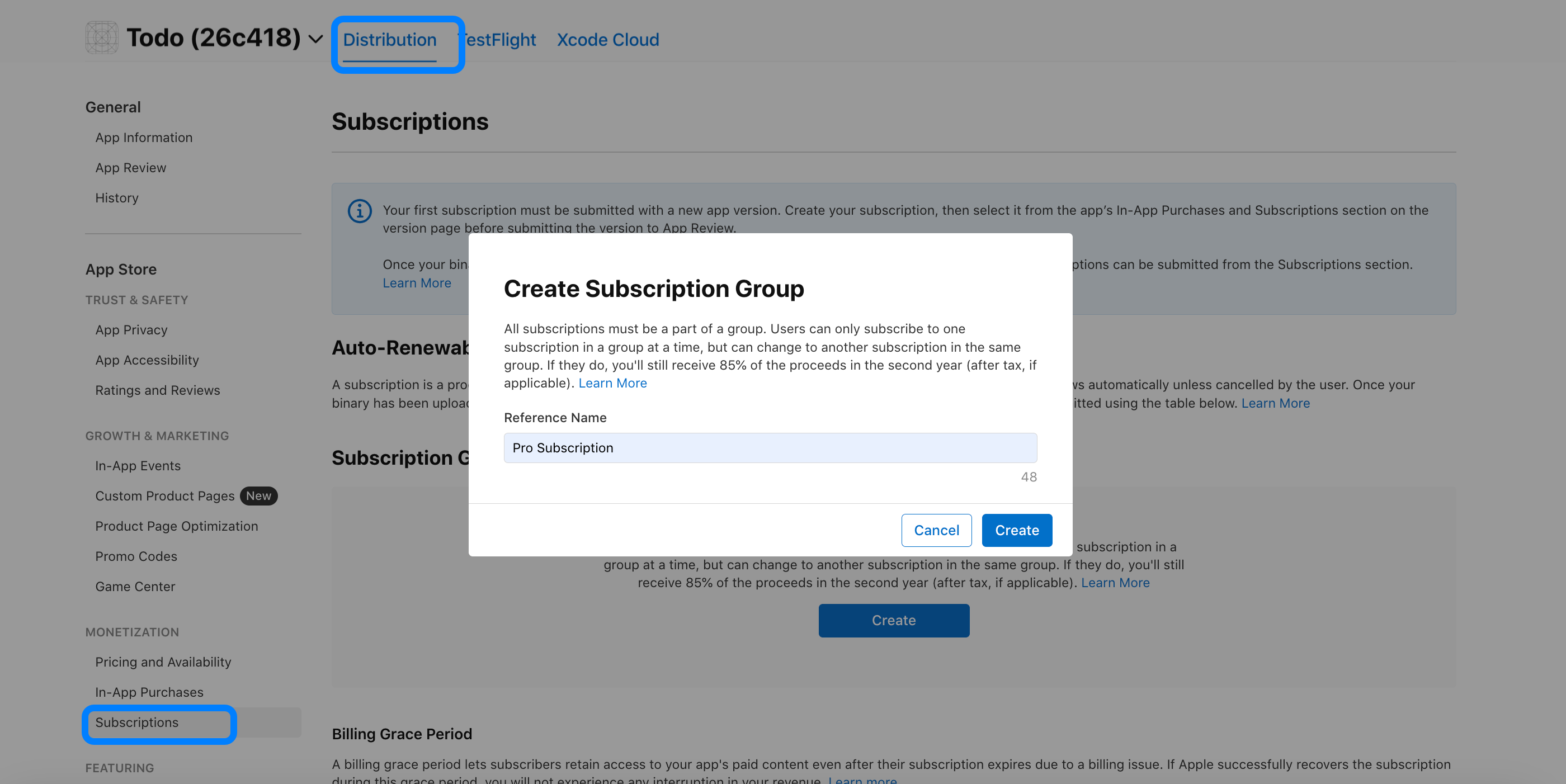 3. **Create Subscription**: Fill in both the **Reference Name** and **Product ID**. For example, for a monthly subscription, you might name it "monthly\_subscription" and set the Product ID accordingly.
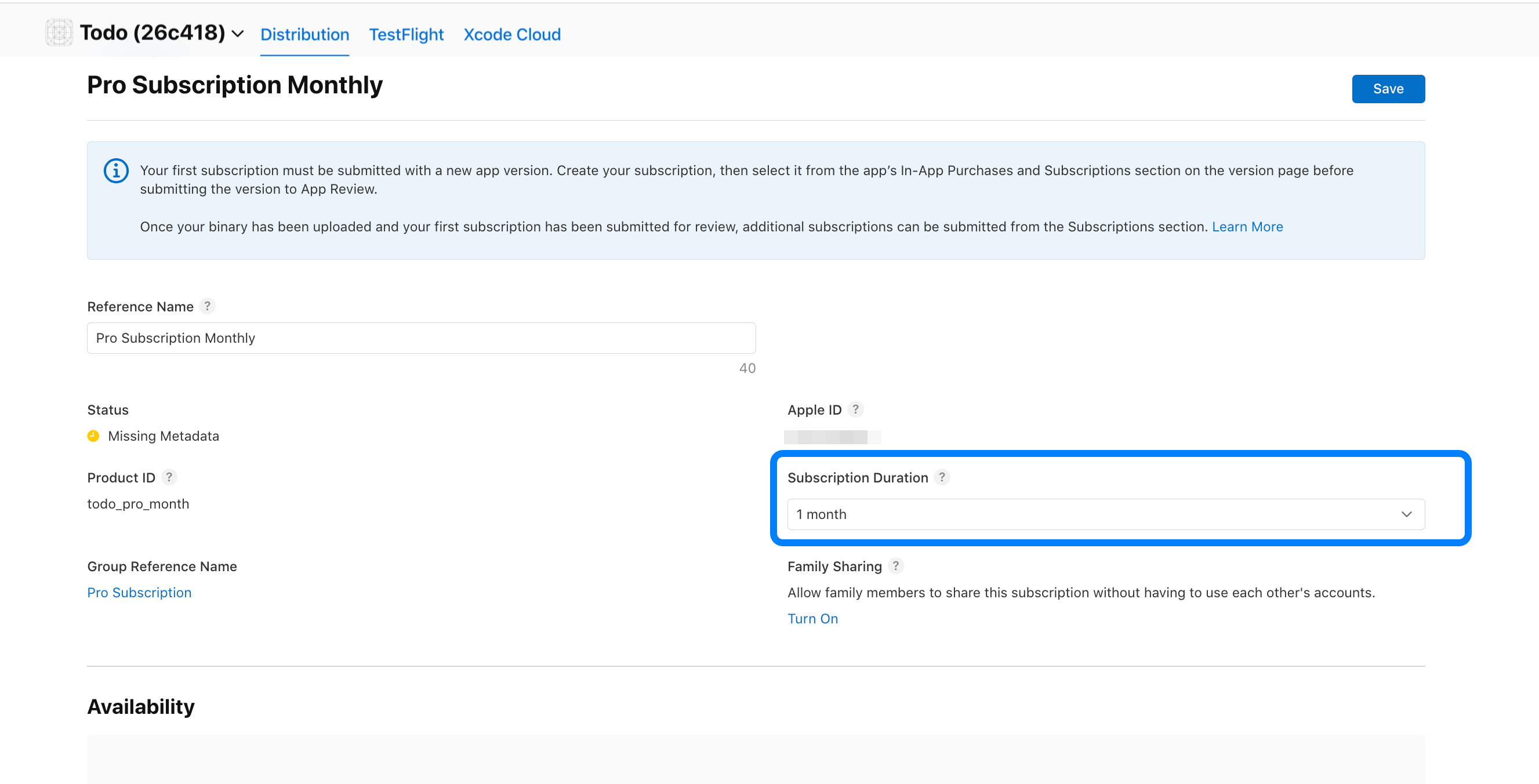
 4. Ensure you **Set Subscription Duration** (e.g., Monthly).
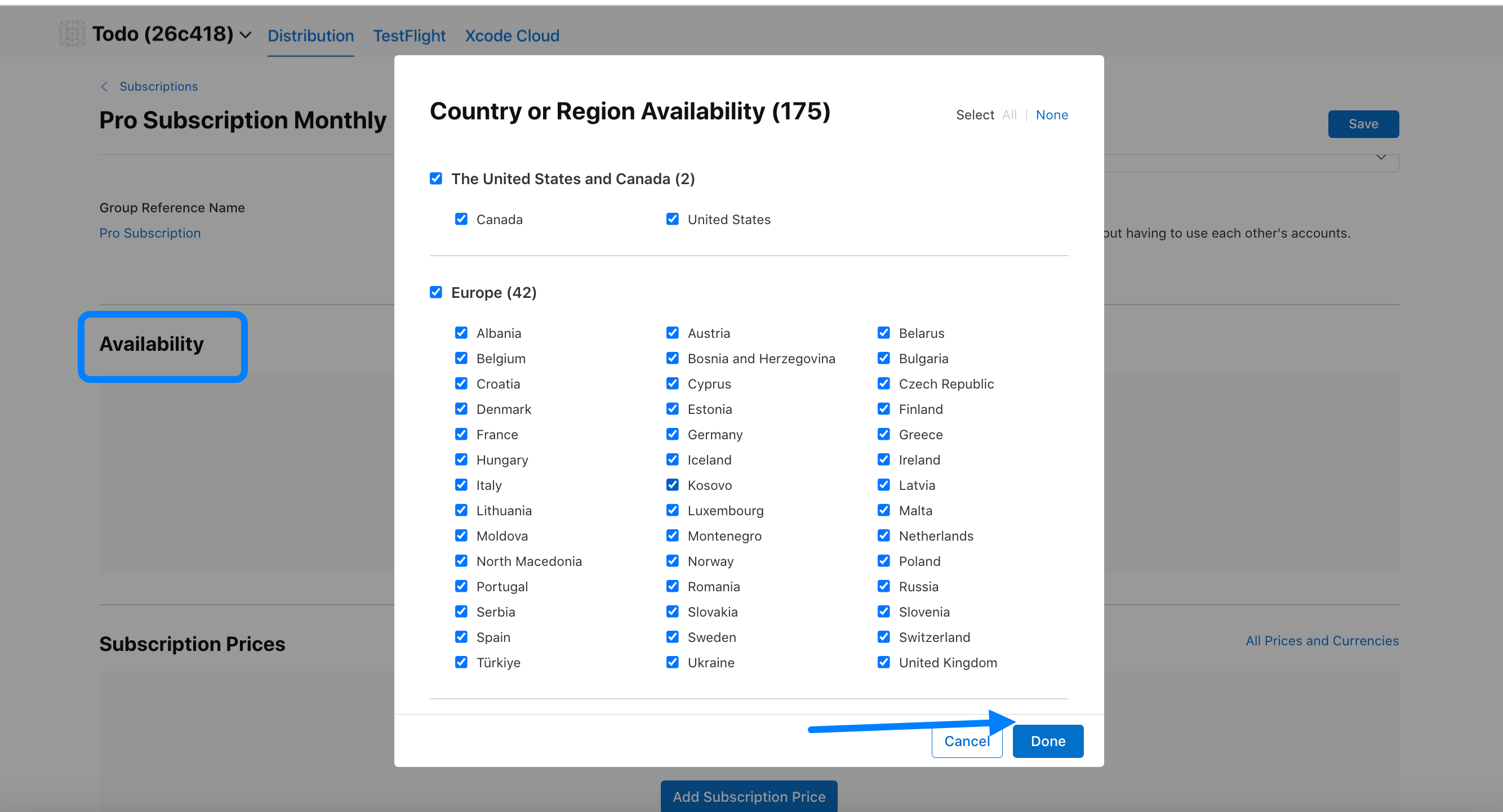
 5. **Availability**: By default, it will be set up globally.
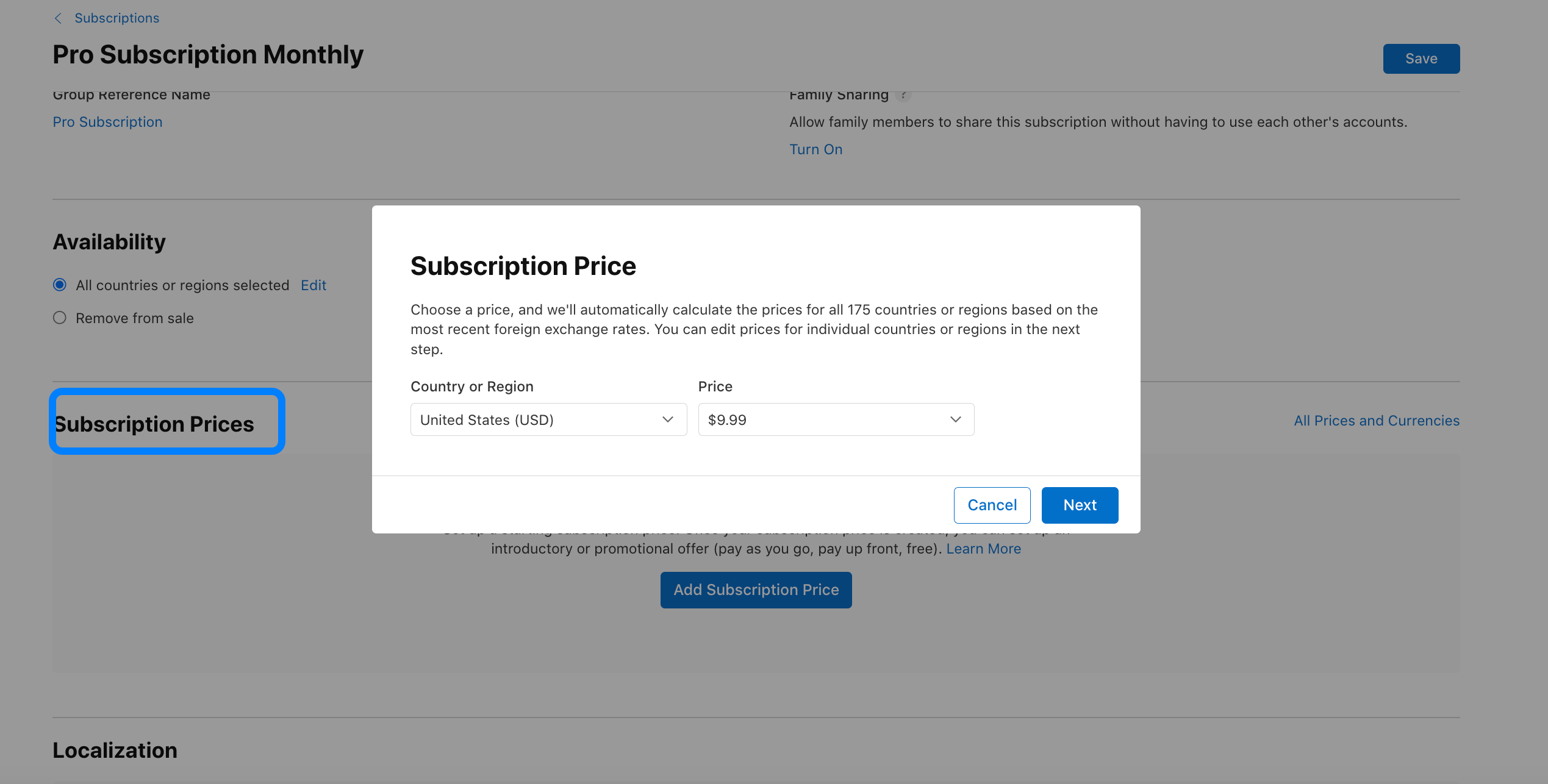
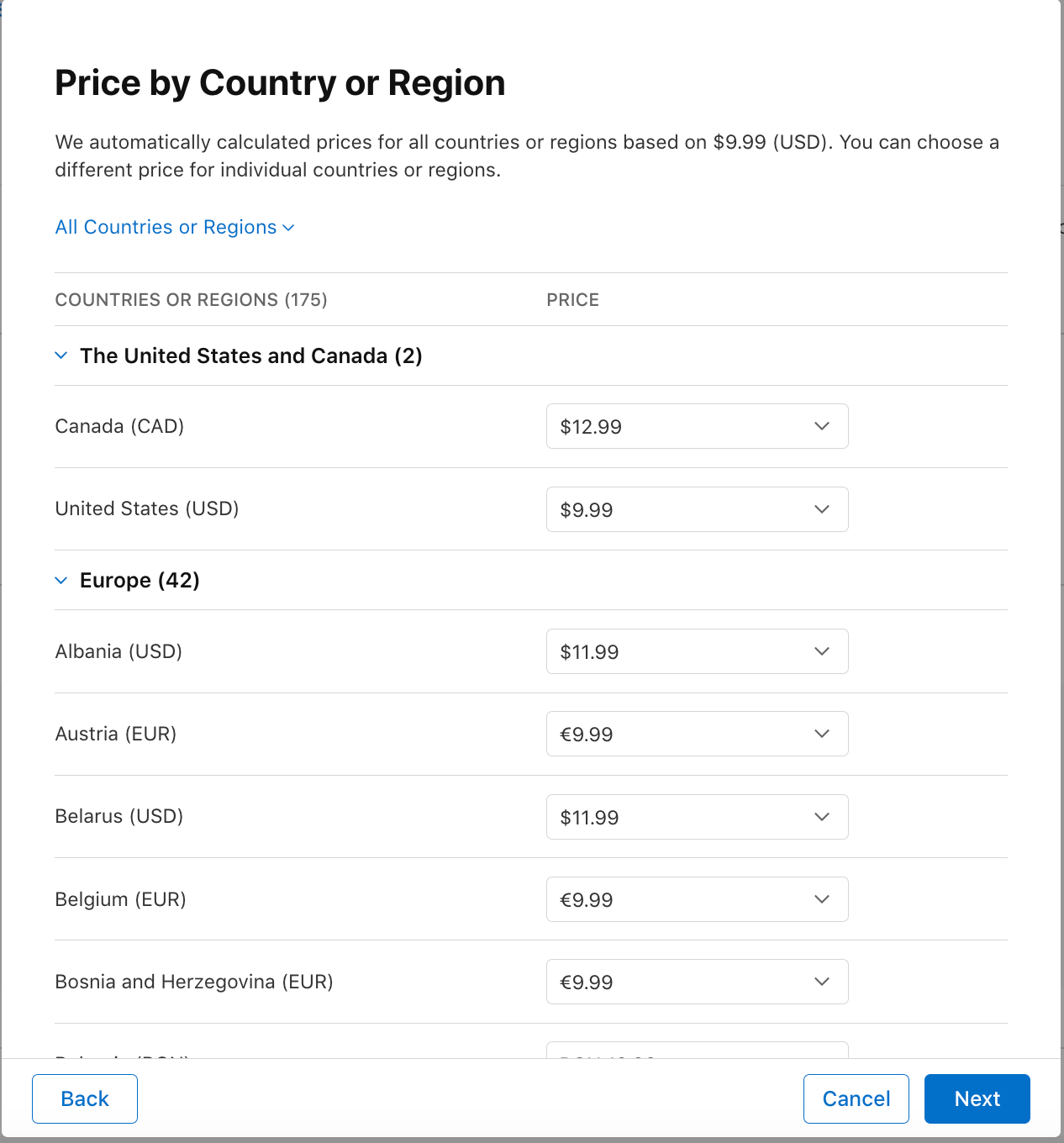
 6. **Subscription Prices**: Select the desired price from the dropdown. This will automatically convert to the global pricing table.
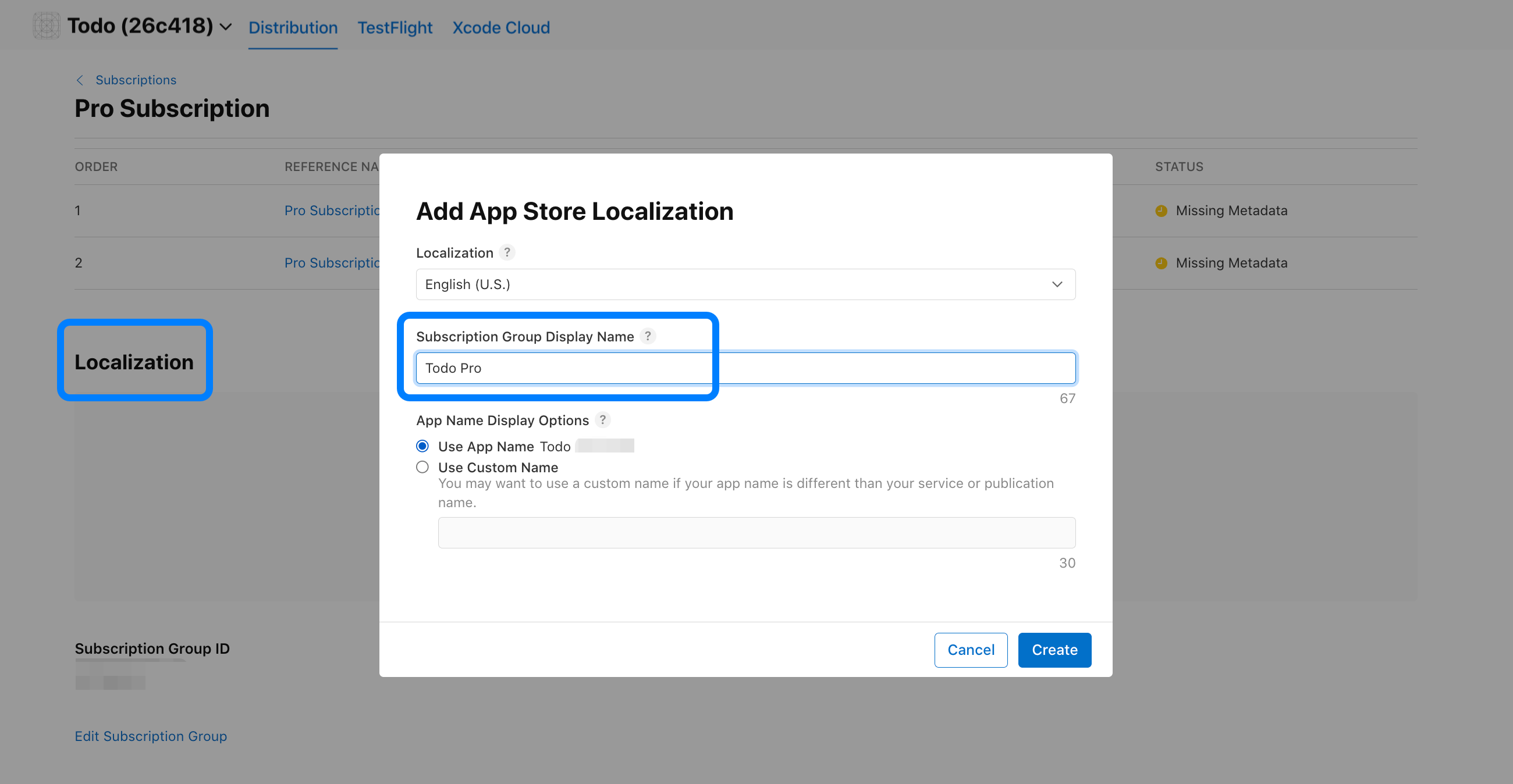
 7. **Localization**: Add a **Subscription Group Display Name**. This is what users will see.
8. **Review Information**: Please ensure you include a **screenshot** of your app and your **review notes** in this section.
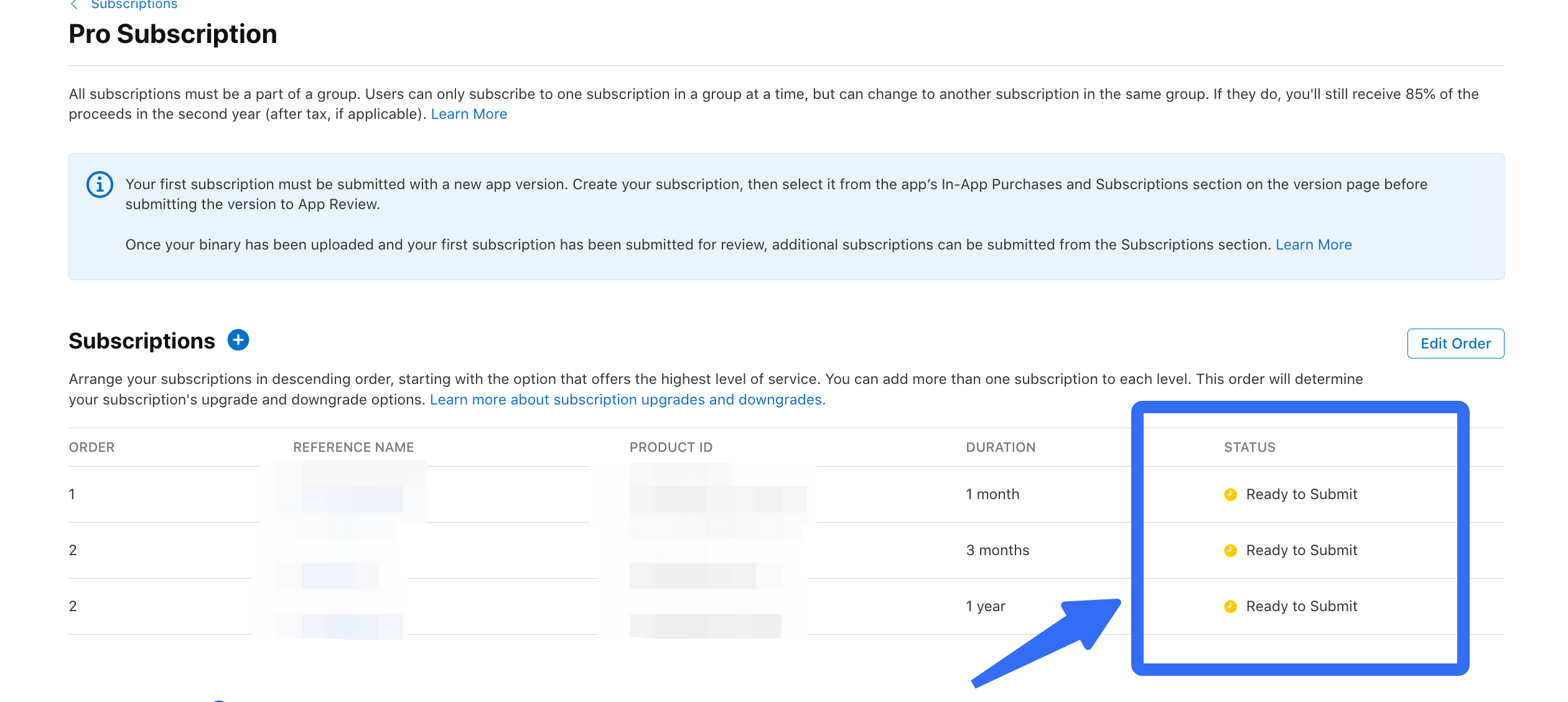
9. Make sure to **Save** your subscription. Once you’ve done these, all statuses will automatically change to “**Ready to Submit.**”
7. **Localization**: Add a **Subscription Group Display Name**. This is what users will see.
8. **Review Information**: Please ensure you include a **screenshot** of your app and your **review notes** in this section.
9. Make sure to **Save** your subscription. Once you’ve done these, all statuses will automatically change to “**Ready to Submit.**”
 10. Repeat this process for any other subscription durations (e.g., yearly).
11. **Localization**: You can use different subscription group display names and app name display options for each localization.
10. Repeat this process for any other subscription durations (e.g., yearly).
11. **Localization**: You can use different subscription group display names and app name display options for each localization.

 * **Importing Products into RevenueCat:**
1. Navigate back to RevenueCat.
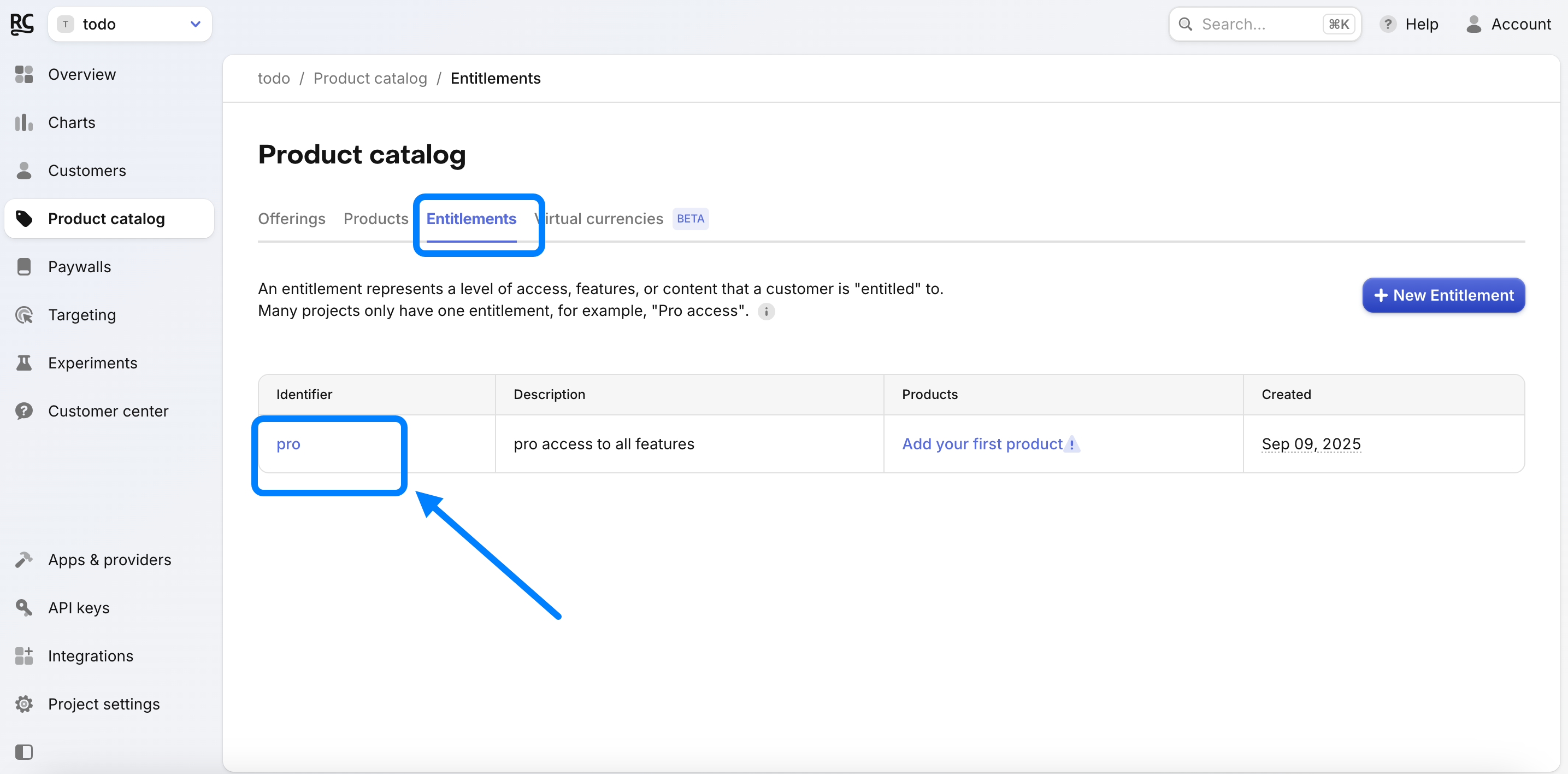
2. Go to **Product Catalog** ➡️ **Entitlements**.
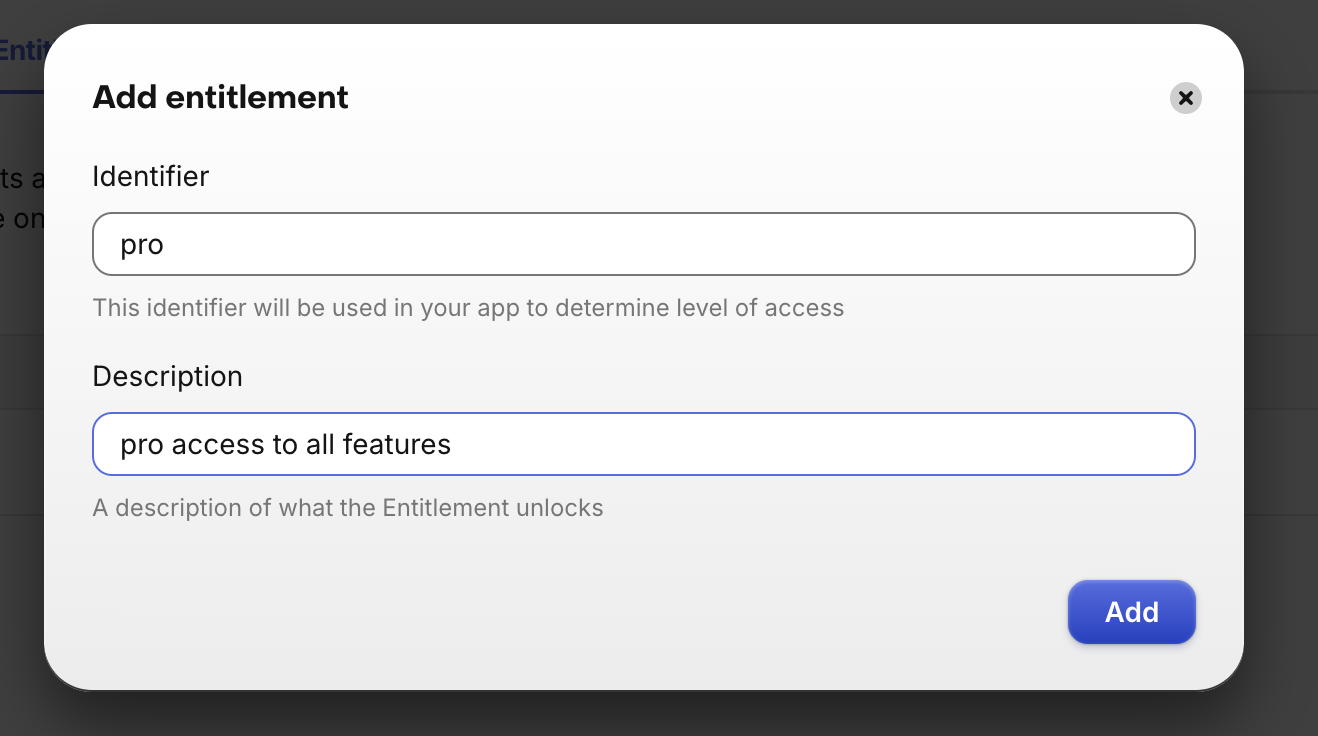
3. Click **New Entitlement** (e.g., "pro").
* **Importing Products into RevenueCat:**
1. Navigate back to RevenueCat.
2. Go to **Product Catalog** ➡️ **Entitlements**.
3. Click **New Entitlement** (e.g., "pro").
 4. Next, go to **Product Catalog** ➡️ **Products**.
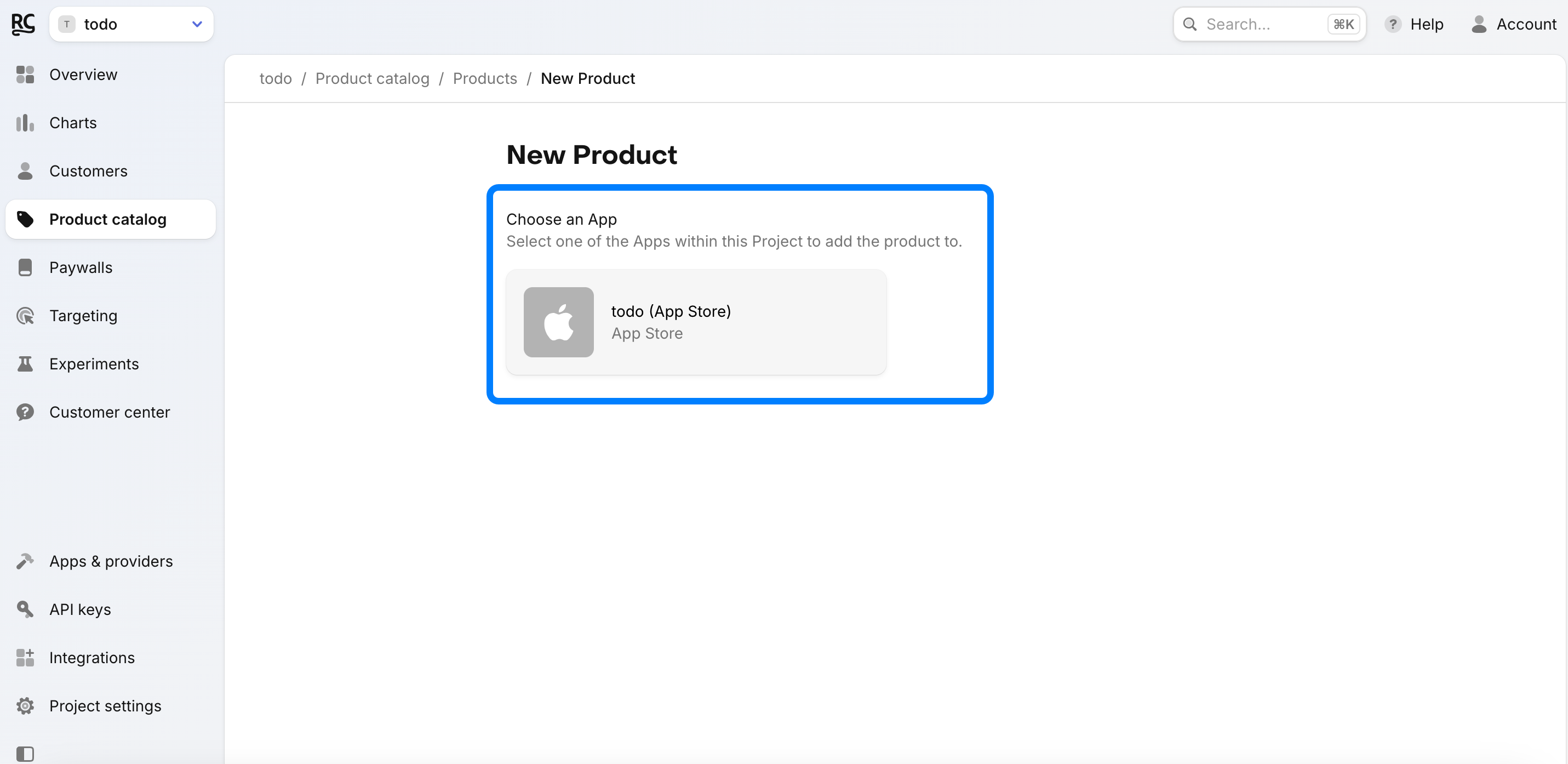
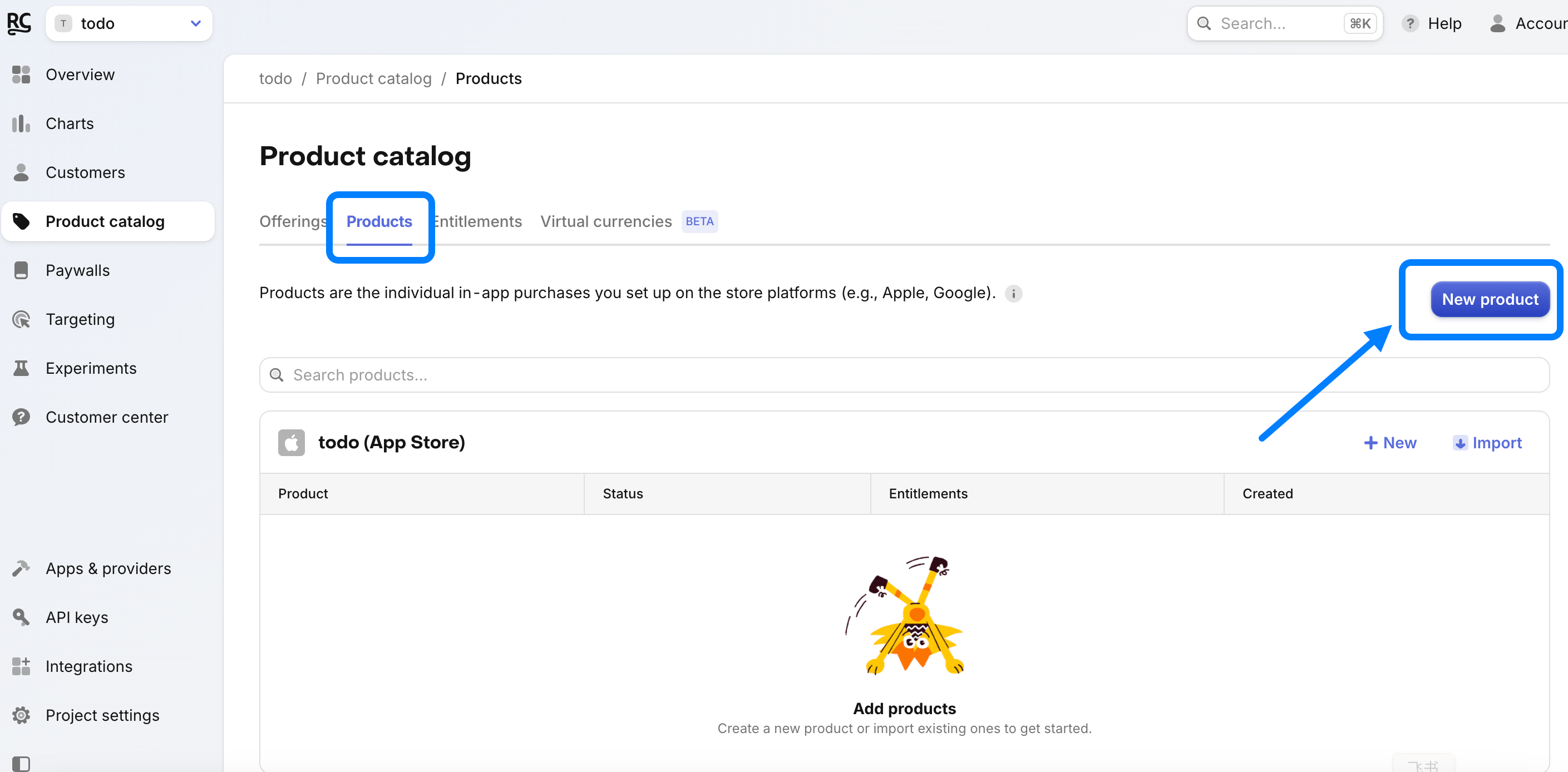 5. Select the app you want to add products to.
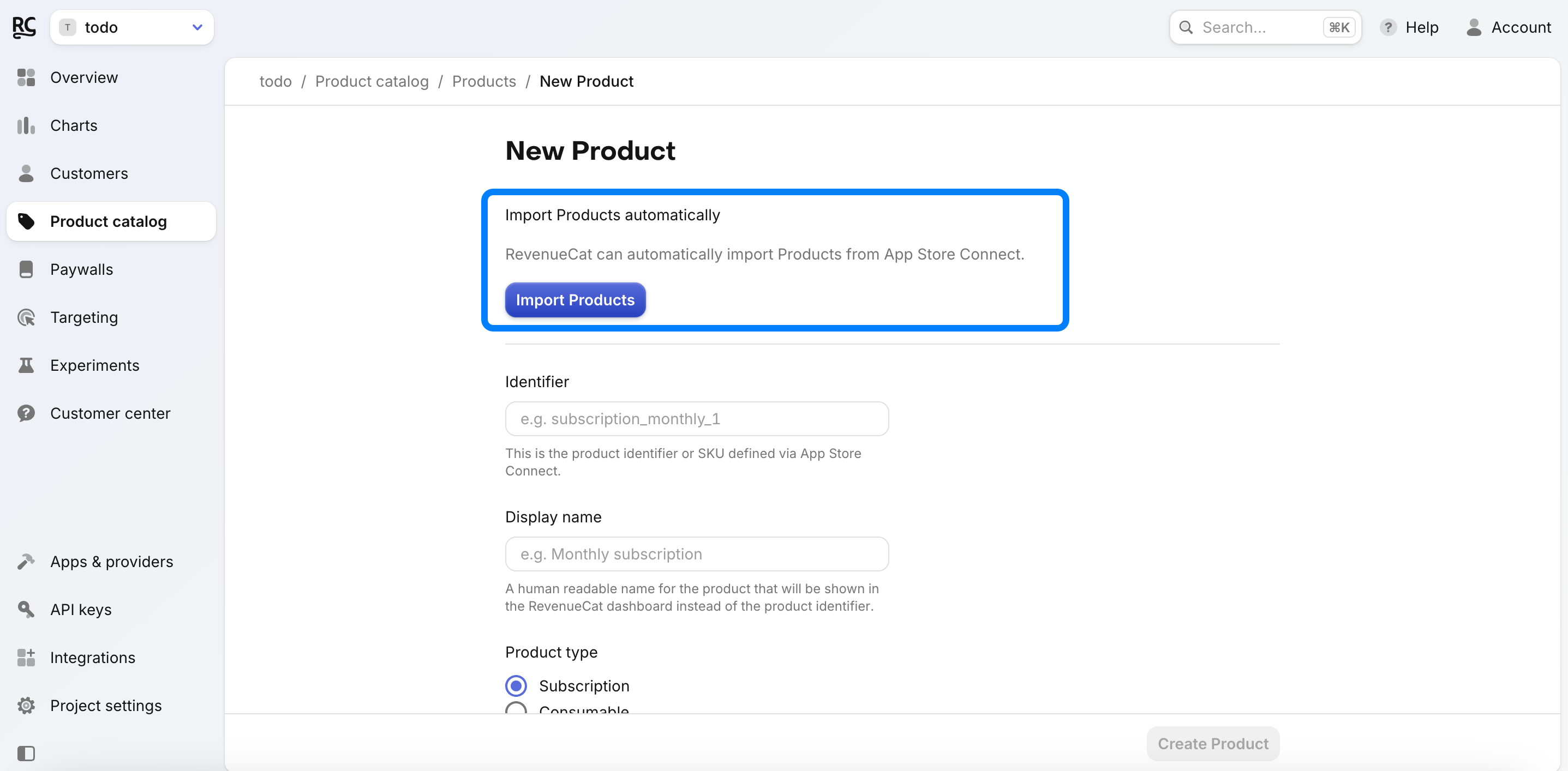
 6. Choose **Import Products from App Store Connect**. RevenueCat will pull the product data directly.
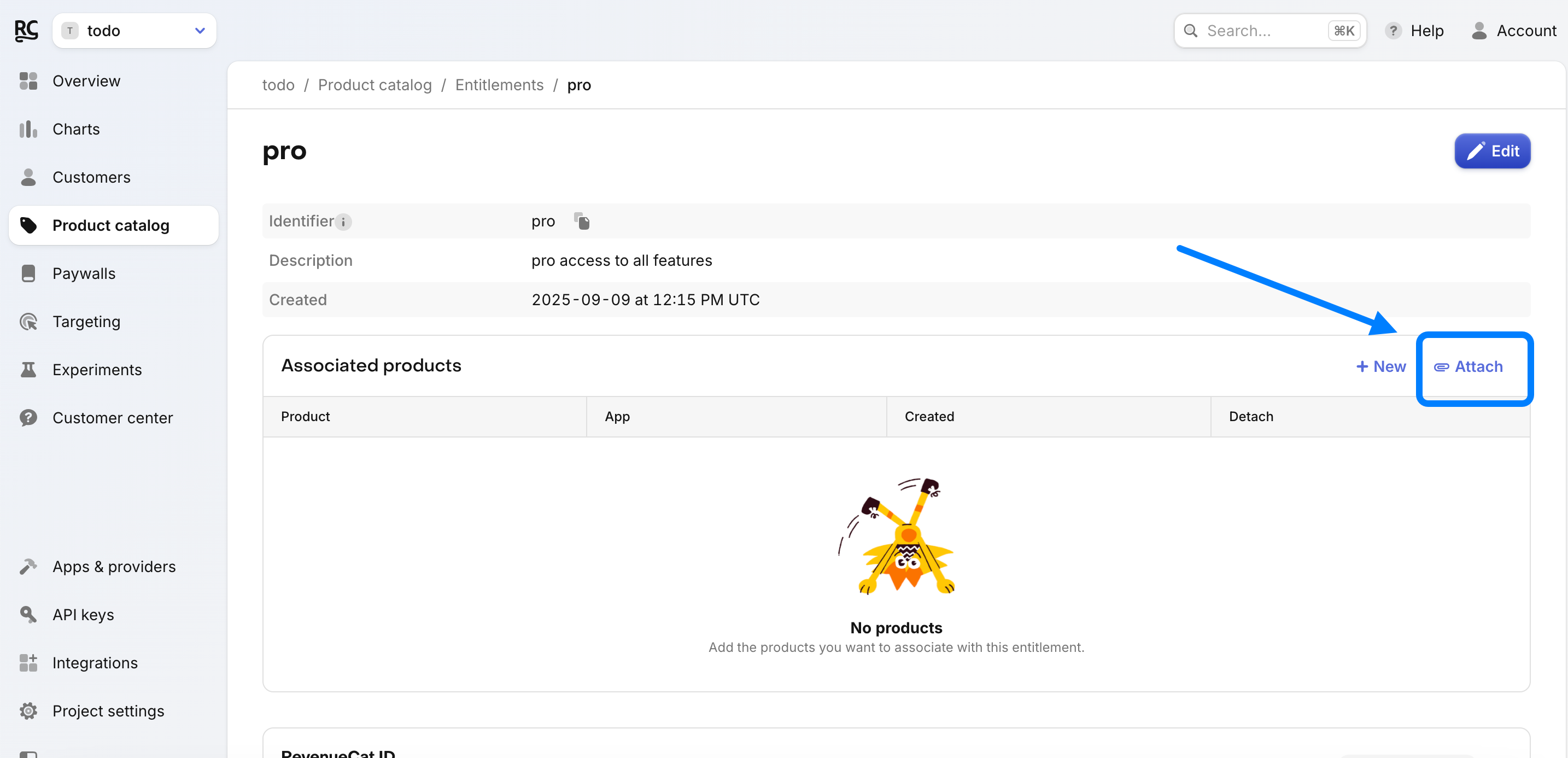
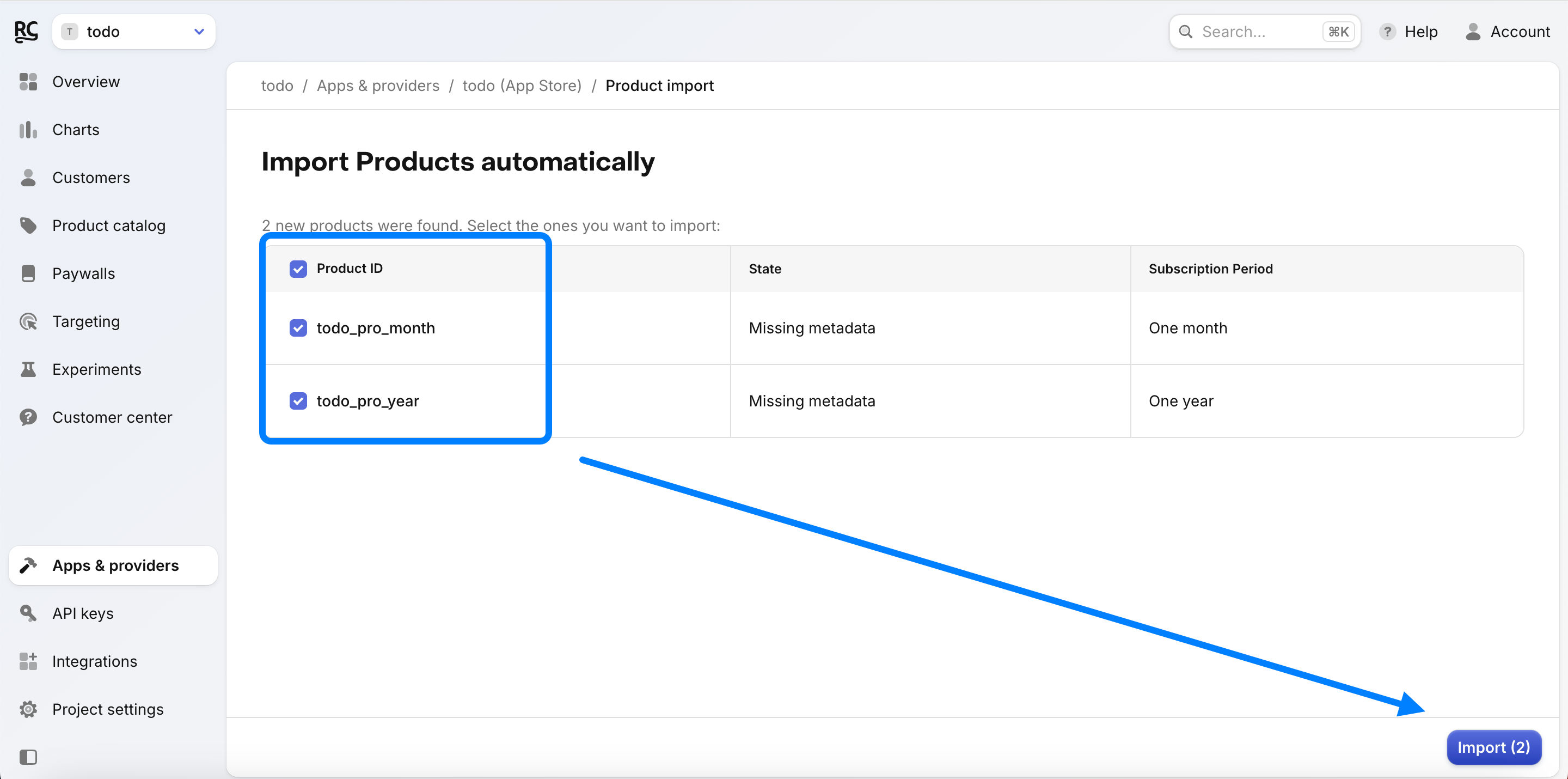 7. Go back to **Entitlements**, click on the entitlement you created (e.g., "pro").
 8. Click **Attach** to link your products to the entitlement.
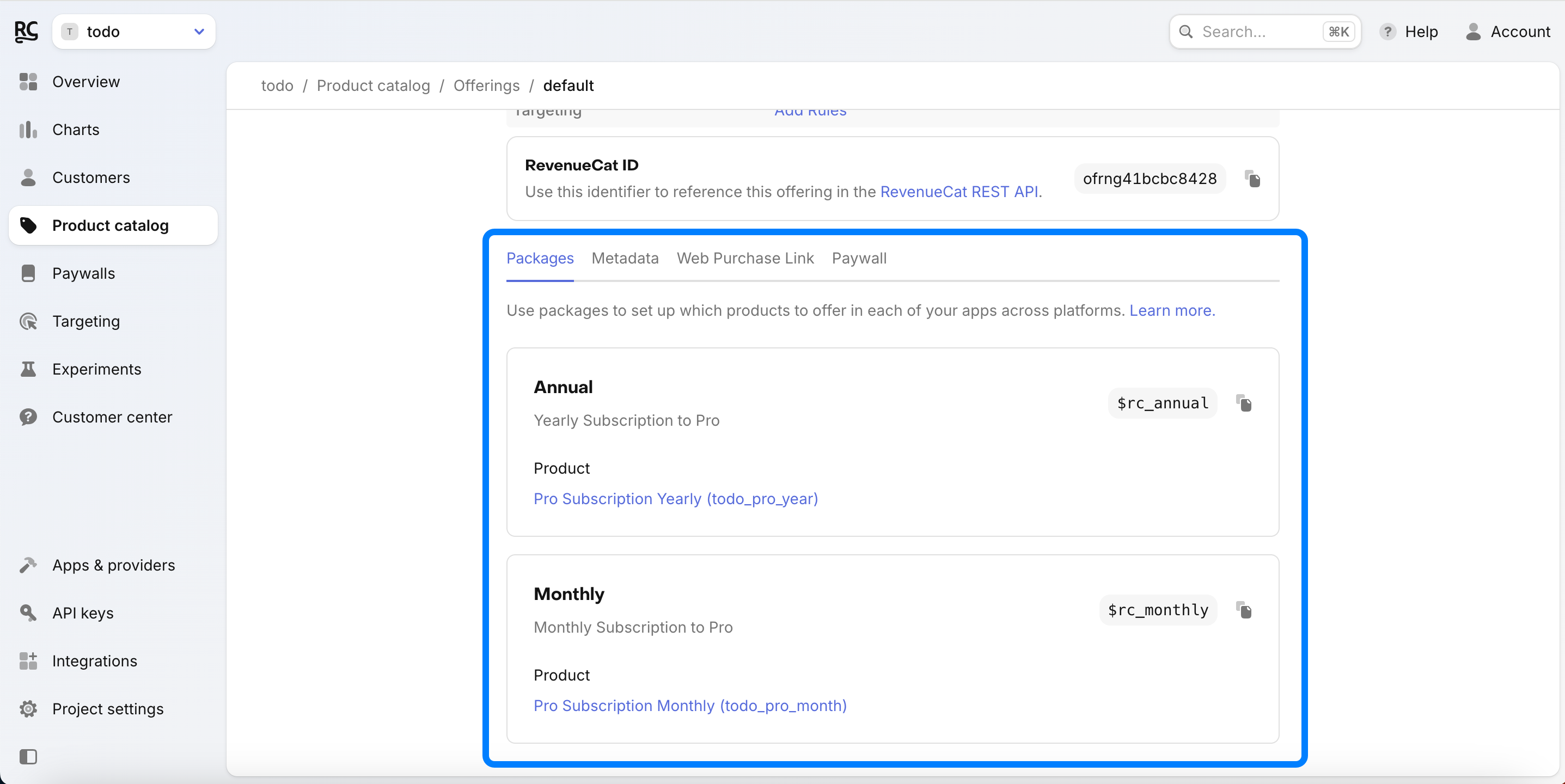
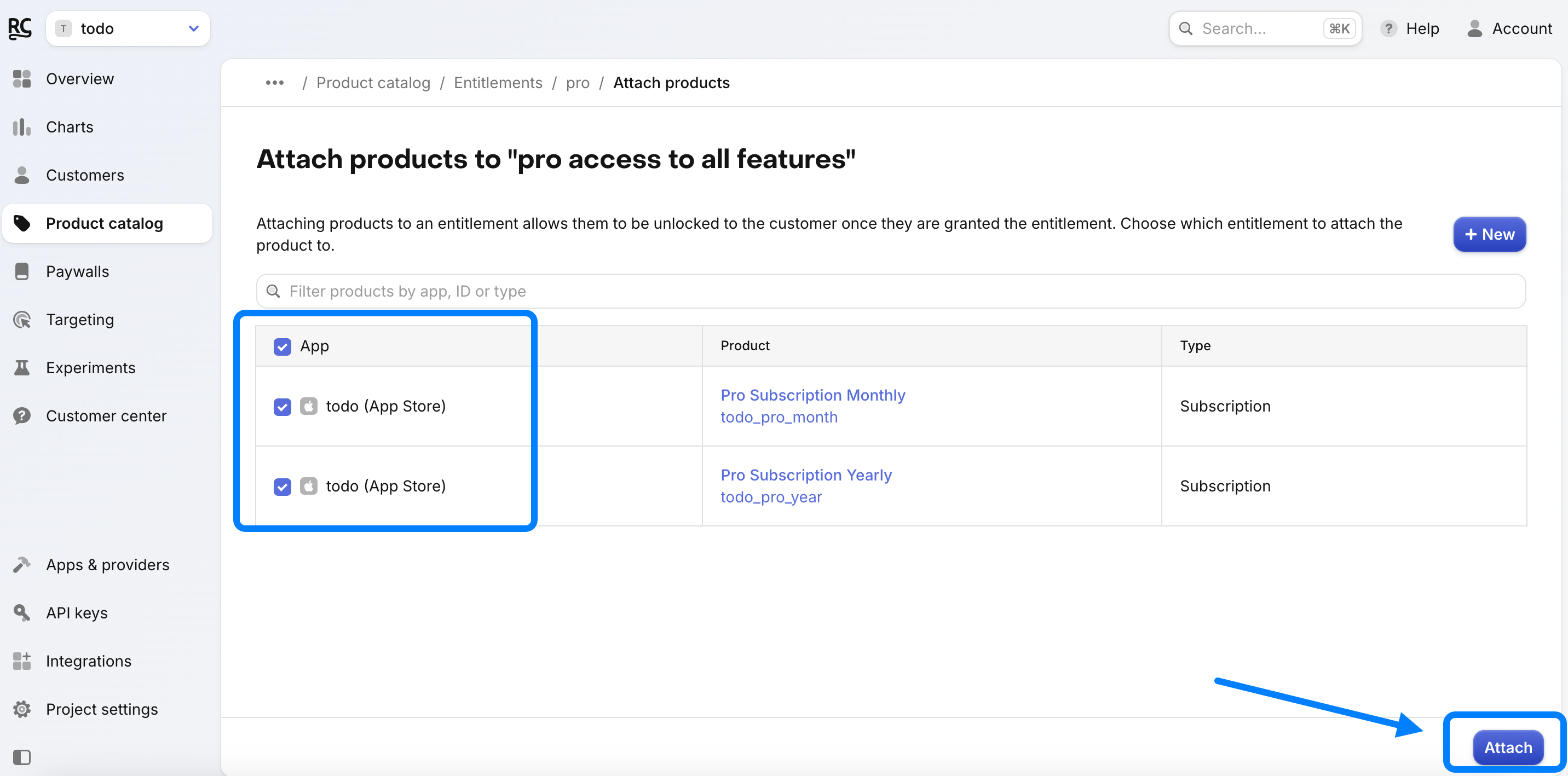 * **Setting Up Offerings in RevenueCat:**
1. Go to **Product Catalog** ➡️ **Offerings**.
* **Setting Up Offerings in RevenueCat:**
1. Go to **Product Catalog** ➡️ **Offerings**.
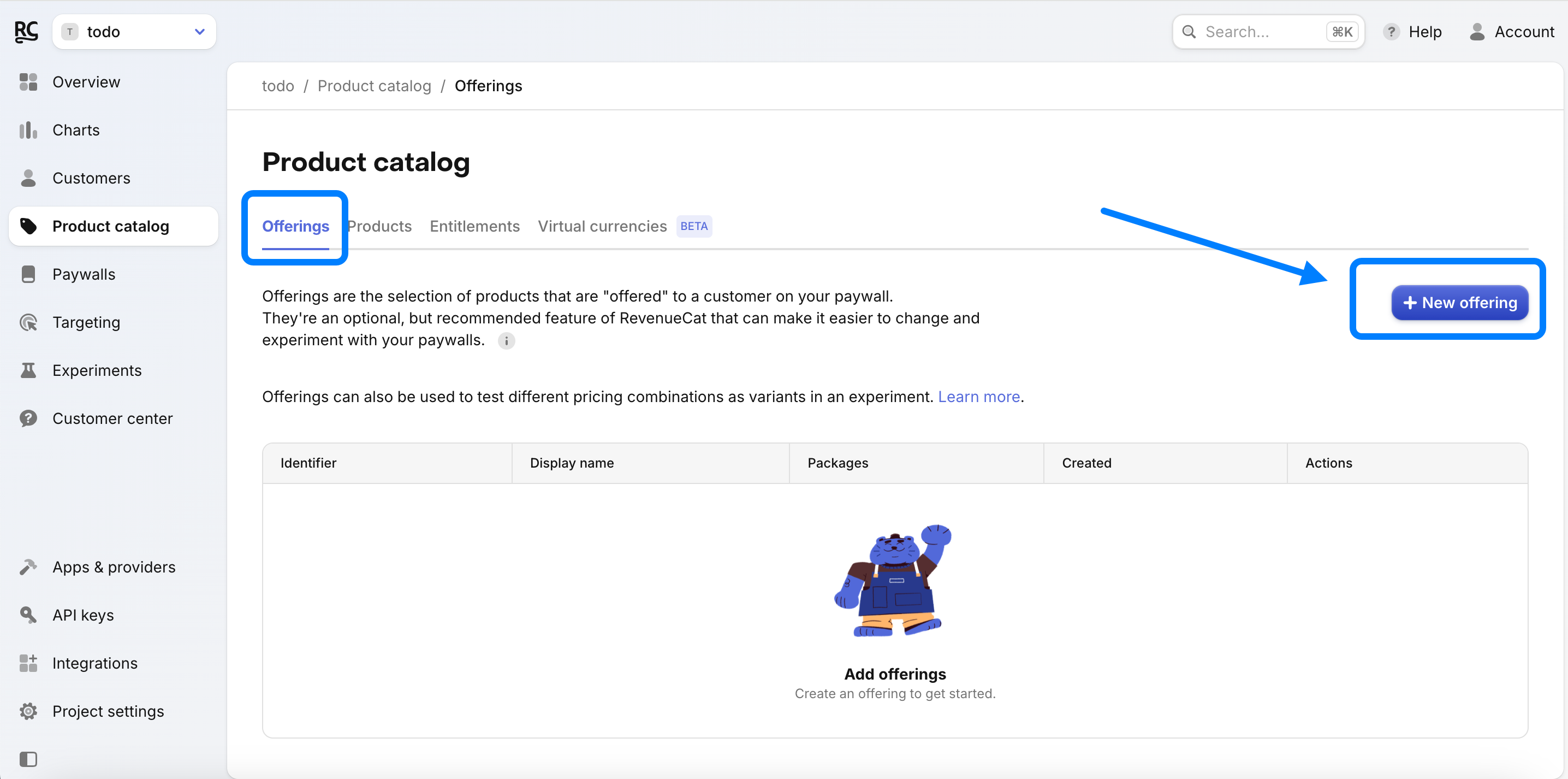 2. Set up a **New Offering**.
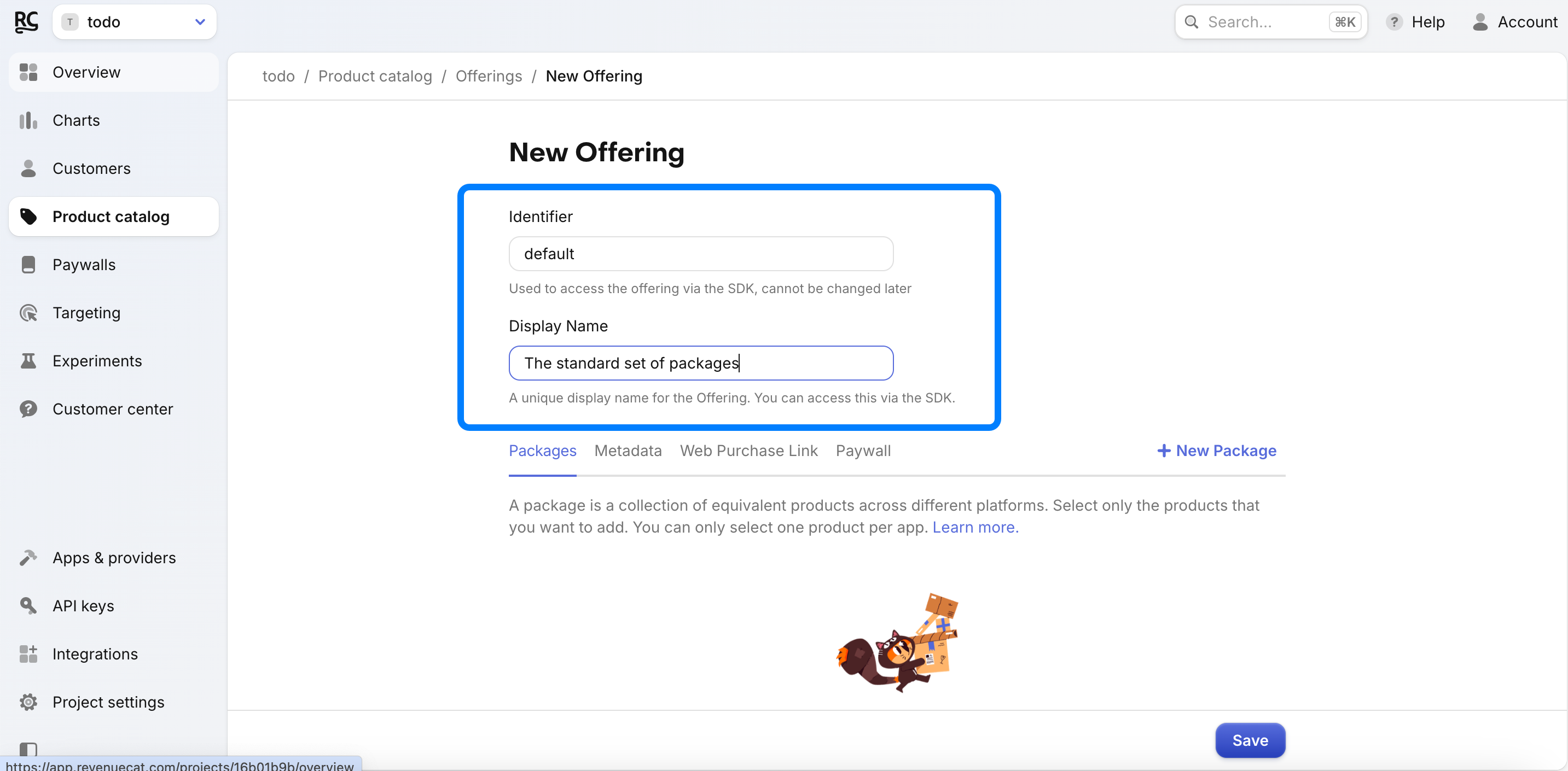 3. Create a **New Package** within the offering.
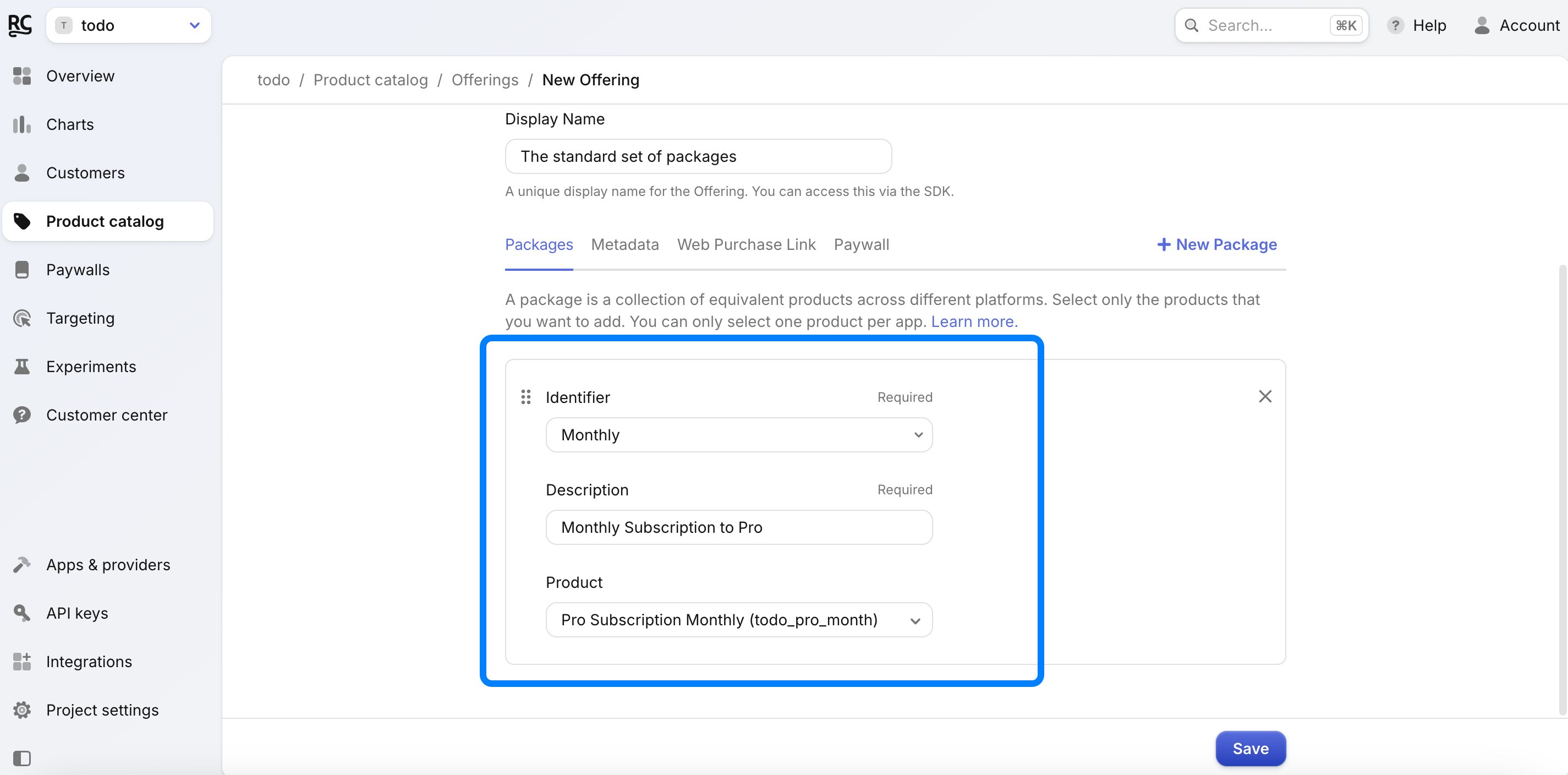 4. Add packages for your different subscription durations (e.g., "Annual" and "Monthly").