> ## Documentation Index
> Fetch the complete documentation index at: https://docs.onspace.ai/llms.txt
> Use this file to discover all available pages before exploring further.
# Custom Domain
> Add your own domain to any OnSpace AI project.
OnSpace AI makes it simple to publish your project with either a free staging subdomain (e.g., `yourproject.onspace.app`) or your own custom domain. This comprehensive guide covers domain connection, troubleshooting, and hosting options.
## Why Custom Domains Matter
Transform your project's online presence with a custom domain:
* **🎯 Professional Branding** - Build trust with a branded URL
* **📈 Better SEO** - Improve search engine rankings
* **💭 Memorable URLs** - Easy to share and remember
* **🔒 Enhanced Trust** - Users feel more confident with professional domainsRecommended Domain Providers
* [Namecheap](https://www.namecheap.com) - Budget-friendly with excellent support
* [Cloudflare](https://www.cloudflare.com) - Built-in CDN and security features
* [GoDaddy](https://www.godaddy.com) - Popular choice with global availability
* [Google Domains](https://domains.google.com) - Simple interface and reliable service
## Quick Setup with Entri Integration
### Step 1: Access Domain Settings
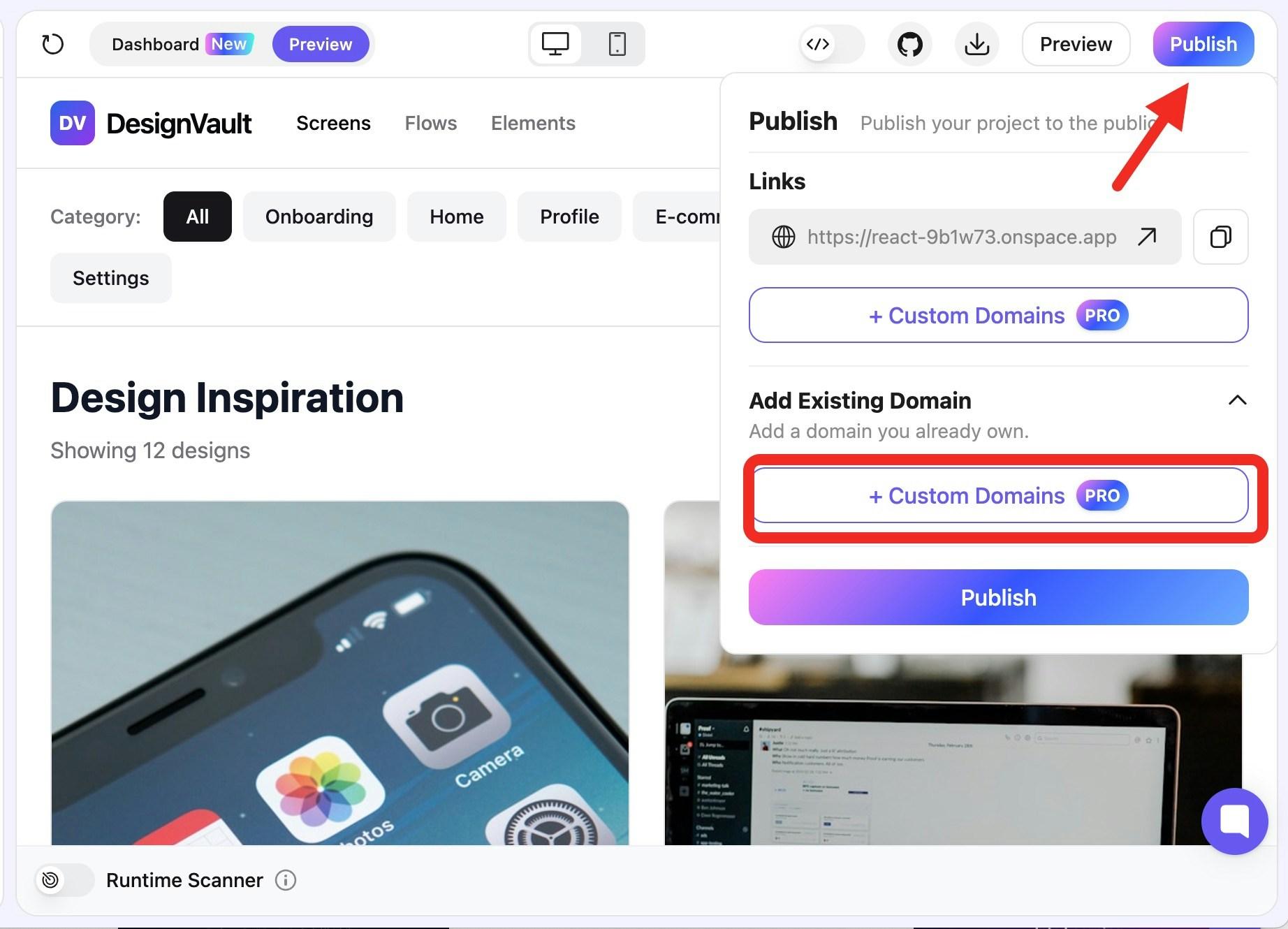
Navigate to **Project** → **Publish** → **Add Existing Domain** → **Connect Domains**
 ### Step 2: Enter Your Domain
Input your domain name (e.g., `myapp.com` or `app.mycompany.com`) OnSpace AI streamlines domain connection with a straightforward DNS setup process. Unlike complex multi-record configurations, we only require a single A Record to get your custom domain live.
### Step 3: **Copy DNS Information**
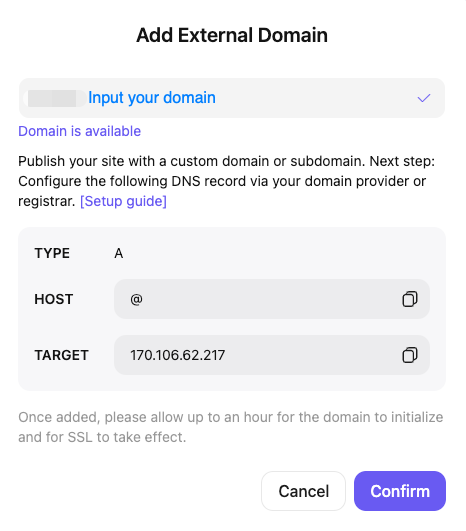
Once validated, you'll see the DNS configuration panel with three key pieces of information:
* **Type**: Always "A" for OnSpace AI domains
* **Host**: Shows "@" (root domain) with a copy button
* **Target**: Your specific IP address with a copy button
### Step 2: Enter Your Domain
Input your domain name (e.g., `myapp.com` or `app.mycompany.com`) OnSpace AI streamlines domain connection with a straightforward DNS setup process. Unlike complex multi-record configurations, we only require a single A Record to get your custom domain live.
### Step 3: **Copy DNS Information**
Once validated, you'll see the DNS configuration panel with three key pieces of information:
* **Type**: Always "A" for OnSpace AI domains
* **Host**: Shows "@" (root domain) with a copy button
* **Target**: Your specific IP address with a copy button
 ### Step 4:**Configure at Your Domain Provider**
Take the Host and Target IP Address values and add them to your domain provider's DNS settings.
### Popular Provider Instructions
Login to Cloudflare Dashboard
2. Select your domain
3. Go to **DNS** → **Records**
4. Add the required A record
5. Set proxy status to "DNS only" (gray cloud icon)
1. Access your Namecheap account
2. Navigate to **Domain List** → **Manage**
3. Click **Advanced DNS**
4. Add new A record with OnSpace values
5. Save changes
1. Login to GoDaddy account
2. Go to **My Products** → **DNS**
3. Click **Manage** next to your domain
4. Add DNS record with provided values
5. Save configuration
## SSL Certificate Management
### Automatic SSL Provisioning
OnSpace AI automatically handles SSL certificates for all domains using Let's Encrypt - no manual configuration required!
**Features:**
* 🔒 **Auto-Issuance** - Certificates generated upon domain verification
* 🔄 **Auto-Renewal** - Renewed before expiration automatically
* 💰 **No Extra Cost** - Included with Pro plans
* 🚀 **Instant HTTPS** - All traffic redirected to secure connections
## Troubleshooting Guide
**Common Fixes:**
* Ensure DNS records match exactly
* Remove conflicting existing records
* Wait for full DNS propagation (up to 48 hours)
* Check domain isn't expired or locked
### SSL Certificate Problems
**Symptoms:** Browser security warnings or certificate errors
**Solutions:**
* Wait 20 minutes after domain verification for SSL provisioning
* Clear browser cache and cookies
* Try accessing via incognito/private mode
* Verify domain is properly pointing to OnSpace servers
## Domain Management Best Practices
### Security Checklist
* Enable domain registrar lock
* Set up two-factor authentication
* Configure auto-renewal payments
* Monitor expiration dates
* Use strong, unique passwords
## Pricing & Feature Comparison
| Feature | Free Plan | Pro Plan |
| ----------------- | ----------------------- | -------------------- |
| OnSpace Subdomain | ✅ `project.onspace.app` | ✅ Included |
| Custom Domains | ❌ | ✅ Included |
| SSL Certificates | ❌ | ✅ Auto (all domains) |
| DNS Management | ❌ | ✅ Full Control |
| CDN Integration | ❌ | ✅ Basic |
| Custom Redirects | ❌ | ✅ Limited |
## Next Steps
Once your custom domain is live:
1. **🔍 SEO Setup** - Submit sitemap to Google Search Console
2. **📊 Analytics** - Configure Google Analytics or similar tracking
3. **🚀 Performance** - Monitor loading speeds and optimize
4. **🔄 Maintenance** - Set up automated monitoring and alerts
5. **📈 Growth** - Plan for traffic scaling and CDN needs
### Need Help?
* 💬 **Community Forum** - Get help from other OnSpace users
* 📧 **Support Team** - Contact our technical support
* 📚 **Documentation** - Browse our comprehensive guides
* 🎥 **Video Tutorials** - Watch step-by-step setup videos
Ready to make your project live with a professional domain? Start with our automated Entri setup for the fastest configuration experience.
### Step 4:**Configure at Your Domain Provider**
Take the Host and Target IP Address values and add them to your domain provider's DNS settings.
### Popular Provider Instructions
Login to Cloudflare Dashboard
2. Select your domain
3. Go to **DNS** → **Records**
4. Add the required A record
5. Set proxy status to "DNS only" (gray cloud icon)
1. Access your Namecheap account
2. Navigate to **Domain List** → **Manage**
3. Click **Advanced DNS**
4. Add new A record with OnSpace values
5. Save changes
1. Login to GoDaddy account
2. Go to **My Products** → **DNS**
3. Click **Manage** next to your domain
4. Add DNS record with provided values
5. Save configuration
## SSL Certificate Management
### Automatic SSL Provisioning
OnSpace AI automatically handles SSL certificates for all domains using Let's Encrypt - no manual configuration required!
**Features:**
* 🔒 **Auto-Issuance** - Certificates generated upon domain verification
* 🔄 **Auto-Renewal** - Renewed before expiration automatically
* 💰 **No Extra Cost** - Included with Pro plans
* 🚀 **Instant HTTPS** - All traffic redirected to secure connections
## Troubleshooting Guide
**Common Fixes:**
* Ensure DNS records match exactly
* Remove conflicting existing records
* Wait for full DNS propagation (up to 48 hours)
* Check domain isn't expired or locked
### SSL Certificate Problems
**Symptoms:** Browser security warnings or certificate errors
**Solutions:**
* Wait 20 minutes after domain verification for SSL provisioning
* Clear browser cache and cookies
* Try accessing via incognito/private mode
* Verify domain is properly pointing to OnSpace servers
## Domain Management Best Practices
### Security Checklist
* Enable domain registrar lock
* Set up two-factor authentication
* Configure auto-renewal payments
* Monitor expiration dates
* Use strong, unique passwords
## Pricing & Feature Comparison
| Feature | Free Plan | Pro Plan |
| ----------------- | ----------------------- | -------------------- |
| OnSpace Subdomain | ✅ `project.onspace.app` | ✅ Included |
| Custom Domains | ❌ | ✅ Included |
| SSL Certificates | ❌ | ✅ Auto (all domains) |
| DNS Management | ❌ | ✅ Full Control |
| CDN Integration | ❌ | ✅ Basic |
| Custom Redirects | ❌ | ✅ Limited |
## Next Steps
Once your custom domain is live:
1. **🔍 SEO Setup** - Submit sitemap to Google Search Console
2. **📊 Analytics** - Configure Google Analytics or similar tracking
3. **🚀 Performance** - Monitor loading speeds and optimize
4. **🔄 Maintenance** - Set up automated monitoring and alerts
5. **📈 Growth** - Plan for traffic scaling and CDN needs
### Need Help?
* 💬 **Community Forum** - Get help from other OnSpace users
* 📧 **Support Team** - Contact our technical support
* 📚 **Documentation** - Browse our comprehensive guides
* 🎥 **Video Tutorials** - Watch step-by-step setup videos
Ready to make your project live with a professional domain? Start with our automated Entri setup for the fastest configuration experience.