> ## Documentation Index
> Fetch the complete documentation index at: https://docs.onspace.ai/llms.txt
> Use this file to discover all available pages before exploring further.
# Download Andriod AAB
> Build and download your Android App Bundle for Google Play Console distribution
### **What is Android AAB?**
Android App Bundle (AAB) is Google's publishing format that lets you deliver optimized APKs for each user's device configuration. OnSpace AI generates production-ready AAB files that you can directly upload to Google Play Console.
AAB downloads are available for **Pro users only**
### **How to Download Android AAB**
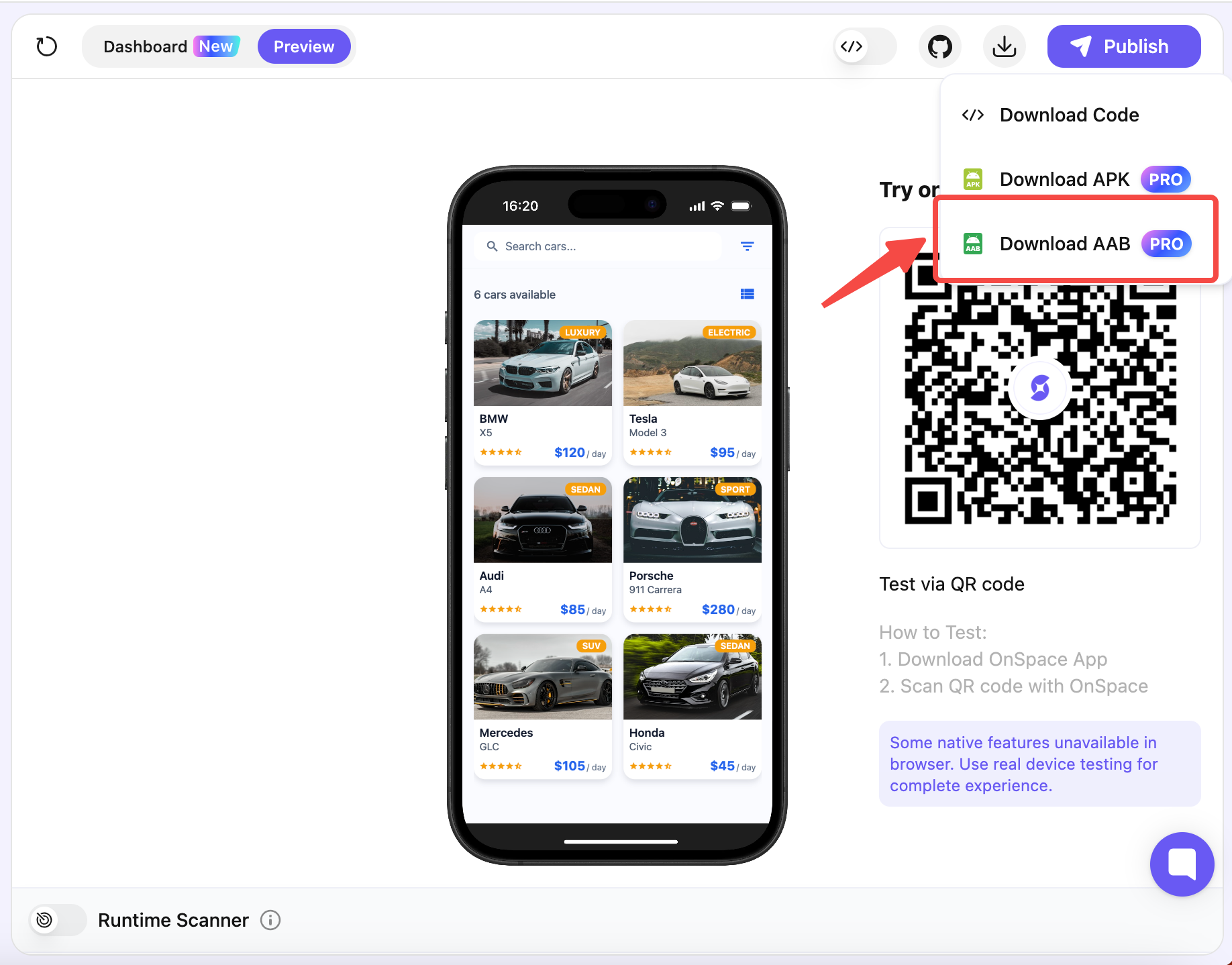
#### **Step 1: Access Download Menu**
Navigate to your project in OnSpace AI and click the **Download** button in the top-right corner. From the dropdown menu, select **Download AAB**.
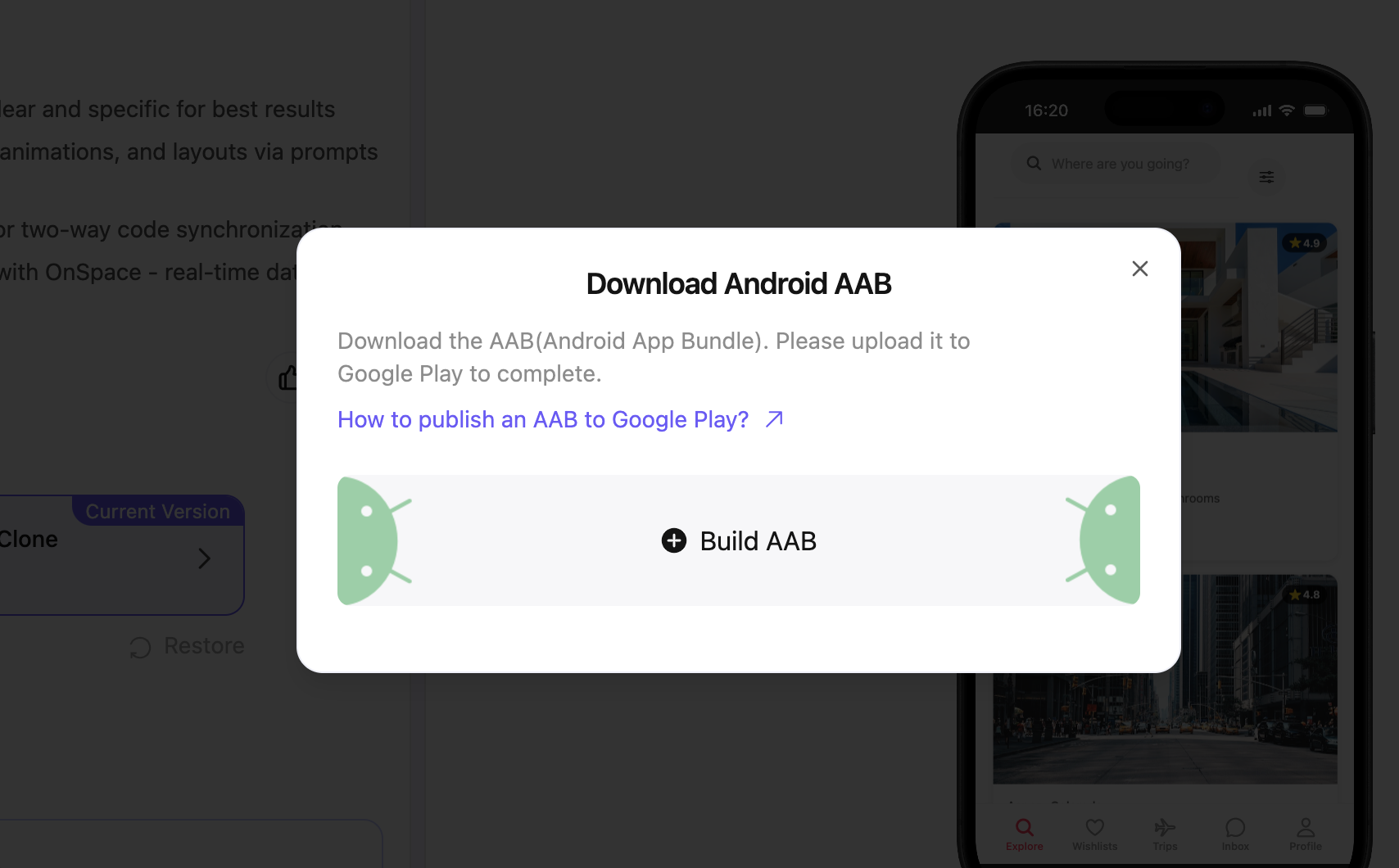
 #### **Step 2: Start the Build Process**
Click the **Build** button to begin generating your Android App Bundle.
#### **Step 2: Start the Build Process**
Click the **Build** button to begin generating your Android App Bundle.
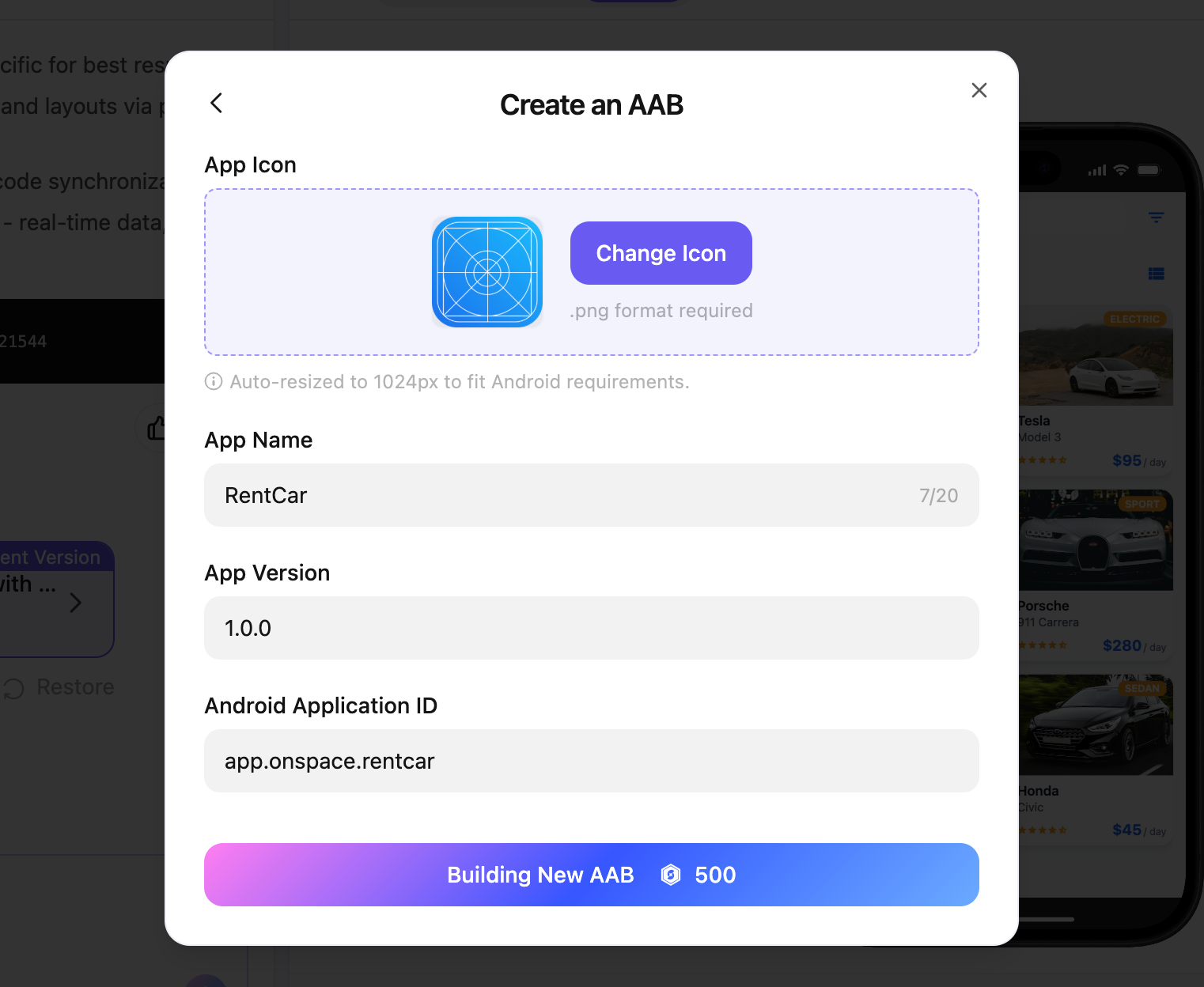
 #### **Step 3: Configure Your App Details**
Before building, you'll need to provide:
* **Upload App Icon**: Choose an icon file for your application
* **App Name**: We'll auto-generate this, but you can edit it
* **App Version**: Customize your version number if needed
* **Android Application ID**: Modify the unique identifier for your app(Required to use only underscores (\_), lowercase letters (a-z), periods (.), and numbers, beginning with a letter.)
#### **Step 3: Configure Your App Details**
Before building, you'll need to provide:
* **Upload App Icon**: Choose an icon file for your application
* **App Name**: We'll auto-generate this, but you can edit it
* **App Version**: Customize your version number if needed
* **Android Application ID**: Modify the unique identifier for your app(Required to use only underscores (\_), lowercase letters (a-z), periods (.), and numbers, beginning with a letter.)
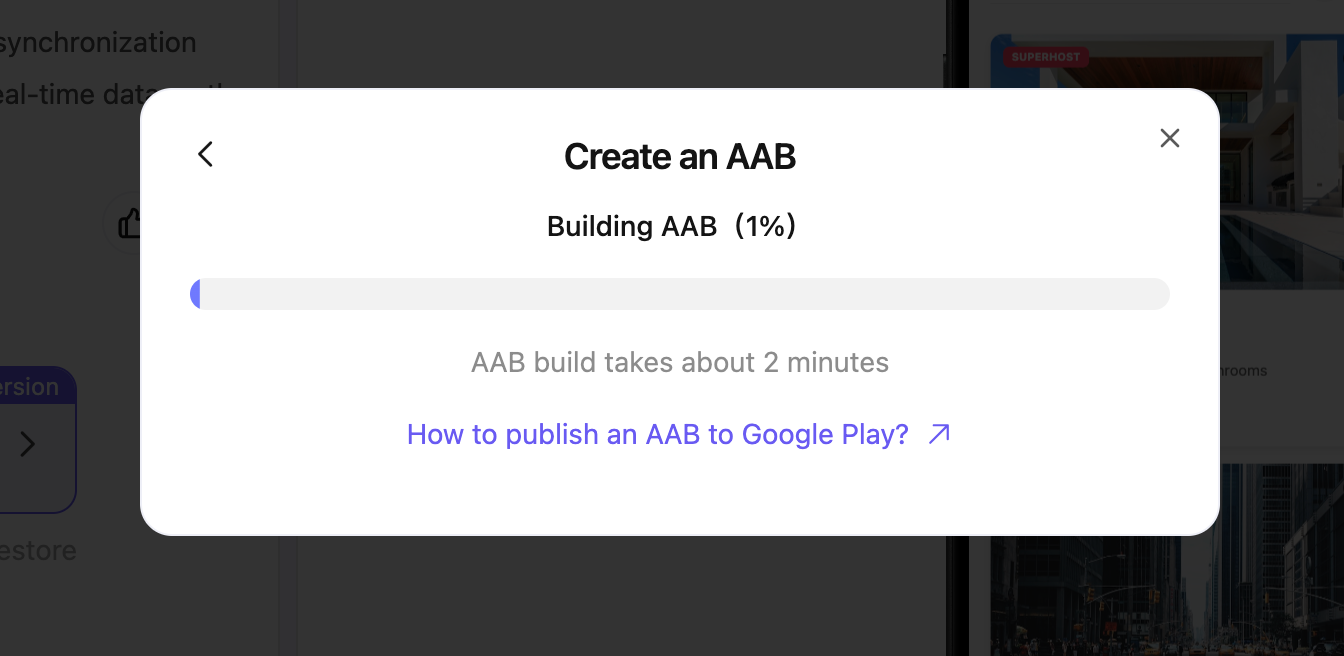
 #### **Step 4: Build Your AAB**
Click **Build New AAB** to start the generation process.
* Build time: Approximately **2 minutes** - Cost: **500 credits** per build
#### **Step 4: Build Your AAB**
Click **Build New AAB** to start the generation process.
* Build time: Approximately **2 minutes** - Cost: **500 credits** per build
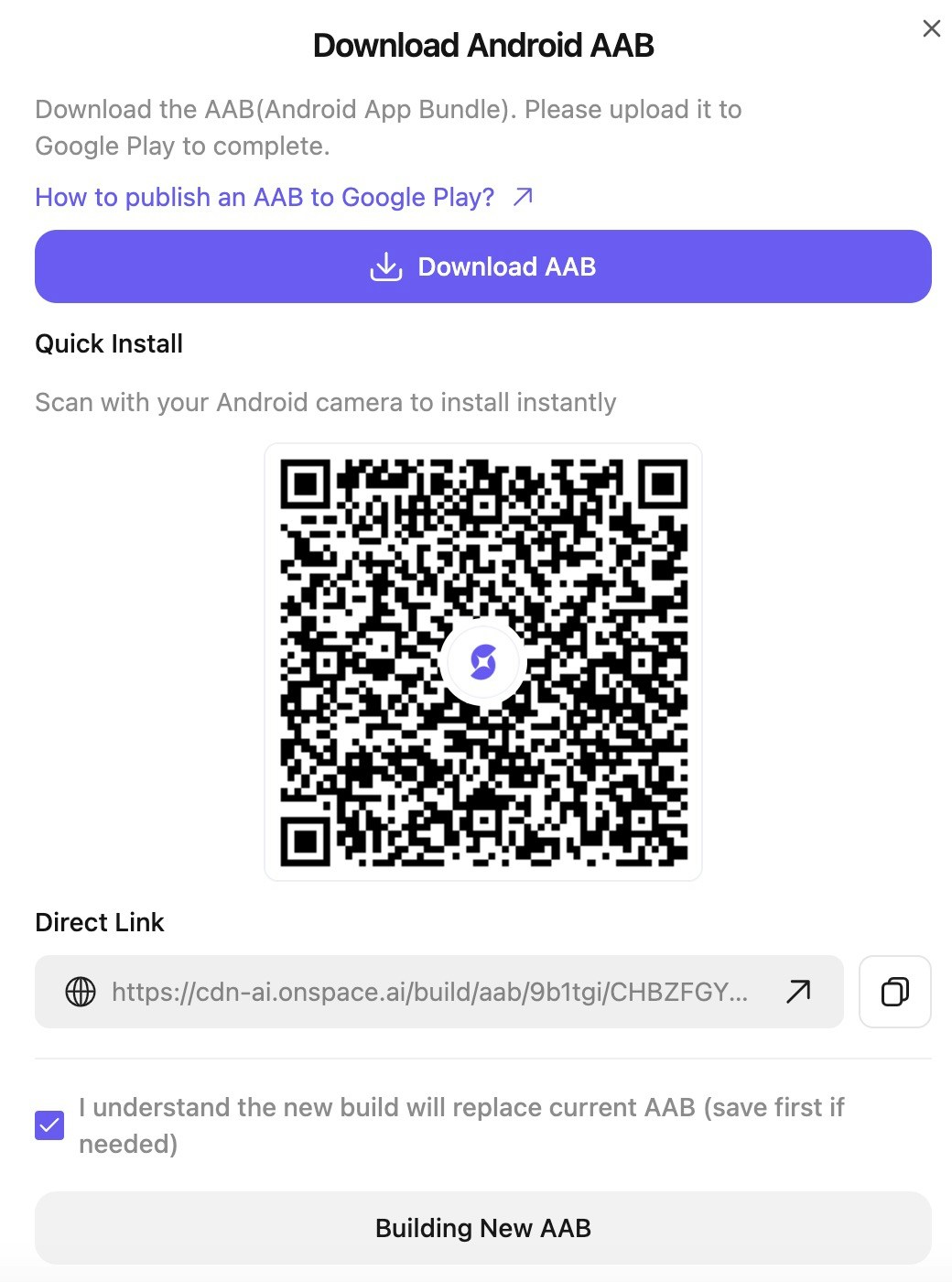
 #### **Step 5: Download Your AAB File**
Once the build is complete, you have three download options:
1. **Direct Download**: Click the download button to get your .aab file immediately
2. **QR Code**: Scan the QR code with your mobile device
3. **Share Link**: Copy the direct link to share with others or download later
#### **Step 5: Download Your AAB File**
Once the build is complete, you have three download options:
1. **Direct Download**: Click the download button to get your .aab file immediately
2. **QR Code**: Scan the QR code with your mobile device
3. **Share Link**: Copy the direct link to share with others or download later
 ### **Publishing to Google Play Console**
After downloading your AAB file, follow these steps to publish your app:
#### **Step 1: Access Google Play Console**
1. Go to [Google Play Console](https://play.google.com/console)
2. Sign in with your Google Developer account
3. If you don't have a developer account, you'll need to register and pay the one-time \$25 registration fee
#### **Step 2: Create a New App**
1. Click **Create app** in Google Play Console
2. Fill in your app details:
* App name
* Default language
* App or game selection
* Free or paid status
3. Accept the declarations and click **Create app**
#### **Step 3: Upload Your AAB File**
1. Navigate to **Production** in the left sidebar
2. Click **Create new release**
3. Upload the .aab file you downloaded from OnSpace AI
4. Fill in the release details and notes
#### **Step 4: Complete Store Listing**
Before publishing, ensure you complete:
* Store listing (screenshots, descriptions)
* Content rating questionnaire
* Target audience and content
* Privacy policy
* App signing (Google Play will handle this automatically)
#### **Step 5: Review and Publish**
1. Review all sections in the Google Play Console dashboard
2. Submit for review when all requirements are met
3. Google will review your app (typically takes 1-3 days)
4. Once approved, your app will be live on the Google Play Store
### **Testing Your App**
Before publishing, we recommend: - Testing the AAB on multiple Android devices - Using Google Play Console's **Internal Testing** feature - Checking app performance and functionality
### **Troubleshooting**
**Build Failed?**
* Ensure your project compiles successfully in OnSpace AI
* Check that all required dependencies are properly configured
* Verify your icon meets Android requirements (should be high resolution PNG)
**Upload Issues to Google Play Console?**
* Verify the AAB file isn't corrupted during download
* Ensure your Google Developer account is in good standing
* Check that your Application ID is unique and follows proper naming conventions
### **Next Steps**
Once your app is live on Google Play Store, you can:
* Track downloads and user engagement
* Push updates by building new AAB versions in OnSpace AI
* Monetize your app through Google Play's billing system
* Gather user feedback and iterate on your product
### **Publishing to Google Play Console**
After downloading your AAB file, follow these steps to publish your app:
#### **Step 1: Access Google Play Console**
1. Go to [Google Play Console](https://play.google.com/console)
2. Sign in with your Google Developer account
3. If you don't have a developer account, you'll need to register and pay the one-time \$25 registration fee
#### **Step 2: Create a New App**
1. Click **Create app** in Google Play Console
2. Fill in your app details:
* App name
* Default language
* App or game selection
* Free or paid status
3. Accept the declarations and click **Create app**
#### **Step 3: Upload Your AAB File**
1. Navigate to **Production** in the left sidebar
2. Click **Create new release**
3. Upload the .aab file you downloaded from OnSpace AI
4. Fill in the release details and notes
#### **Step 4: Complete Store Listing**
Before publishing, ensure you complete:
* Store listing (screenshots, descriptions)
* Content rating questionnaire
* Target audience and content
* Privacy policy
* App signing (Google Play will handle this automatically)
#### **Step 5: Review and Publish**
1. Review all sections in the Google Play Console dashboard
2. Submit for review when all requirements are met
3. Google will review your app (typically takes 1-3 days)
4. Once approved, your app will be live on the Google Play Store
### **Testing Your App**
Before publishing, we recommend: - Testing the AAB on multiple Android devices - Using Google Play Console's **Internal Testing** feature - Checking app performance and functionality
### **Troubleshooting**
**Build Failed?**
* Ensure your project compiles successfully in OnSpace AI
* Check that all required dependencies are properly configured
* Verify your icon meets Android requirements (should be high resolution PNG)
**Upload Issues to Google Play Console?**
* Verify the AAB file isn't corrupted during download
* Ensure your Google Developer account is in good standing
* Check that your Application ID is unique and follows proper naming conventions
### **Next Steps**
Once your app is live on Google Play Store, you can:
* Track downloads and user engagement
* Push updates by building new AAB versions in OnSpace AI
* Monetize your app through Google Play's billing system
* Gather user feedback and iterate on your product